Conditional Access, Part One: Design the Estate Before You Write Another Policy

All right class.
Open your tenant. Go to Entra ID, then Conditional Access, then Policies. Count them. If the number sits somewhere between twelve and forty, and if you cannot tell me what breaks when you switch off number seventeen, then you do not have a Conditional Access design. You have Conditional Access sediment. Layer upon layer, each one deposited by a different engineer solving a different Friday afternoon problem, and nobody has ever gone back and looked at the whole formation.
I have been handed a lot of tenants over the years. The pattern is nearly always identical. There is a policy called MFA and a policy called MFA - New and a policy called MFA Test DO NOT DELETE. There is a block policy for a country somebody was worried about in 2022. There is an exclusion group with fourteen members and no owner, and when you ask why Karen from Finance is in it, three people look at their shoes.
None of that is a technology problem. Conditional Access is a good engine. The problem is that people write policies the way they write firewall rules at three in the morning, one at a time, in response to a ticket, and the estate is never designed as a whole. This post fixes that. It is the first in a series, and it is the foundation the rest of the series stands on, so I am going to spend the whole of it on architecture, coverage and monitoring rather than on any single clever policy.
By the end you will have a design framework, a naming standard, a baseline policy set, a deployment order that does not lock you out, and five KQL queries that tell you whether the estate you think you have matches the one that is actually running.
Part one: how the engine actually decides
Almost every Conditional Access mistake I have investigated comes from one misunderstanding, and it is worth getting straight before we discuss a single policy.
There is no allow.
Conditional Access has two grant outcomes. Block, and grant subject to controls. It does not have a permit statement. This matters because engineers who come from a network background instinctively reach for the firewall model, where a permissive rule higher in the list wins and everything below it is skipped. Conditional Access does not work that way and never has.
Here is what actually happens. Every sign-in attempt is evaluated against every enabled policy and every report-only policy in the tenant. Entra works out which policies are in scope by looking at the assignments: the user or workload identity, the target resource, and the conditions such as platform, location, client app, risk and device state. Policies that are out of scope drop away with a result of notApplied.
Of the policies that remain in scope, all of them must be satisfied. Not one. All of them. If four policies apply to a sign-in and three of them are happy, the user does not get in. That is the single most important sentence in this post. Conditional Access is an AND across policies, and the effect is cumulative rather than competitive.
Within a single policy the grant controls join according to the radio button at the bottom of the grant blade. Require all of the selected controls, which is the default, or require one of the selected controls. Get that wrong and a policy that you believe demands a compliant device and multifactor authentication will happily accept a compliant device on its own.
Block beats everything. If any in-scope policy carries the block grant, evaluation stops there and the user is refused, regardless of how many other policies would have granted. There is no order, no precedence, no priority field to tune. One block in scope ends the conversation. This is why a badly scoped block policy is the fastest way to take a tenant offline, and why every block policy needs a harder look than every grant policy.
Session controls behave differently again. Once the grant controls across all applicable policies are satisfied, the session controls from those policies are applied, and where two policies specify different values for the same session control, the more restrictive value wins. Sign-in frequency of one hour and sign-in frequency of eight hours in two overlapping policies gives you one hour, not eight, and not the one you edited most recently.
The last piece to hold in your head is timing. Grant control evaluation happens when a token is issued. It does not run continuously against a session that is already established, except where continuous access evaluation is in play. Everything about token theft, session hijack and the limits of sign-in frequency follows from that fact, and I am deliberately leaving it there because it deserves a post of its own later in the series 🦉
Part two: personas, or why targeting all users everywhere collapses
Once you accept that policies stack cumulatively, the design question changes. It stops being "what policy do I need for this problem" and becomes "which identities is this control for, and how do I keep the sets clean".
The instinct is to target All users and then bolt exclusions onto whatever breaks. That works for about six months. Then you have nine policies each targeting All users, each with its own untracked exclusion group, and no human being can answer the question "what controls apply to a contractor on an unmanaged Mac in Poland" without opening every policy in turn.
The alternative is a persona model. Claus Jespersen wrote the definitive version of this while he was at Microsoft, and the material still sits under the Microsoft GitHub organisation at github.com/microsoft/ConditionalAccessforZeroTrustResources. It has become the standard that most identity architects reference, mine included, and everything below is my working adaptation I developed over the years.
A persona is a group of identities that share a risk profile and an access pattern. Not a department. Not a job title. A risk profile. The set I use in MSSP work looks like this.
Global is not really a persona. It is the catch-all that covers every identity in the tenant, including staff, administrators, guests and service principals, and it carries the controls that nobody gets to opt out of.
Admins covers identities holding privileged directory roles. These get the strictest controls in the estate and they get them without exception.
Internals covers ordinary employees. This is where the bulk of your users live and where the balance between friction and control actually gets decided.
Externals covers guests and B2B collaboration identities. Their controls differ from Internals because you do not manage their devices, you do not manage their credentials, and in many cases you do not even manage their tenant.
Guest administrators covers external identities that have been granted privileged roles in your tenant, which is a fairly common arrangement in the MSSP world and which almost nobody scopes separately. If you are a partner with delegated access into customer tenants, you are somebody else's guest administrator persona, and you should have a view on how they treat you.
Service accounts covers non-interactive identities that still authenticate as users. These need locking to named locations and specific applications, because you cannot put an interactive multifactor prompt in front of a scheduled task.
Workload identities covers service principals and managed identities. These are policed by a separate licence and a separate set of conditions, and they are the most commonly forgotten surface in the entire tenant.
Developers covers people who need Azure management, command line tooling and device code flows that would otherwise trip your global controls.
The rule that makes the model work is exclusivity. Every enabled identity in your tenant belongs to exactly one persona. Not zero, and not two. If a user sits in no persona group, no persona-scoped policy applies to them and they fall through to whatever your global set happens to cover. If a user sits in two, you get overlapping requirements and support tickets that take a day to unpick.
That rule needs enforcement, not good intentions. Use dynamic membership rules where the source attributes are reliable, and build a detection for the gap. There is a query for exactly that at the end of this post.
Part three: naming, because you will forget
The naming convention from the same framework is this.
<CANumber>-<Persona>-<PolicyType>-<TargetResource>-<Platform>-<GrantControl>-<Description>
Which gives you names like these.
CA001-Global-AttackSurfaceReduction-AllApps-AnyPlatform-Block-LegacyAuthentication
CA100-Admins-IdentityProtection-AllApps-AnyPlatform-Grant-PhishingResistantMFA
CA202-Internals-DataProtection-Office365-WindowsMacOS-Session-BlockDownloadUnmanaged
CA301-Externals-IdentityProtection-AllApps-AnyPlatform-Grant-MFA
I can hear the objection. The names are long and they look ridiculous in the portal. Both true, and both worth it, for three reasons that only become obvious after the estate grows.
The number gives you a stable handle. When an engineer says "CA202 is what is stopping the download", everyone knows exactly which policy is meant, including the person reading the ticket in eight months. Names get edited. Numbers do not.
The number ranges cluster the estate when the list is sorted alphabetically. Reserve a block per persona: CA000 to CA099 for Global, CA100 to CA199 for Admins, CA200 to CA299 for Internals, and so on up. One glance at the policy list and you can see the shape of the design instead of an alphabet soup.
The prefix gives you a KQL handle. Every query in the last section of this post scopes by persona using a simple prefix match on the policy display name, and that only works if the names are structured.
Two additions I use on top of the standard convention. Append -ReportOnly to any policy that has not been promoted to enforcement yet, and strip it when the policy goes live. And keep the description field genuinely descriptive rather than repeating the grant control, because that last segment is the only part of the name a tired engineer actually reads.
Part four: exclusions, and the emergency access accounts
Exclusion sprawl is how a well-designed estate rots.
Start with the accounts that must be excluded. Emergency access accounts, commonly called break-glass, exist so that a Conditional Access misconfiguration cannot lock every administrator out of the tenant at once. Build two of them. Make them cloud-only in the .onmicrosoft.com domain so they do not depend on federation or directory synchronisation. Assign Global Administrator permanently rather than through Privileged Identity Management, because PIM activation depends on the very sign-in path you are trying to protect. Exclude them from every Conditional Access policy in the tenant, including the Microsoft-managed ones, which we will come to shortly.
Microsoft's current guidance is to protect these accounts with a phishing-resistant credential such as a FIDO2 security key rather than a long password in a safe, and I agree with that, with one caveat. A physical key that lives in a safe is only useful if somebody has tested it recently. Put a quarterly test in the calendar, prove that both accounts can sign in, and prove that the alert fires when they do. An untested emergency account is not a control, it is a story you tell auditors.
Alert on any sign-in by those accounts. Not a report. An alert, in Sentinel, with a real notification path, because the only legitimate reason for one of those accounts to authenticate is an emergency that somebody already knows about.
Beyond emergency access, the discipline is straightforward and almost universally ignored. Every policy gets its own exclusion group, named after the policy. Not one shared exclusion group used everywhere, because a shared group means that adding a user to solve one problem silently removes them from six other controls. Per-policy exclusion groups cost you a bit of group sprawl and buy you the ability to answer "what is this person exempt from" in one look.
Every membership of every exclusion group needs three pieces of metadata that Entra will not store for you: who approved it, why, and when it expires. Keep that in whatever your organisation uses for change records. Then review the groups on a schedule and empty the entries that have aged out.
Part five: report-only is a simulation, not a test
Report-only mode evaluates a policy against live sign-ins and records what would have happened without enforcing it. Every serious Conditional Access change should pass through it. It is also routinely over-trusted, so be clear about what it does and does not tell you.
Report-only tells you the outcome for the sign-ins that occurred during the observation window. It cannot tell you anything about the sign-ins that did not occur. The month-end batch job that authenticates on the twenty-ninth, the annual audit account, the offshore team who were on holiday, the conference room device that gets used twice a term: none of these appear in a two-week report-only window, and every one of them is a candidate for the outage you cause on go-live day.
So run report-only for long enough to cover your business cycle rather than long enough to feel comfortable. Thirty days is my minimum for anything touching Internals. For a block policy I want a full quarter, or a documented reason why not.
Report-only also has a real blind spot around grant controls that cannot be simulated. When a policy would require a control that the sign-in never attempted, the recorded result can be reportOnlyInterrupted rather than a clean success or failure, and interpreting a wall of interrupted results takes more care than most people give it.
The What If tool complements this and is worth ten minutes of anybody's time. It takes a user, an application and a set of conditions, and tells you which policies would fire. Use it to answer specific questions before you make a change. Do not use it as a substitute for report-only, because it reasons about a hypothetical sign-in you described rather than the real ones your users perform.
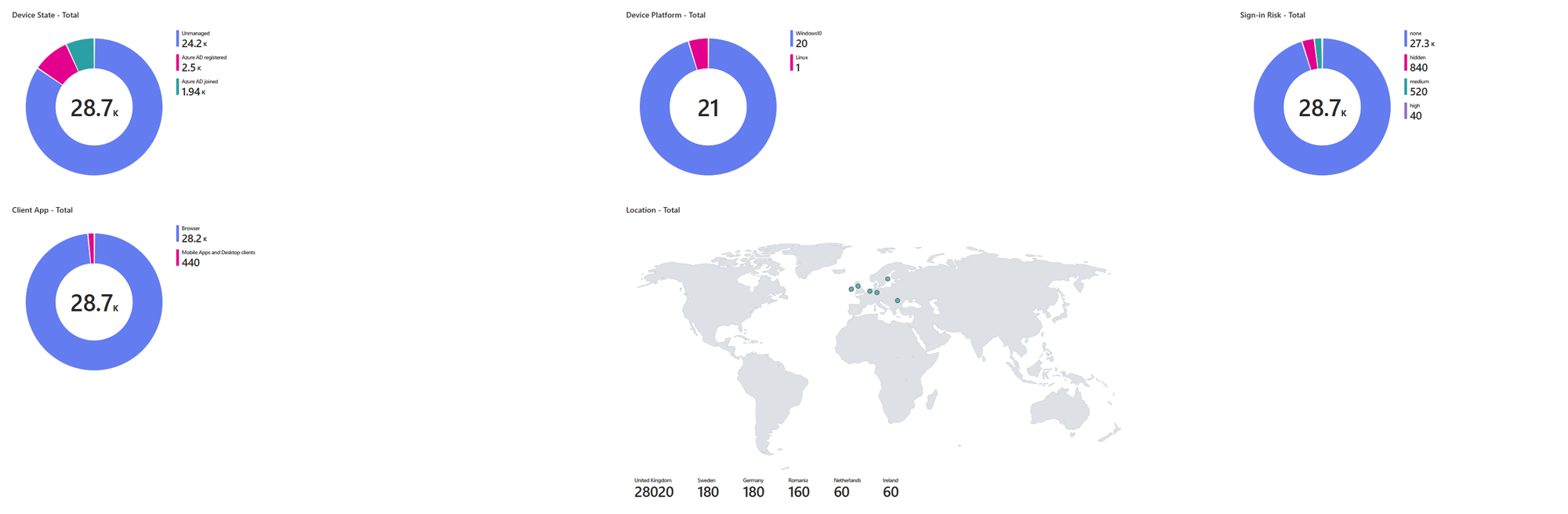
The Conditional Access Trends and Changes workbook is a place where you can get some quick insights about CA - it's a good place to start evaluating your environment
Part six: rings
Nobody deploys a change to eighty thousand endpoints at once. Everybody deploys Conditional Access policies to the whole tenant at once, then acts surprised.
Build four rings and represent them as groups.
Ring zero is the identity team. Three to six people who understand what is being changed and who can diagnose their own breakage. Every new policy is enforced here first, for a week.
Ring one is the wider IT function. Thirty to a hundred people with varied device types, varied working patterns and enough technical literacy to describe a failure accurately. Two weeks.
Ring two is a pilot department chosen for representative diversity rather than convenience. Include the people with the awkward requirements: the field engineers, the finance team with the legacy line-of-business application, the executives who travel. Two to four weeks.
Ring three is everyone else.
The mechanics are simple. The policy targets the persona include group, and excludes a group called something like CA-Ring-NotYet, which initially contains every persona member except ring zero. As each ring passes, you remove that ring from the exclusion group. The policy configuration never changes after go-live, which means your change record stays clean and your rollback is a single group membership operation rather than a policy edit.
That last point matters more than it sounds. A rollback that requires editing a policy is a rollback that requires somebody with Conditional Access Administrator rights, at two in the morning, under pressure, in the portal. A rollback that requires adding a group to an exclusion is something your service desk can do safely.
Part seven: the baseline set
Here is the policy set I would deploy into a tenant that had nothing. Numbers follow the convention above, and I have kept descriptions short because each of these deserves its own treatment later in the series.
| Number | Persona | What it does | Notes |
|---|---|---|---|
| CA001 | Global | Block legacy authentication | All users, all resources, client apps set to Exchange ActiveSync and other clients |
| CA002 | Global | Block device code flow | Exclude only the specific accounts that drive shared devices |
| CA003 | Global | Block authentication transfer | Closes the QR code sign-in transfer path |
| CA004 | Global | Block countries you do not operate in | Set expectations honestly, this stops noise, not a determined attacker |
| CA005 | Global | Require multifactor authentication to register or join a device | Prevents an attacker enrolling a device with stolen credentials |
| CA006 | Global | Require multifactor authentication for all users | Use an authentication strength, not the plain MFA tick box |
| CA100 | Admins | Require phishing-resistant multifactor authentication | Applies to directory roles, no password-plus-app fallback |
| CA101 | Admins | Require compliant or hybrid-joined device | Ideally a privileged access workstation |
| CA102 | Admins | Sign-in frequency of four hours and no persistent browser | Shortens the window on a stolen admin session |
| CA103 | Admins | Require phishing-resistant authentication for protected actions | Covers editing Conditional Access itself |
| CA200 | Internals | Require compliant or hybrid-joined device on Windows and macOS | The single highest value control after multifactor authentication |
| CA201 | Internals | Require app protection policy on iOS and Android | Intune application protection, not device enrolment |
| CA202 | Internals | Block download on unmanaged browsers for Office 365 | App-enforced restrictions or Defender for Cloud Apps session control |
| CA203 | Internals | Block high sign-in risk, require remediation on high user risk | Needs Entra ID P2 |
| CA300 | Externals | Require multifactor authentication for guests | Pair with cross-tenant access settings so partner MFA is trusted |
| CA301 | Externals | Restrict guests to the specific resources they need | Guests should not see All resources |
| CA400 | Service accounts | Restrict to named locations and specific applications, block everything else | Deny by default, allow the one path that must work |
| CA500 | Workload identities | Block service principals signing in from outside trusted locations | Requires Workload Identities Premium |
| CA600 | Developers | Require phishing-resistant authentication for Azure management | Covers portal, CLI and PowerShell |
Twenty policies. Not forty. If your estate is materially larger than this, the excess is almost certainly duplication, and the exercise of mapping what you have onto a set like this is the most useful afternoon you will spend this quarter.
Two design choices in that table deserve calling out.
CA006 requires multifactor authentication for everybody at the global layer, and then the persona layers add stronger requirements on top. Because policies stack cumulatively, an administrator hitting both CA006 and CA100 ends up needing to satisfy the phishing-resistant strength, which is the stricter of the two. You do not need to exclude Admins from CA006 to make that work. Some framework authors exclude other personas from the global policies anyway, to keep each persona's behaviour reasoned about in one place, and that is a defensible position. Pick one and be consistent, because mixing the two approaches is how estates become unreadable.
CA400 inverts the usual logic. For service accounts you write a policy that blocks everything except a defined set of conditions, rather than one that grants subject to controls. Non-interactive identities cannot answer a prompt, so the only control available to you is the shape of the sign-in itself: this account, from this address range, to this application, or nothing.
Part eight: the order you turn things on
Deploy in this sequence. It is ordered so that each step reduces risk without depending on the step after it.
Create and test the emergency access accounts first. Prove they sign in, prove the alert fires. Nothing else happens until this is done.
Deploy CA001, blocking legacy authentication, in report-only, and leave it there for a month. Read the results in the workbook. Every hit is either a client that needs upgrading or a service account that needs rebuilding against modern authentication. Fix them, then enforce. This is the single largest source of go-live pain and the single largest reduction in password spray exposure, and it is worth taking slowly.
Deploy the Admins set, CA100 through CA103. Small population, high value, and the people affected are the people who can debug it. Do the ring rollout properly anyway, because being an administrator does not make you immune to a missing security key.
Deploy CA006, global multifactor authentication, through the rings. Expect registration to be the bottleneck rather than policy behaviour, so run a registration campaign ahead of enforcement.
Deploy the device controls, CA200 and CA201. These depend on Intune enrolment and compliance policy quality, and they will surface every device that has been quietly non-compliant for eight months. Budget accordingly.
Deploy the risk policies, CA203, and the remaining Externals, service account and workload identity policies. Risk policies last, because they are the ones most likely to fire unexpectedly and you want a clean baseline to compare against.
Then, and only then, start writing the application-specific policies that people always want to start with.
Part nine: the traps
These are the things that catch experienced people, and several of them are recent enough that guidance written even a year ago has them wrong.
Microsoft-managed policies now deploy themselves into your tenant. Microsoft creates preconfigured policies directly in eligible tenants in report-only state, and enables them automatically 45 days later unless you set them to off. The current set includes blocking legacy authentication, blocking device code flow, multifactor authentication for admins on the admin portals, multifactor authentication for all users, multifactor authentication for accounts still using per-user MFA, multifactor authentication and reauthentication for risky sign-ins, blocking high-risk users, requiring remediation for high-risk users, and a preview policy blocking high-risk agent identities. You cannot rename or delete them. You can change the state and you can add exclusions, and you can duplicate one if you need to alter anything else. Two consequences follow. First, add your emergency access accounts to the exclusions on every one of them, on the day they appear. Second, Microsoft automatically expands the scope of these policies as new eligible identities appear in your tenant, so a policy you assessed as harmless in March may cover a different population in September. Query the audit log for entries initiated by Microsoft Managed Policy Manager in the Policy category and put the results somewhere a human reads them.
The resource exclusion enforcement gap has closed. Until this year, a policy targeting All resources with one or more resource exclusions did not enforce on sign-ins that requested only baseline scopes, such as basic profile and directory reads. Those sign-ins slipped past multifactor authentication, device compliance and location controls entirely. Microsoft announced the fix in January 2026 and began enforcement on 15 June 2026, with a phased rollout and no opt-out, mapping these sign-ins to Azure AD Graph as the target resource so that the All resources policy evaluates properly. Most applications request more than baseline scopes and are unaffected. The ones that are affected are custom line-of-business applications, scripts and service accounts that were built deliberately minimal. If you have a policy targeting All resources with any resource exclusion, that inventory is a job for this week, not next quarter.
Legacy Entra ID Protection risk policies stop enforcing on 1 October 2026. If your user risk and sign-in risk enforcement still lives in the ID Protection blade rather than in Conditional Access, migrate it. The Conditional Access versions are better anyway, because they can be scoped by persona and combined with other conditions.
Custom controls do not satisfy the multifactor authentication claim. If you integrate a third-party multifactor provider through the old custom controls mechanism, that control cannot be used to satisfy an MFA requirement in Conditional Access, in Privileged Identity Management, or anywhere else that reads the claim. The replacement is external authentication methods, now generally available as External Multifactor Authentication. Migrate.
Require approved client app is being retired. Replace it with Require app protection policy. If you have policies still carrying the old control, they are on borrowed time.
Per-user MFA is not a Conditional Access control. Accounts with per-user MFA enabled or enforced sit outside the Conditional Access model, produce confusing sign-in log results, and interact badly with authentication strengths. Migrate every one of them and then verify the count is zero, because Microsoft's own managed policy targeting these accounts only covers tenants with fewer than five hundred of them.
Conditional Access now applies at credential registration. From July 2026, Conditional Access policies apply to Windows Hello for Business and macOS Platform SSO registration, enforcing requirements such as multifactor authentication and trusted locations during enrolment. If your device provisioning process assumed registration was outside policy scope, test it.
Your policies do not cover service principals unless you paid for that. User-scoped Conditional Access does not touch workload identities. Policies for service principals require Workload Identities Premium, and without it there is a large authenticated surface in your tenant with no access control on it whatsoever. Know whether that describes you.
Part ten: watching the estate from Sentinel
A design you cannot verify is a design you do not have. These five queries are what I run against SigninLogs and AuditLogs to check that the estate in the portal matches the estate in production.
First, find the policies that are not doing anything. Sort ascending so the dead weight rises to the top.
SigninLogs
| where TimeGenerated > ago(30d)
| mv-expand Policy = ConditionalAccessPolicies
| extend PolicyName = tostring(Policy.displayName)
| extend PolicyResult = tostring(Policy.result)
| where PolicyResult in ("success", "failure", "reportOnlySuccess", "reportOnlyFailure")
| summarize Grants = countif(PolicyResult in ("success", "reportOnlySuccess")), Blocks = countif(PolicyResult in ("failure", "reportOnlyFailure")), Users = dcount(UserPrincipalName), LastSeen = max(TimeGenerated) by PolicyName
| extend Enforcements = Grants + Blocks
| project PolicyName, Enforcements, Grants, Blocks, Users, LastSeen
| order by Enforcements asc
A policy with zero enforcements over thirty days is either scoped to a population that does not sign in, or it is scoped to nothing at all. Both are worth knowing. This is also the query that finds the policy somebody disabled during an incident in April and never re-enabled.
Second, and more importantly, find the coverage gap. These are successful sign-ins where every policy in the tenant evaluated and not one of them was enforced.
SigninLogs
| where TimeGenerated > ago(7d)
| where ResultType == 0
| mv-expand Policy = ConditionalAccessPolicies
| extend PolicyResult = tostring(Policy.result)
| summarize Enforced = countif(PolicyResult in ("success", "failure")) by CorrelationId, UserPrincipalName, UserType, AppDisplayName, ClientAppUsed
| where Enforced == 0
| summarize UncoveredSignIns = count(), Applications = make_set(AppDisplayName, 15), Clients = make_set(ClientAppUsed, 10) by UserPrincipalName, UserType
| order by UncoveredSignIns desc
Run this the first time and brace yourself. In most tenants it returns service accounts, guest identities and a handful of applications nobody has ever scoped. Each row is an authenticated session that your design did not touch.
Third, before you promote anything out of report-only, look at exactly who it would have broken. Change the policy name to match yours.
SigninLogs
| where TimeGenerated > ago(30d)
| mv-expand Policy = ConditionalAccessPolicies
| extend PolicyName = tostring(Policy.displayName)
| extend PolicyResult = tostring(Policy.result)
| where PolicyName startswith "CA001-Global-AttackSurfaceReduction"
| where PolicyResult in ("reportOnlyFailure", "reportOnlyInterrupted")
| summarize Failures = count(), Applications = make_set(AppDisplayName, 20), Clients = make_set(ClientAppUsed, 10), Addresses = make_set(IPAddress, 10) by UserPrincipalName, PolicyResult
| order by Failures desc
Fourth, find the identities that belong to no persona. This is the query that keeps the whole model honest, and it is the one I would run first if I inherited your tenant tomorrow. Adjust the group names to match yours.
let PersonaGroups = dynamic(["CA-Persona-Admins", "CA-Persona-Internals", "CA-Persona-Externals", "CA-Persona-GuestAdmins", "CA-Persona-ServiceAccounts", "CA-Persona-Developers", "CA-Persona-BreakGlass"]);
let Identities = union isfuzzy=true
    (datatable(AccountUPN: string, AccountDisplayName: string, GroupMembership: dynamic, IsAccountEnabled: bool, AccountCreationTime: datetime, TimeGenerated: datetime)[]),
    (IdentityInfo | where TimeGenerated > ago(14d) | summarize arg_max(TimeGenerated, *) by AccountUPN);
Identities
| where IsAccountEnabled == true
| extend Matched = set_intersect(todynamic(GroupMembership), PersonaGroups)
| extend PersonaCount = array_length(Matched)
| where PersonaCount != 1
| project AccountUPN, AccountDisplayName, PersonaCount, Matched, AccountCreationTime
| order by PersonaCount asc, AccountCreationTime desc
Note that this checks for != 1 rather than == 0, so it catches both the accounts that belong to no persona and the ones that have ended up in two. The union isfuzzy=true wrapper with the empty datatable means the query degrades gracefully in a workspace where IdentityInfo is not populated instead of failing outright.
Fifth, watch who is changing the estate. Conditional Access modification is a high-value target, and it is a control plane action that should never be routine.
AuditLogs
| where TimeGenerated > ago(30d)
| where LoggedByService == "Conditional Access"
| extend PolicyName = tostring(TargetResources[0].displayName)
| extend ActorUser = tostring(InitiatedBy.user.userPrincipalName)
| extend ActorApp = tostring(InitiatedBy.app.displayName)
| extend Actor = iff(isempty(ActorUser), ActorApp, ActorUser)
| extend OldValue = tostring(TargetResources[0].modifiedProperties[0].oldValue)
| extend NewValue = tostring(TargetResources[0].modifiedProperties[0].newValue)
| project TimeGenerated, OperationName, PolicyName, Actor, Result, OldValue, NewValue
| order by TimeGenerated desc
Filter that on Actor == "Microsoft Managed Policy Manager" to see what Microsoft has done to your tenant without asking. Filter it on your own administrators to see what your team has done without a change record. Both lists are usually more interesting than people expect.
One thing these queries will not cover on their own. A large share of Conditional Access evaluation happens against non-interactive sign-ins, which land in AADNonInteractiveUserSignInLogs rather than SigninLogs. If you are running the coverage gap query in anger, union the two tables. Be warned that the non-interactive volume dwarfs the interactive volume in most tenants, so scope the time window tightly or you will be waiting a while.
 Bartosz Wysocki
Class dismissed.