Conditional Access, Part Three: Device Controls, and What Compliant Actually Proves

All right class.
Two posts in. We built the estate, and then we fixed the credential. Today we deal with the control that most security teams rate as their strongest and understand the least.
Here is the opening exercise. Go to Intune, then Devices, then Compliance, then Compliance policy settings. Look at the tenant-wide setting called Mark devices with no compliance policy assigned as. If it says Compliant, then every device in your tenant that has never been targeted by a compliance policy reports as compliant to Conditional Access, and your "require compliant device" grant control is waving them straight through. Not because the policy failed. Because the policy passed, on a device that was never assessed.
That setting has been the default for years and I find it unchanged in most tenants I inherit. It is the cleanest example of a pattern that runs through this entire topic: device controls fail quietly, in ways that produce a green dashboard.
So this post does two jobs. It gives you the mechanics, which are genuinely fiddly and badly documented in places. And it gives you the version of what a device signal actually asserts, because a control you have overrated is more dangerous than one you know is weak.
The three join states, and what each one asserts
Entra recognises three relationships between a device and your tenant. The names are similar, the difference matters enormously, and the filter syntax uses a fourth set of names again just to keep you alert.
Microsoft Entra joined devices are cloud-native. The device object is created in Entra, the user signs in with an organisational account, and there is no on-premises Active Directory in the picture. In filter syntax this is trustType equals AzureAD.
Microsoft Entra hybrid joined devices are domain-joined machines that have been registered into Entra as well. The device exists in both directories. In filter syntax this is trustType equals ServerAD.
Microsoft Entra registered devices are the bring-your-own-device case. The device is known to Entra and can be given a workplace identity, but it is not joined. Personal phones and personal laptops land here. In filter syntax this is trustType equals Workplace.
And there is a fourth state that is not a state at all: unregistered. The device does not exist in the directory. Everything Entra knows about it is null. Hold on to that, because it is the source of the largest trap in this post.
Now the important part. Each of these tells you something different and none of them tells you the thing you probably want to know.
Entra joined and hybrid joined both assert provenance. This machine was provisioned by us, or joined to our domain, at some point in the past. Hybrid joined in particular asserts that a computer object exists in an Active Directory that you control and that it synchronised. That is a statement about history. It says nothing whatsoever about the current health of the machine. A hybrid joined laptop that has been sitting in a drawer unpatched for fourteen months, or one that an attacker owns entirely, is still hybrid joined.
Entra registered asserts almost nothing about the hardware. It asserts that somebody added a workplace account to a device. Useful for identifying the device across sessions. Not a health signal.
Compliant is the only one that even attempts to be a health signal, and the next section is about how far that attempt actually goes.
The OR that quietly halves your control
Open your device policy and look at the grant blade. If you have selected both Require device to be marked as compliant and Require Microsoft Entra hybrid joined device, check the radio button underneath.
If it says Require one of the selected controls, then a hybrid joined device satisfies your policy regardless of its compliance state. You have not built a policy that requires healthy devices. You have built one that requires either a healthy device or a domain-joined one, and in an estate that is mostly domain-joined, the second branch is the one that gets taken.
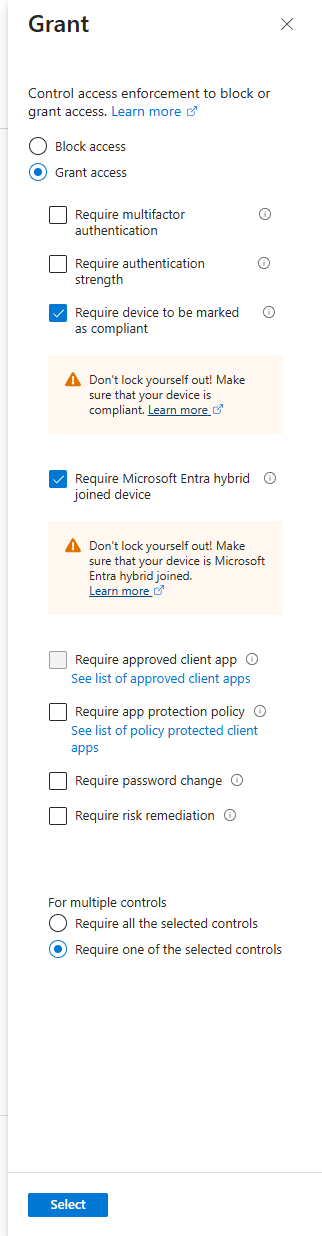
This configuration is extremely common and it is usually accidental. It happens because somebody adds hybrid join as a fallback during migration, when a chunk of the fleet was not yet enrolled in Intune, and then nobody goes back and removes it after enrolment completes.
There are legitimate reasons to keep the OR. Co-managed estates mid-migration. Servers that are domain-joined and will never be Intune enrolled. Specific applications accessed from machines outside the mobile device management scope. All fine, provided the choice is deliberate, written down, and scoped to the population that actually needs it rather than applied to everybody.
What is not fine is having it on your Internals policy because it was easier three years ago. Run the census query at the end of this post, find out what proportion of your successful sign-ins arrive from a hybrid joined device that is not compliant, and decide with the number in front of you.
What compliant actually proves
Compliant means that at the last evaluation, the device reported that the settings you chose to check were in the state you chose to require, and Intune wrote True to a boolean on the Entra device object, and Conditional Access read that boolean at sign-in.
Every clause in that sentence is a limitation.
At the last evaluation. Compliance is assessed on a check-in cycle. Windows devices report in on a schedule measured in hours rather than seconds. So the boolean reflects a state that was true at some point since the last check-in, not a state that is true at the moment the token is issued. A device can be compliant on the object and thoroughly compromised right now.
The settings you chose to check. A compliance policy checks what you configured and nothing else. If your Windows policy requires BitLocker and a minimum build number, then a machine with BitLocker enabled and the right build is compliant, no matter what else is running on it. Compliance is an assertion about a checklist, and the checklist is one you wrote.
The device reported. The endpoint assesses itself and reports the result. On a machine where an attacker holds SYSTEM, that report is produced by code the attacker controls. Self-attestation from a compromised host is worth what you would expect.
A boolean on the Entra device object. Conditional Access does not interrogate the device at sign-in. It reads a cached value. Everything between the last write and this read is invisible to it.
Then add the two configuration behaviours that turn the boolean into a lie without anybody noticing.
The tenant-wide default from the top of this post. Devices with no compliance policy assigned report as compliant unless you change that setting. Every device outside your assignment scope is a pass.
And grace periods. In each compliance policy, under actions for non-compliance, the "mark device non-compliant" action has a schedule. At zero days it fires immediately, which is the default on a new policy. Set it to seven days to give users room to self-remediate, and for those seven days the device continues to report as compliant to Entra, which means Conditional Access continues to let it in. Grace periods are a reasonable service desk decision and a real security gap at the same time. Choose the number deliberately and set it per policy, so that a device failing encryption gets days and a jailbroken phone gets none.
There is one more. When a compliance setting sits in an error state, rather than a pass or a fail, the device is not marked non-compliant straight away. Errors that persist eventually resolve to non-compliant, but a device stuck in error is a device your policy is not currently blocking.
None of this means device compliance is worthless. It is one of the two highest-value controls in Conditional Access, alongside phishing-resistant authentication. It means you should describe it accurately. Compliance proves configuration hygiene at last check-in. It does not prove the device is clean.
Making compliance mean something
If you want the boolean to carry more weight, there are three moves, in order of value.
First, change the tenant default to Not compliant. This is a five-second change with a large blast radius, so treat it as a proper change: find the devices with no policy assigned first, get them into scope, then flip the setting. Doing it the other way round produces a lockout.
Second, wire Microsoft Defender for Endpoint device risk into your compliance policies. This is the single change that moves the signal from "configured correctly at last check-in" towards "not currently exhibiting malicious behaviour". Defender reports a machine risk level back to Intune, the compliance policy requires the risk to be at or below a threshold, and when Defender raises the level past that threshold the device is marked non-compliant within about a minute. Conditional Access then stops issuing tokens for it.
Set the threshold at Medium or below for ordinary staff, so that High risk breaks access. Set it to Low for administrator devices. That asymmetry is the same persona logic from part one applied to endpoint risk.
Third, write compliance policies that check things worth checking. Encryption state, secure boot and TPM presence on Windows, minimum operating system build with a real floor rather than a number set in 2021, Defender antivirus running with current signatures, firewall on, and jailbreak or root detection on mobile with no grace period at all. A jailbroken device has had its security model dismantled. There is no version of that situation where a week of grace is the right answer
Do not over-invest in password settings inside compliance policy for Windows. The actual credential strength comes from the Authentication methods policy and the strengths we covered in part two, not from a minimum password length checked by the agent
The unregistered device trap
This is the behaviour that produces policies which look correct, test correctly, and do not do what you think.
Entra uses device authentication to evaluate a filter rule. For an unregistered device, every device property is null, because there is no object in the directory to read. What happens next depends entirely on whether your operator is positive or negative.
| Filter operator | Device registration state | Does the filter apply? |
|---|---|---|
| Positive: Equals, StartsWith, EndsWith, Contains, In | Unregistered | No |
| Positive: Equals, StartsWith, EndsWith, Contains, In | Registered | Yes, if the criteria match |
| Negative: NotEquals, NotStartsWith, NotEndsWith, NotContains, NotIn | Unregistered | Yes |
| Negative: NotEquals, NotStartsWith, NotEndsWith, NotContains, NotIn | Registered | Yes, if the criteria match |
Read the first row again. A filter using a positive operator does not apply to an unregistered device. So if you write a block policy that includes devices matching device.operatingSystem -eq "Windows" and device.operatingSystemVersion -notStartsWith "10.0", intending to block old Windows builds, an attacker on a machine that was never registered sails past, because the positive half of the expression never matches null.
The rule that follows is short. If you want a filter to catch unregistered devices, use a negative operator.
Extension attributes add a second layer. When your rule uses extensionAttribute1 to 15 on a registered device that is not Intune managed, the filter only applies if the device is compliant or hybrid joined. Combine that with the paragraph above and you get the practical guidance: build device filters on system-defined attributes, and use administrator-configured attributes only where the target population is genuinely managed.
Microsoft's own recommendation is to include at least one system-defined or administrator-configured attribute in any filter, rather than building the whole rule on device-reported values like model and manufacturer. That is worth taking seriously for the obvious reason. The device reports those strings.
Privileged access workstations, done properly
This is where filters earn their place, and it is a direct application of the thesis from part one: there is no allow.
You cannot write a policy that says "administrators may reach Azure management from a privileged access workstation". Conditional Access has no permit statement. What you write instead is a pair of policies that, together, produce that outcome.
The first policy is a grant. Administrators, accessing the Windows Azure Service Management API, granted subject to phishing-resistant authentication and a compliant device. That sets the floor.
The second policy is a block, and this is the one doing the real work. Same population, same resource, with a filter for devices configured in exclude mode using the rule device.extensionAttribute1 -eq "SAW", and the grant control set to Block.
Read that carefully. The policy blocks everything, then excludes devices carrying your privileged access workstation tag from the block. Anything that is not tagged gets blocked. Anything unregistered gets blocked, because the positive operator in the exclusion does not match a null attribute, so the exclusion does not apply and the block does. That is precisely the behaviour you want here, and it is one of the rare cases where the unregistered device trap works in your favour.
Tag the workstations by writing extensionAttribute1 on the device object through Graph, from a controlled pipeline, as part of the build process rather than as a manual step.
Then think about who can write that attribute. Because whoever can set extensionAttribute1 to SAW on a device object can mint a privileged access workstation, and by doing so can bypass the strongest device control in your estate from a machine of their choosing. The permission needed is device object write, which sits with roles like Intune Administrator and Cloud Device Administrator, and which is held by more people in most tenants than the identity team realises. Audit who holds it. Then detect the writes, with the fourth query below.
The same two-policy pattern works for any "only from these machines" requirement. Service accounts on Teams phones. Finance staff on specific terminals. Shared clinical workstations. Block by default, exclude the filter, tag deliberately.
Mobile, and the devices you will never enrol
Requiring a compliant device on personal phones is a losing argument in most organisations and the wrong tool anyway. The answer is application-layer protection.
Intune app protection policies protect corporate data inside Outlook, Teams, OneDrive and Edge without enrolling the device into management. The user keeps their phone, you get encryption of corporate data at rest inside the app, a policy-managed clipboard, a required PIN on the application, and the ability to wipe corporate data without touching anything personal.
The Conditional Access side is the grant control Require app protection policy. Note that this replaced Require approved client app, which Microsoft scheduled for retirement in March 2026. If you still have policies carrying the older control, they are on borrowed time and the replacement is a straightforward swap.
One documented behaviour to warn your service desk about. Policies requiring a compliant device may prompt users on macOS, iOS and Android to select a device certificate during policy evaluation, even when compliance is not being enforced for them, and the prompt can repeat until the device is made compliant. If you scope a compliance requirement broadly and then wonder why Mac users are being asked to pick a certificate, that is why.
Mapping onto the personas
Here is how the device controls land on the policy set from part one.
| Policy | Persona | Control | Notes |
|---|---|---|---|
| CA200 | Internals | Require compliant device, Windows and macOS | Compliant only, not compliant OR hybrid joined, unless you have a documented reason |
| CA201 | Internals | Require app protection policy, iOS and Android | Application layer, no enrolment needed |
| CA202 | Internals | Block download on unmanaged browsers | Session control, covered in part four |
| CA101 | Admins | Require compliant device | The floor for anyone holding a privileged role |
| CA104 | Admins | Block, excluding filter device.extensionAttribute1 -eq "SAW" |
The privileged access workstation gate |
| CA004 | Global | Block unsupported operating system versions, negative operator | Catches unregistered devices, which is the point |
| CA401 | Service accounts | Filter to specific deviceId or profileType values |
Teams phones, shared devices, printers |
Note CA104 is a new number in the Admins block. That is how the numbering earns its keep: you slot a new policy into the persona range and the estate stays readable.
The rollout, in order
Device controls break more sessions than any other Conditional Access change, so the sequence matters.
Start with visibility. Run the posture census query below and find out what your fleet actually looks like at sign-in time. Not what Intune says the enrolment number is. What is arriving at token issuance. The gap between those two figures is usually where the project lives.
Fix the tenant default before you touch Conditional Access at all. Find devices with no compliance policy assigned, get them into scope of a policy, and only then change the tenant-wide setting from Compliant to Not compliant. This is a change to how the boolean is calculated, and doing it after you have enforced a device policy turns a configuration tidy-up into an outage.
Get the compliance policies right next, one platform at a time, and watch the non-compliance rate before you connect any of them to Conditional Access. A compliance policy with a thirty per cent failure rate is a policy you cannot enforce yet.
Add Defender for Endpoint risk to compliance once the baseline policies are stable. Do this as a separate change, because it introduces a signal that moves on its own timescale and you want to see its behaviour in isolation.
Deploy CA101 for administrators first. Small population, hardware you control, and the affected people can diagnose their own problems.
Deploy CA200 for Internals in report-only for a full month, through the rings. Read the failures weekly rather than at the end, because the population that has nothing enrolled needs chasing and that takes time.
Build the privileged access workstation pair, CA104, last among the enforcement policies. It depends on device tagging being in place and on your administrators having hardware to use, and it is the policy most likely to lock somebody out if the tagging pipeline has a gap.
The traps
Conditional Access policies targeting directory roles only enforce for built-in roles. This one is in Microsoft's own documentation and it is easy to miss. Policies assigned to directory roles are not enforced for custom roles or for administrative unit-scoped role assignments. If your organisation delegates through custom roles or administrative units, and your admin policies target directory roles, there is a population holding real privilege that your policies do not touch. Target them through a group as well.
The tenant-wide compliance default. Said at the top, repeated here, because it is the highest-frequency silent gap in this entire topic.
Grace periods keep the boolean true. A device in grace reports compliant. Set the schedule per policy and per severity rather than accepting the default everywhere.
Positive operators do not match unregistered devices. The trap that produces block policies which do not block. Use negative operators when the unregistered case matters.
Extension attributes are unreadable on unmanaged devices. They require Intune managed, compliant, or hybrid joined at evaluation time. Do not build exception logic for unmanaged hardware on top of them.
Whoever can write device object attributes can mint a privileged access workstation. Audit the role holders. Detect the writes.
Hybrid join is a statement about the past. It proves the machine joined a domain you control. It says nothing about the machine today.
Compliance policy is a second control plane. An attacker who can edit a compliance policy, or change the tenant default, or extend a grace period, defeats every device-based Conditional Access policy you have without touching Conditional Access at all. Most teams monitor changes to Conditional Access and do not monitor changes to Intune compliance. That asymmetry is worth closing, and there is a query for it below.
Device state is deprecated and cannot coexist with filters. Migrate the old policies rather than leaving them alongside the new ones.
Watching it from Sentinel
Five queries. The first two are assessment, the last three are detection.
First, the posture census. What is actually arriving at token issuance, broken down by join state and compliance.
SigninLogs
| where TimeGenerated > ago(30d)
| where ResultType == 0
| extend TrustType = tostring(DeviceDetail.trustType)
| extend IsCompliant = tostring(DeviceDetail.isCompliant)
| extend IsManaged = tostring(DeviceDetail.isManaged)
| extend Platform = tostring(DeviceDetail.operatingSystem)
| extend JoinState = case(isempty(TrustType), "Unregistered", TrustType == "AzureAD", "Entra joined", TrustType == "ServerAD", "Hybrid joined", TrustType == "Workplace", "Entra registered", TrustType)
| extend ComplianceState = case(IsCompliant == "true", "Compliant", IsCompliant == "false", "Not compliant", "Unknown")
| summarize SignIns = count(), Users = dcount(UserPrincipalName), Devices = dcount(tostring(DeviceDetail.deviceId)) by JoinState, ComplianceState, Platform
| extend Share = round(100.0 * SignIns / toscalar(SigninLogs | where TimeGenerated > ago(30d) | where ResultType == 0 | count), 2)
| order by SignIns desc
The row to look for is Hybrid joined and Not compliant. If that row is large, and your Internals policy accepts either control, you now know how much of your estate is passing on provenance rather than health.
Second, privileged accounts arriving from anything unmanaged. This is the list you take to the security steering meeting.
let Identities = union isfuzzy=true
    (datatable(AccountUPN: string, AccountDisplayName: string, AssignedRoles: dynamic, IsAccountEnabled: bool, TimeGenerated: datetime)[]),
    (IdentityInfo | where TimeGenerated > ago(14d) | summarize arg_max(TimeGenerated, *) by AccountUPN);
let Privileged = Identities | where IsAccountEnabled == true | where array_length(todynamic(AssignedRoles)) > 0 | project AccountUPN, AssignedRoles;
SigninLogs
| where TimeGenerated > ago(30d)
| where ResultType == 0
| extend TrustType = tostring(DeviceDetail.trustType)
| extend IsCompliant = tostring(DeviceDetail.isCompliant)
| where isempty(TrustType) or IsCompliant != "true"
| summarize SignIns = count(), Apps = make_set(AppDisplayName, 15), Addresses = make_set(IPAddress, 10), Platforms = make_set(tostring(DeviceDetail.operatingSystem), 5) by UserPrincipalName
| join kind=inner (Privileged) on $left.UserPrincipalName == $right.AccountUPN
| project UserPrincipalName, AssignedRoles, SignIns, Platforms, Apps, Addresses
| order by SignIns desc
Third, compliance drift. Devices that presented as compliant at sign-in but have not checked in to Intune for a fortnight. These are the devices where the boolean is oldest and least trustworthy.
let IntuneInventory = union isfuzzy=true
    (datatable(DeviceId: string, AadDeviceId: string, DeviceName: string, ComplianceState: string, LastContact: datetime, OS: string, TimeGenerated: datetime)[]),
    (IntuneDevices | where TimeGenerated > ago(30d) | summarize arg_max(TimeGenerated, *) by DeviceId);
let RecentSignIns = SigninLogs
    | where TimeGenerated > ago(7d)
    | where ResultType == 0
    | where tostring(DeviceDetail.isCompliant) == "true"
    | extend DeviceId = tostring(DeviceDetail.deviceId)
    | where isnotempty(DeviceId)
    | summarize SignIns = count(), Users = make_set(UserPrincipalName, 10), LastSignIn = max(TimeGenerated) by DeviceId;
RecentSignIns
| join kind=leftouter (IntuneInventory | project AadDeviceId, DeviceName, LastContact_datetime, OS) on $left.DeviceId == $right.AadDeviceId
| extend DaysSinceCheckIn = datetime_diff("day", now(), LastContact_datetime)
| where isnull(LastContact_datetime) or DaysSinceCheckIn > 14
| project DeviceId, DeviceName, OS, LastContact_datetime, DaysSinceCheckIn, SignIns, LastSignIn, Users
| order by DaysSinceCheckIn desc
The rows with a null LastContact are the interesting ones. A device presenting as compliant at sign-in with no corresponding Intune record is either a connector gap or something you want to look at properly.
Fourth, and this is the one I would build a scheduled rule from first, writes to device object attributes. If your privileged access workstation gate keys on an extension attribute, this query watches the gate.
AuditLogs
| where TimeGenerated > ago(30d)
| where Category == "DeviceManagement" or LoggedByService has "Device"
| where OperationName has_any ("Update device", "Add device", "Update device configuration")
| extend TargetDevice = tostring(TargetResources[0].displayName)
| extend TargetDeviceId = tostring(TargetResources[0].id)
| extend ActorUser = tostring(InitiatedBy.user.userPrincipalName)
| extend ActorApp = tostring(InitiatedBy.app.displayName)
| extend Actor = iff(isempty(ActorUser), ActorApp, ActorUser)
| extend ActorIP = tostring(InitiatedBy.user.ipAddress)
| extend Changes = tostring(TargetResources[0].modifiedProperties)
| where Changes has "extensionAttribute"
| project TimeGenerated, OperationName, TargetDevice, TargetDeviceId, Actor, ActorIP, Changes, Result
| order by TimeGenerated desc
Any write to an extension attribute on a device object should come from your build pipeline and nowhere else. An interactive administrator setting one by hand is either an undocumented process or an attacker manufacturing themselves a trusted workstation.
Fifth, changes to Intune compliance policy, which is the control plane nobody watches.
IntuneAuditLogs
| where TimeGenerated > ago(30d)
| extend Payload = parse_json(Properties)
| extend Actor = tostring(Payload.Actor.UPN)
| extend ActorApp = tostring(Payload.Actor.ApplicationName)
| extend TargetName = tostring(Payload.TargetDisplayNames[0])
| extend TargetType = tostring(Payload.TargetObjectIds[0])
| where OperationName has_any ("Compliance", "DeviceCompliance", "Patch DeviceCompliancePolicy", "Delete DeviceCompliancePolicy", "Create DeviceCompliancePolicy")
| project TimeGenerated, OperationName, TargetName, Actor, ActorApp, ResultType, Payload
| order by TimeGenerated desc
The Properties field shape in IntuneAuditLogs varies between tenants and connector versions, so run this once without the filters, read what your workspace actually returns, and adjust the field paths before you build a rule on it. The behaviours worth alerting on are a compliance policy being deleted, a grace period being extended, an assignment being removed, and the tenant-wide default being changed.
One caveat across all five. DeviceDetail in SigninLogs is populated from the device authentication that took place during the sign-in. On flows where no device authentication happened, the fields are empty, and an empty trustType means "we could not tell" rather than "definitely a personal laptop". The census query bins those as Unregistered, which is the right default posture, but treat individual rows as a question rather than a verdict.
Class dismissed.