Defender for Cloud Apps Settings You've Never Touched (But Should)

All right class.
You have Defender for Cloud Apps in your E5 licence. You logged into it once, looked at the Cloud Discovery dashboard, felt impressed with yourself, and then never went back to Settings > Cloud apps.
That settings page is where Cloud Apps either becomes a proper security tool or stays a pretty dashboard you pay Microsoft for every month.
Let's fix that.
First: Make Sure The Engine Is Actually Running
Before you touch anything in Cloud Apps settings, check Settings > Endpoints > Optional features in the Defender portal and confirm Microsoft Defender for Cloud Apps integration is turned on.

If that toggle is off, your endpoint traffic is not feeding Cloud Discovery at all. Everything else in this post will be half blind. Fix that first.
The SIEM Agent Is Dying, Use The Sentinel Connector Instead
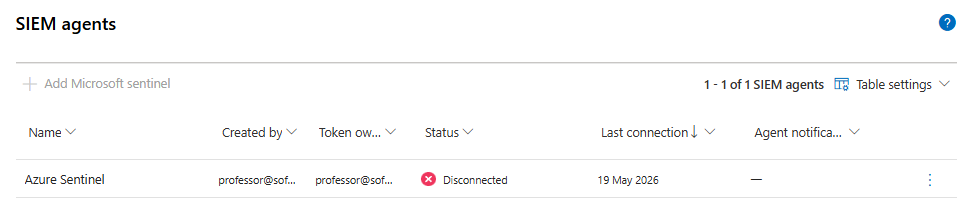
Under Settings > Cloud apps > SIEM agents you will see the SIEM integration.
You can use the dedicated Sentinel integration. Set it up properly (it's just a couple of clicks) and you get a genuinely useful Log Analytics table called McasShadowItReporting. That table gives you per-user, per-device cloud discovery data including which apps they are hitting, how much traffic they are generating, which ones are getting blocked, and the app risk score.
Once you have the table flowing, run something like this:
McasShadowItReporting
| where TimeGenerated > ago(7d)
| summarize TotalBytes = sum(TotalBytes) by UserName, AppName
| top 20 by TotalBytes desc
Now you know which app is pushing the most data in the last week. That is your shadow IT conversation starting point, not a quarterly questionnaire.
Or this to see repeated bypass attempts against your unsanctioned apps:
McasShadowItReporting
| where TimeGenerated > ago(1d)
| where BlockedEvents > 0
| summarize BlockedEvents = sum(BlockedEvents) by UserName, AppName, IpAddress
If you are not sending this into Sentinel, you are blind to a huge slice of how people are actually using cloud services from your devices.
Email Notifications: Seriously, Pick High Only
Under Settings > Cloud apps > My email notifications you can get alert emails for a chosen minimum severity level plus system alerts.
Most people set it to Medium (the default setting). Within a week their inbox is full.
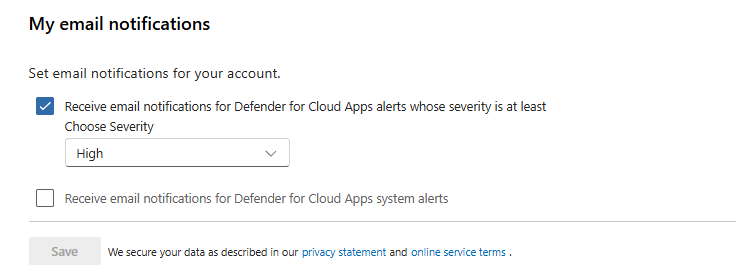
If you already have Sentinel set in place ignore this completely; otherwise yuou can set it to High for email notifications but I wouldn't recommend even doing that, it's always ending up in a separate folder that you were never look at.
Score Metrics: App Risk Scores Are A Starting Point, Not A Verdict
Under Settings > Cloud apps > Score metrics you can adjust the weighting of each property that contributes to an app's risk score.
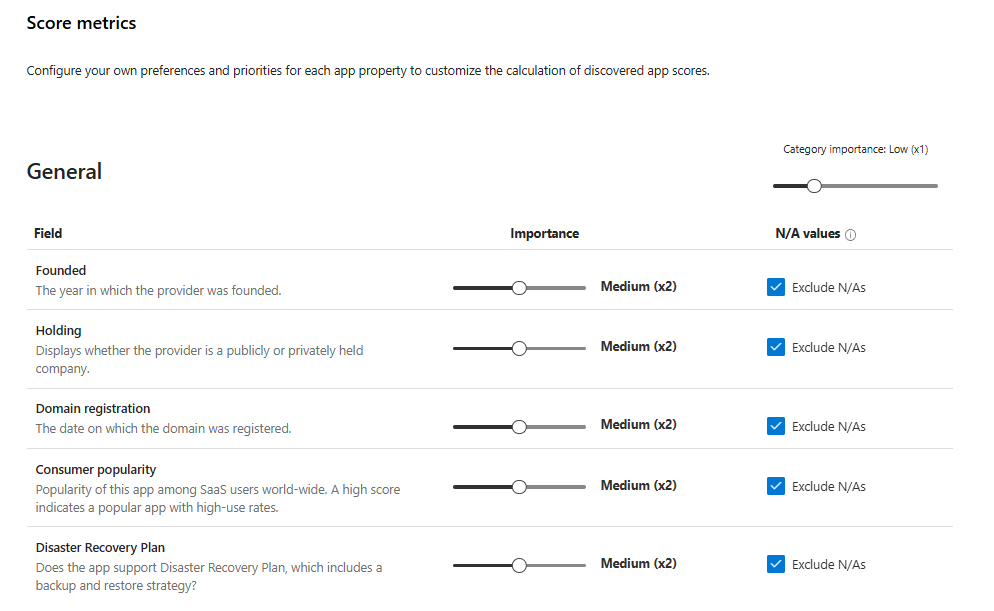
The properties sit across four categories: General, Security, Compliance, and Legal. Each property can be weighted Low, Medium, High, or Very high. Things like:
- Whether the provider is publicly or privately held
- When the domain was registered
- Whether the app has a disaster recovery plan
- Data residency location
- Compliance certifications held
Default scores are based on vendor self-declarations and Microsoft's own assessments, not independent audits. A score of 8 does not necessarily mean the app is safe. It means it ticked enough boxes (which quite often may translate to it being safe)
For most organisations, the defaults are fine. If you are in a heavily regulated environment, bump up the weighting on Compliance and Legal properties that actually matter to your obligations. An app with unclear data residency should score low in your environment if residency is a hard requirement.
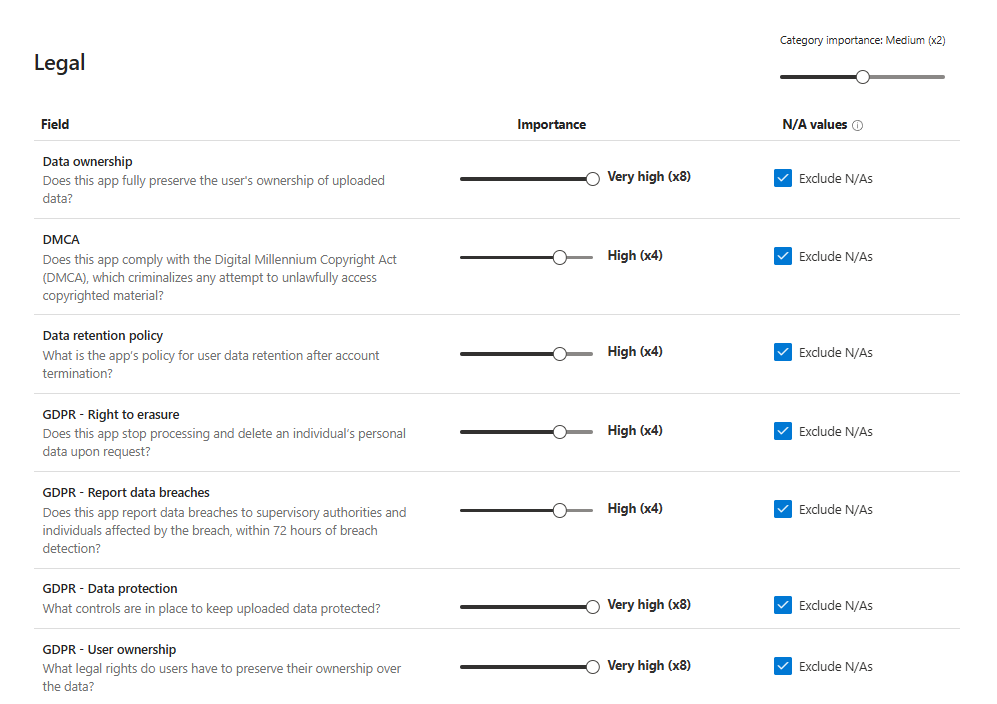
Do not use the app score in isolation as a go or no-go decision. Use it to prioritise which apps need proper due diligence, not to replace it.
Automatic Log Upload: Network Logs Your Endpoints Cannot See
Under Settings > Cloud apps > Automatic log upload you configure log collectors that pull firewall and proxy logs into Cloud Apps for continuous Cloud Discovery
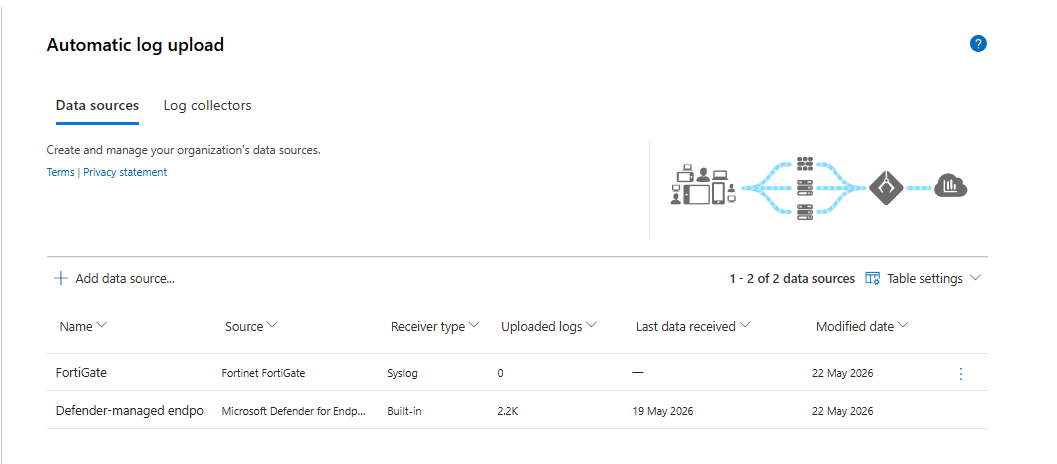
Log collectors receive logs over Syslog or FTP, buffer them locally, and upload them to Cloud Apps on a regular cycle. Defender then parses them into Cloud Discovery records. The architecture is usually a Docker container you deploy on a Linux host in your network.
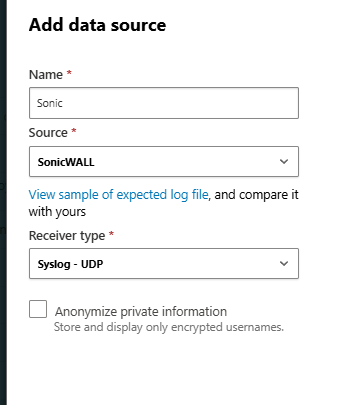
This is how you get visibility for devices that never have Defender for Endpoint installed. Guest machines. Unmanaged devices. Contractor laptops Things that pass through your perimeter but never joined your domain. You want both network-based and endpoint-based discovery for a complete picture.
This is where I see lots of confusion. Don't assume that because Defender for Endpoint is deployed on managed devices, you have full Cloud Discovery coverage. Endpoint-based discovery only covers managed devices. Everything else is invisible without network log collection.
App Tags: You Are Not Stuck With Three
Everyone knows about Sanctioned, Unsanctioned, and Monitored.
- Sanctioned means the app is approved. No action taken.
- Unsanctioned means block it. When wired to Defender for Endpoint, this actually enforces a block on your devices.
- Monitored means warn the user, let them bypass, log the activity.
What nobody seems to realise is that you can create custom tags beyond these three. DevOps. HR Only. Legacy. Under Migration.
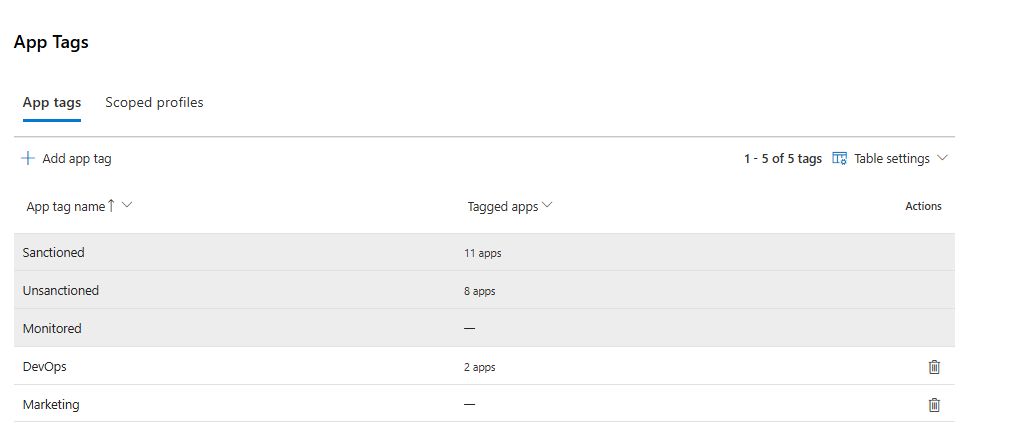
Custom tags do not drive enforcement, but they let you filter reports, scope policies, and make governance decisions without dumping everything into a binary allowed or blocked bucket. Your DevOps team uses a specific storage platform exclusively for CI/CD pipelines. Custom tag it DevOps, it's a good base for your software inventory management.
Excluded Entities: Stop Excluding Things That Actually Matter
Under Settings > Cloud apps > Excluded entities you can remove specific users, groups, IP addresses, and devices from Cloud Discovery data.
Legitimate use cases include excluding proxy service accounts that dominate your reports or lab network ranges you genuinely do not care about.
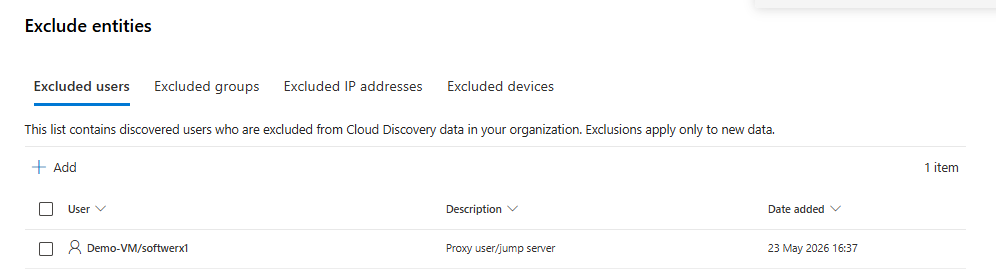
This is where most people go wrong though. They exclude entire datacentre subnets because the traffic is "internal". They exclude service accounts that actually belong in your discovery data. They exclude VPN exit IPs without thinking about what devices use them.
If something malicious starts using those excluded identities or ranges, it will never show up in your Cloud Discovery reports. You built a blind spot on purpose.
Be surgical. Every exclusion needs a documented justification. If you cannot explain why something is excluded and what other control covers it, it should not be excluded.
Exclusions only apply to new data. Historical data stays as it was.
MDE Integration: This Is What Makes Unsanctioned Actually Mean Something
There are two sides to this.
The first is the toggle in Defender for Endpoint optional features that sends traffic signals to Cloud Apps.
The second is the configuration under Settings > Cloud apps > Microsoft Defender for Endpoint, which controls what actually happens when you tag an app.
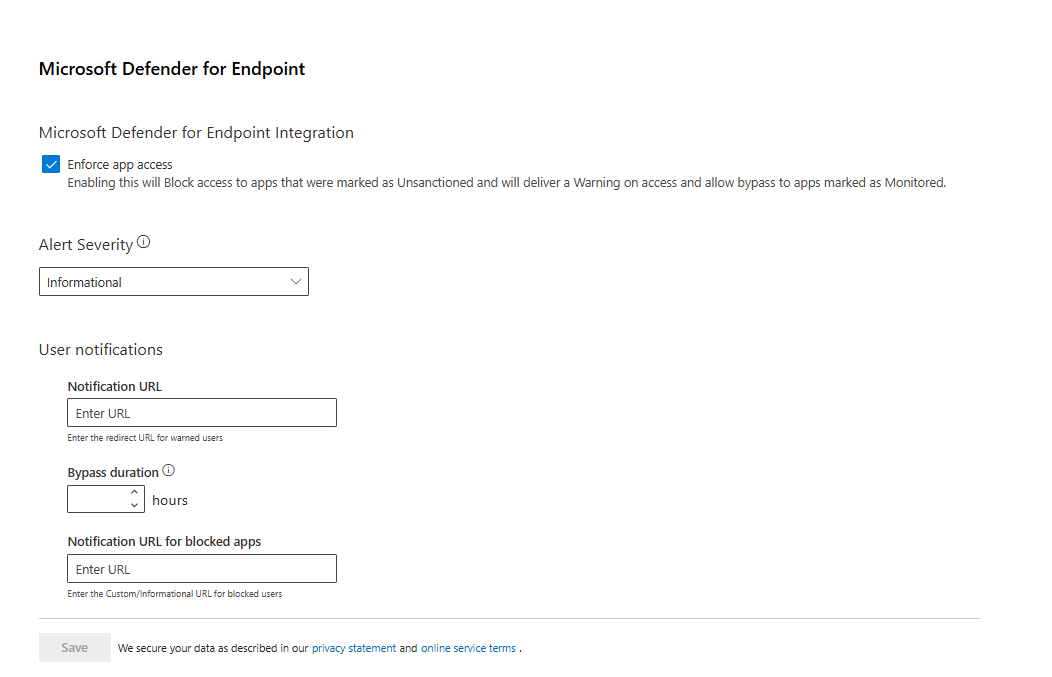
When this integration is properly configured, tagging an app as Unsanctioned in Cloud Discovery automatically pushes block indicators to Defender for Endpoint through custom network indicators. The app gets blocked on every managed device with network protection running. Monitored apps warn the user and let them bypass for a configurable window.
Prerequisites to get this working:
- Network protection in Block mode on your endpoints
- Cloud-delivered protection on
- Defender for Endpoint Optional features integration toggle enabled
Without this wired up, your Unsanctioned labels are stickers. They look nice in the portal and do absolutely nothing on your devices.
This is one of those settings where I have seen environments where 30 apps were marked Unsanctioned and the MDE integration was off. Six months of tagging completely wasted.
User Enrichment: Replace The Proxy Garbage With Real Names
Under Settings > Cloud apps > User enrichment, you can tell Cloud Apps to replace raw proxy usernames and device identifiers with actual Microsoft Entra ID usernames.
Once this is on and synced with Entra, you stop seeing proxy_user_01 in your Cloud Discovery reports and start seeing actual people. Investigations go from "who on earth is proxy_user_01" to immediately having context.
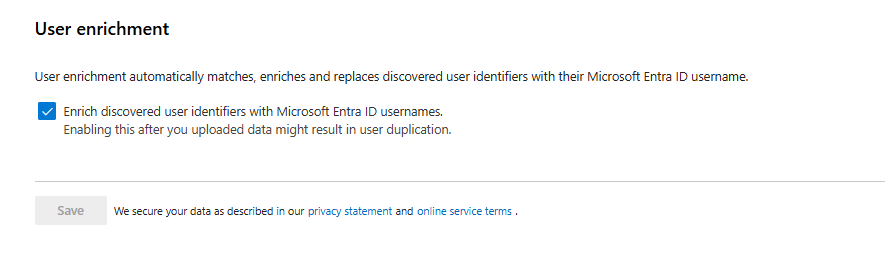
There is basically no reason not to turn this on if you have Entra ID and not heavily governed environments. It fixes the biggest usability complaint about Cloud Discovery data in one click.
App Connectors: API Level Visibility You Are Not Using
App connectors give Cloud Apps API access to the SaaS platforms you actually run. AWS, Dropbox, Google Workspace, Okta, Salesforce, Slack, Box, and a long list of others.
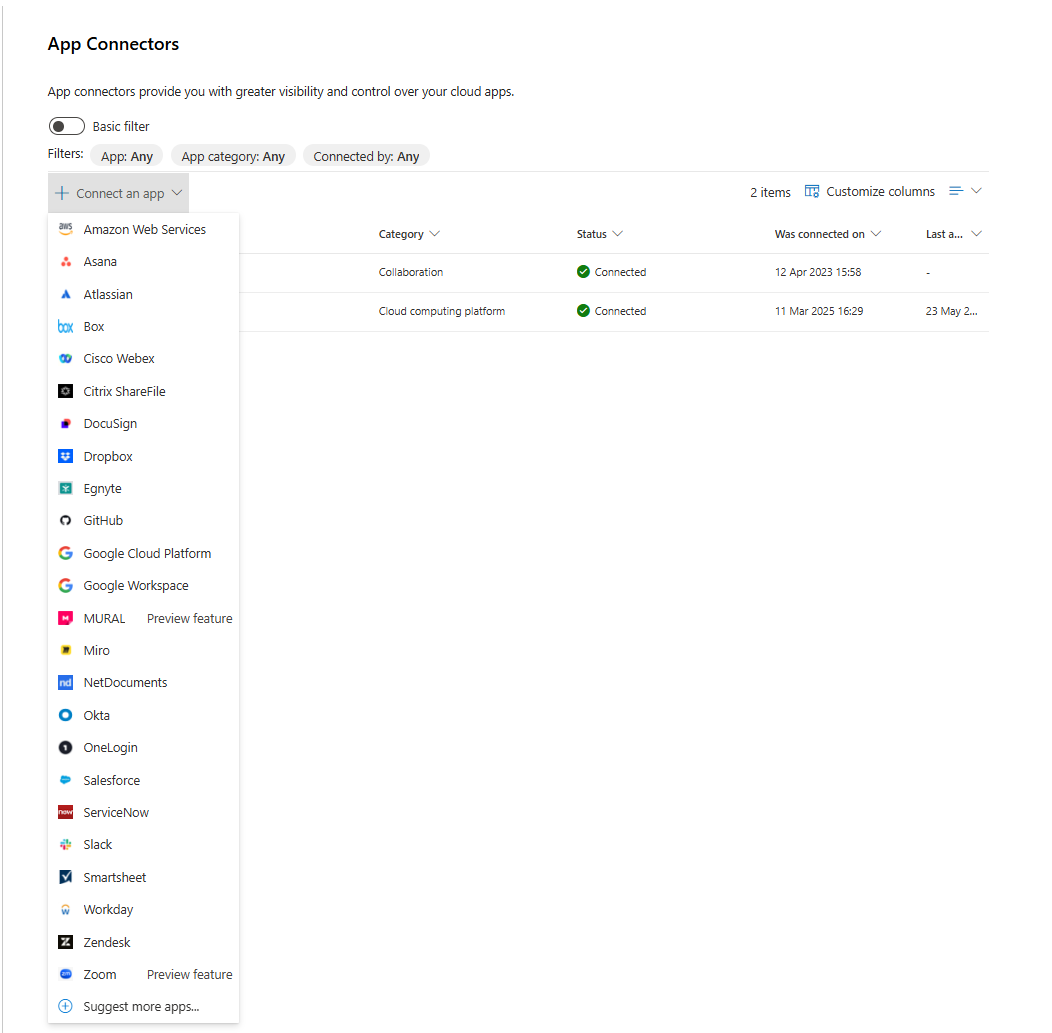
Once connected, you get user activity logs from inside the app, file inventories, sharing status, and the ability to enforce file policies against content.
This is where you go from network-level "someone accessed Salesforce" to "this specific user exported 4,000 contact records at 11pm on a Friday".
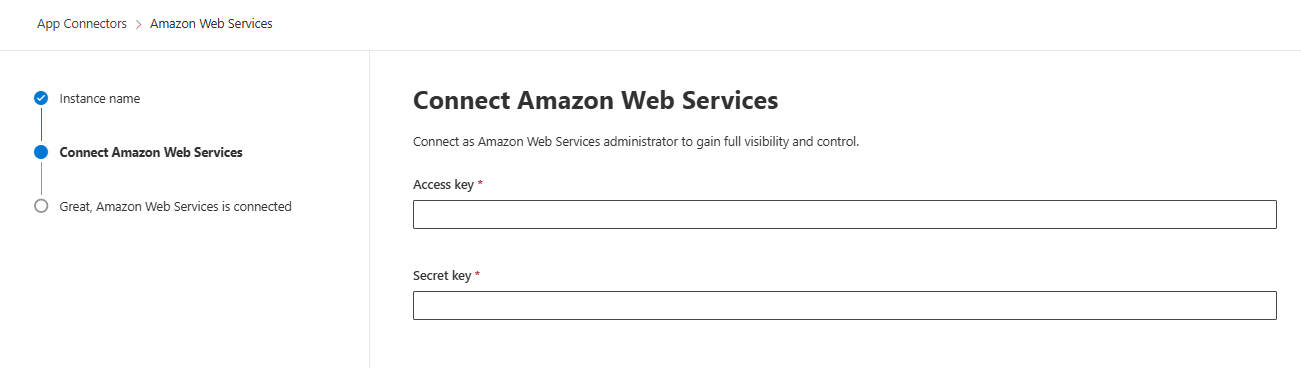
Most tenants I see have only the Microsoft 365 connector active. Maybe Box if the company uses it. Everything else sits unconnected even though the integrations exist. If your business runs on a specific SaaS platform and you do not have an App Connector for it, you have no audit trail for what users do inside it.
Conditional Access App Control: Real-Time Session Control Nobody Configured
Conditional Access App Control sits inline in user sessions and enforces granular controls beyond simple allow or block. Block downloads on unmanaged devices. Allow access but prevent copy/paste of sensitive content. Apply watermarks to downloads.
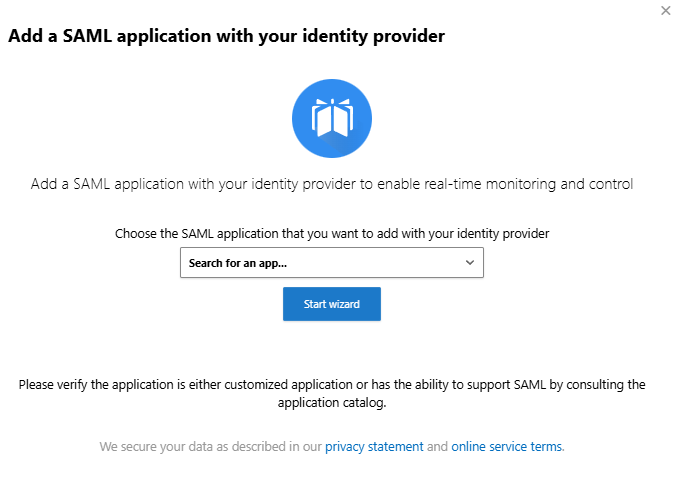
You wire this through Entra ID conditional access by routing specific apps through Cloud Apps as a reverse proxy. It works for both Microsoft apps and third party SAML applications.
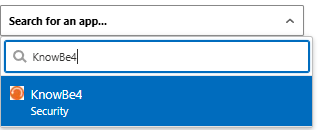
The number of tenants where this is completely unused is depressing. Everyone does binary conditional access, allowed or blocked at sign in, and nothing in between. Session controls are how you handle the real world scenario where you need to allow contractors to access the CRM but not download customer lists.
It requires more setup than a toggle and it does need testing to avoid breaking user experience. Do it anyway.
Microsoft Information Protection: Stop Data Leaving Without A Trace
Under Information protection > Microsoft Information Protection you control how Cloud Apps reads and acts on MIP sensitivity labels.
Enable it and Cloud Apps will scan new files synced across connected apps for sensitivity labels. Pair this with file policies and you can alert when a Confidential labelled document gets shared publicly, revoke sharing, quarantine the file, or block the action entirely.
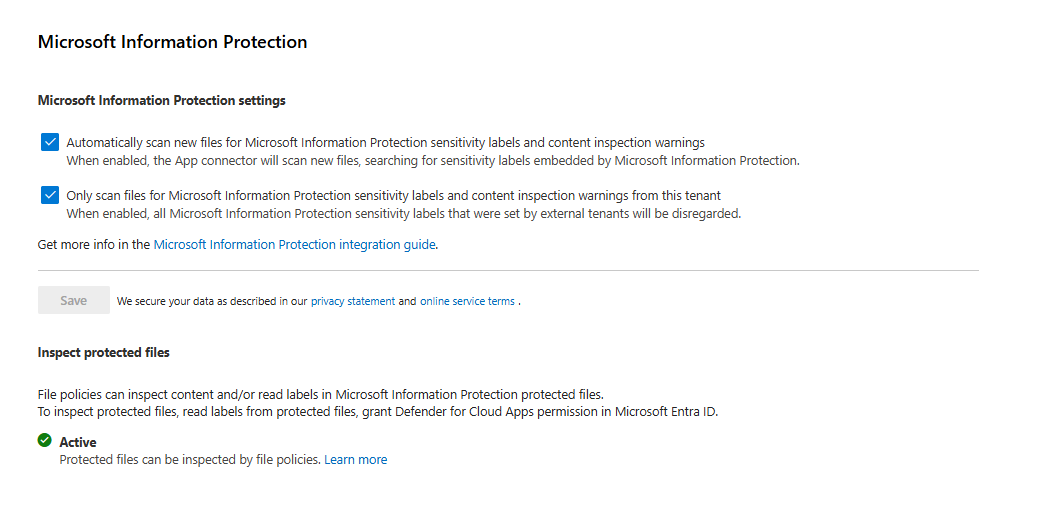
File policies without MIP integration are blunt instruments. MIP integration lets you write policy based on what the content actually is, not just where it is going.
Yes, this means Cloud Apps reads file metadata and, where permissions allow, file content. If that conversation with your legal team has not happened yet, have it before you enable inspect protected files.
Files Section: Turn It On Or Stop Pretending You Care About Data Security
In the Files section within Cloud Apps settings, file monitoring is a toggle you have to explicitly enable per connected app.
If it is off, Cloud Apps has only a small inventory of what is stored where. File policies do nothing. Your entire "we have data protection in SaaS" posture is theatre.

Turn it on for at least Exchange Online, SharePoint, OneDrive, Teams, and whatever non-Microsoft SaaS platform your business lives in. Then write policies that actually matter: files shared with personal email domains, Confidential documents with external sharing links, content matching sensitive data patterns.
Edge For Business Protection: The Better Way To Do Session Controls
Under Settings > Cloud apps > Edge for Business protection there is a preview feature that ties Edge for Business directly into Cloud Apps and Purview policies without full reverse proxy redirection.
With it on, users on Edge for Business get in-browser enforcement for session policies and DLP. Fewer compatibility issues than traditional inline proxy. Better performance. Same control.
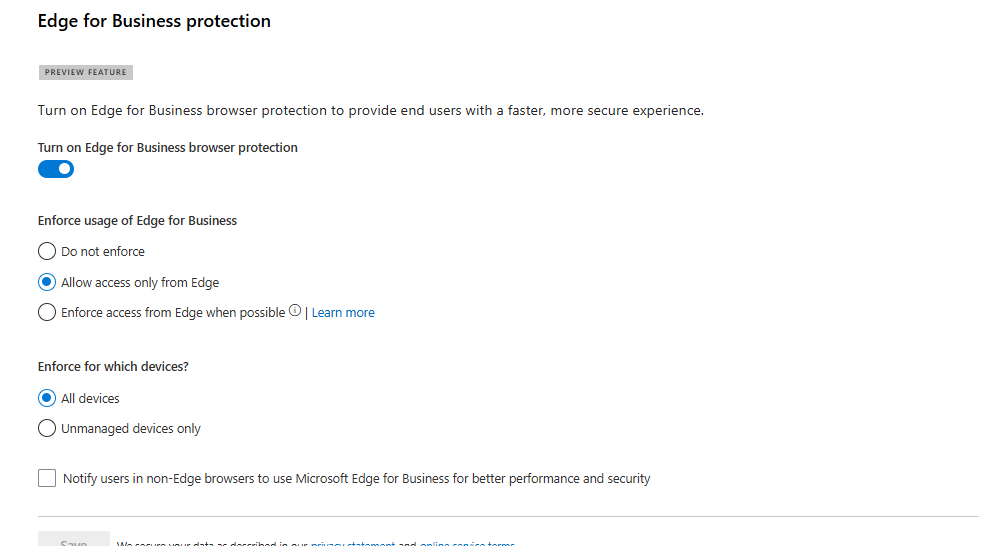
You can enforce Edge usage or just prefer it. You can scope it to all devices or only unmanaged devices.
If your organisation is already standardising on Edge for Business, enable this and test it. For environments still running a browser zoo, you will be supporting multiple session control models for a while. That is the reality.
Your Next Steps Tomorrow Morning
Step 1: Go to Settings > Endpoints > Optional features. Confirm Microsoft Defender for Cloud Apps integration is on.
Step 2: Check Settings > Cloud apps > SIEM agents. If you have a classic SIEM agent still running, start planning migration to the Sentinel connector.
Step 3: Verify McasShadowItReporting is present and populated in your Sentinel workspace. Run the top-traffic query above and look at what comes back.
Step 4: Turn on User enrichment. Confirm Entra usernames are appearing in new Cloud Discovery records.
Step 5: Go to Settings > Cloud apps > Microsoft Defender for Endpoint. Confirm enforcement is configured and check that network protection is in Block mode on your endpoints.
Step 6: Pick your primary non-Microsoft SaaS platform. Connect it via App Connectors and turn on file monitoring.
Step 7: Enable file monitoring for Microsoft 365 apps and write at least one file policy for external sharing of labelled content.
Step 8: If Edge for Business is deployed in your environment, enable in-browser protection and scope it to a pilot group first.
Step 9: Create at least one custom App tag beyond Sanctioned and Unsanctioned to represent how your business actually categorises its SaaS landscape.
You already pay for this. Start using it properly.
Class dismissed.