Threat Analytics in Microsoft Defender: What It Actually Does and Why Your SOC Needs It

All right class.
You're doing your SOC investigations at 3 pm Tuesday. A threat report drops that a Chinese state-backed group is hitting financial services with a zero-day. Your boss asks: "Are we vulnerable? What do we do?"
If you don't have Threat Analytics, you're googling. You're piecing together vendor reports. You're trying to correlate what you read with what's actually in your environment. It will take quite a while to tie all of those pieces together.
If you have Threat Analytics, you click into the portal, search the threat, and see immediately: "You have 3 exposed devices. This technique matches these detections in your environment. Run these hunting queries. Apply these mitigations."
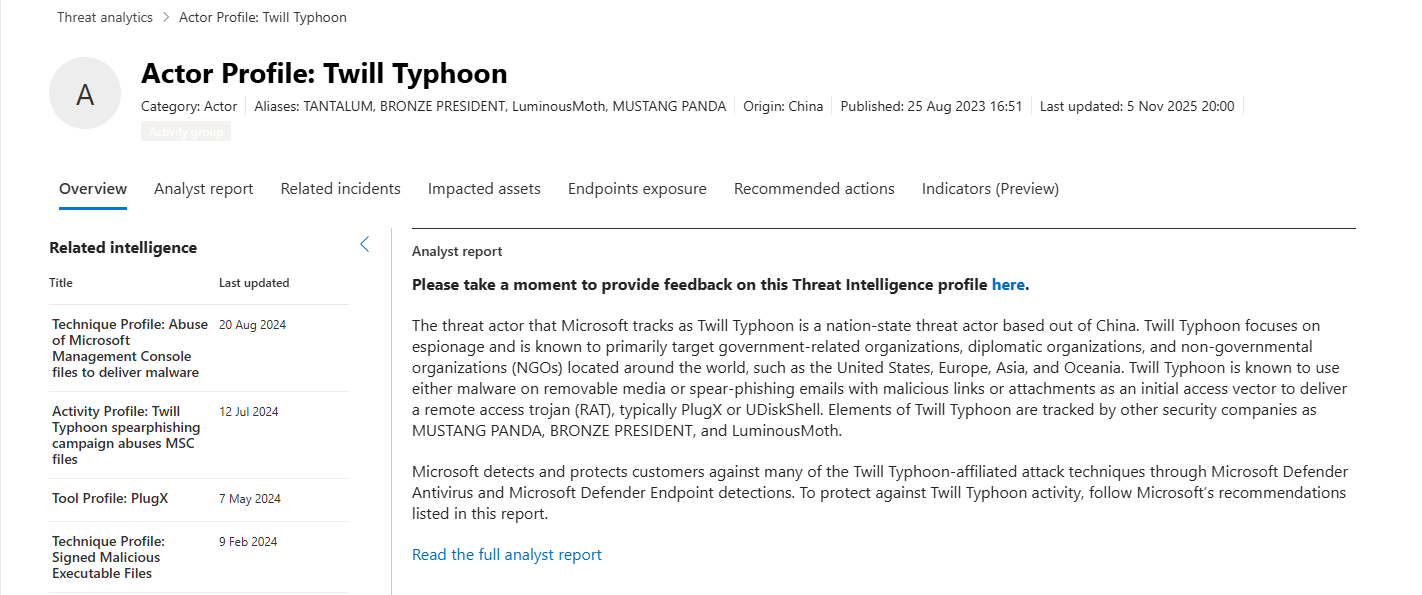
That's the entire difference. Threat Analytics is built-in threat intelligence that's already connected to YOUR environment.
What Threat Analytics Actually Is
Threat Analytics isn't a generic intelligence feed. It's Microsoft's curated threat intelligence locked directly into the Defender portal, correlated closer to your structure than you think.
Every threat report in Threat Analytics includes:
- What the threat is: The threat actor, their campaigns, the techniques they use
- Whether you're exposed: Detection of whether that threat is actively targeting your environment (based on your logs)
- Your vulnerable assets: Specific devices, users, accounts that are at risk
- How to fix it: Step-by-step mitigations and recommended actions
- MITRE mapping: So you know which techniques the threat uses
- Indicators of Compromise (IOCs): Domains, IPs, file hashes to hunt for
- Hunting queries: Ready-to-use KQL for Sentinel to search for the threat
No translation layer. No "figure it out yourself." It's intelligence designed specifically for people like you who have to actually DO something with it.
The Dashboard: What You're Actually Looking At
Open Threat Analytics in the Defender portal and you see a dashboard with six category counters at the top:

- Activity: Threat actor campaigns and activity groups actively targeting organisations.
- Actor: Specific threat actors with known TTPs and attack patterns.
- Core threat: Major threats that affect multiple sectors or have a critical impact.
- Technique: MITRE ATT&CK techniques mapped to real-world attacks.
- Tool: Malware, ransomware, exploitation frameworks, and attack tools.
- Vulnerability: CVEs with active exploitation or high severity.
These aren't theoretical counts. These are threats that Microsoft's research team has actively analysed and connected to your infrastructure based on your telemetry (location + industry)
The Three Threat Views (Where Most People Get Confused)
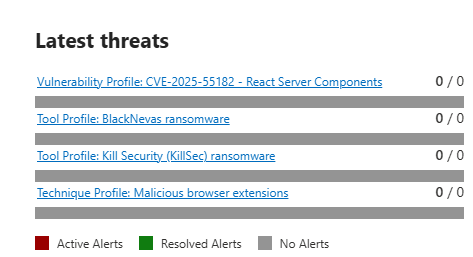
Latest Threats
Newest threat reports from Microsoft's research team. Published or updated within the last few weeks. These are threats actively being weaponised right now. Your daily read. "What broke this week?"
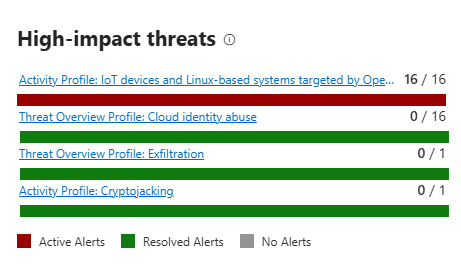
High-Impact Threats
Threats that actually matter to YOUR organisation. Ranked by the number of active and resolved alerts you've generated from this threat. If you've had 47 incidents from Storm-2460 ransomware, it's at the top. These are threats you're already seeing in your environment.
Highest Exposure Threats
Threats where you have the most vulnerability. Microsoft calculates this using: the severity of known CVEs for the threat multiplied by how many of your devices could be exploited. This is where you're most likely to get hit IF you don't patch or mitigate.
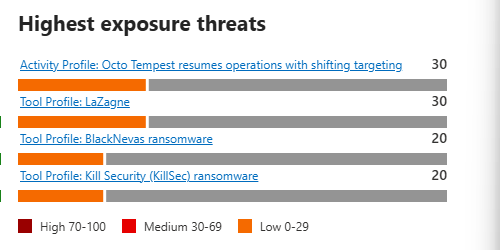
This isn't random threat intelligence. This is "based on what we're seeing in your logs and your infrastructure, here's what should worry you most."
Real Example: Cloud Identity Abuse
Overview Tab
A summary: Threat actors are compromising cloud identities through various tactics. Stolen credentials, token theft, social engineering. They target administrative accounts specifically because that gives them maximum access.
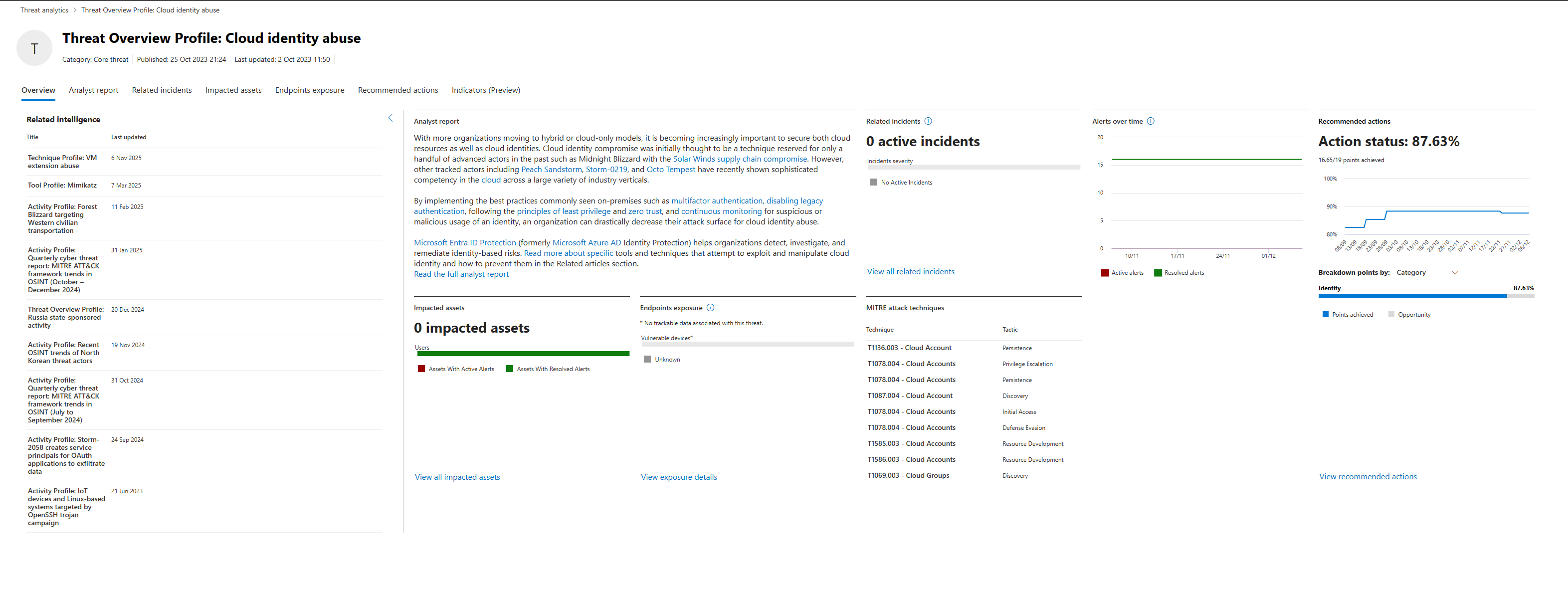
MITRE Techniques Listed
These are the actual techniques used in the attack chain. This matters because you can hunt for each one individually.
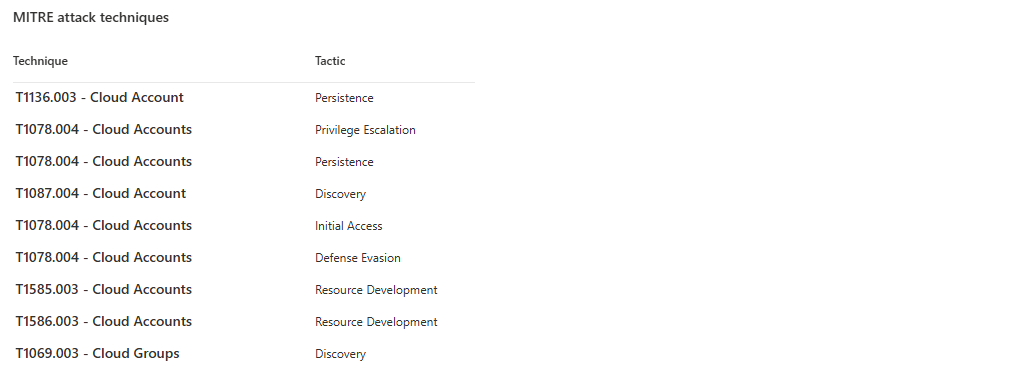
Your Exposure Data
"You have 0 active incidents. You have 15 devices flagged as at risk." Translation: No active compromise detected yet, but you have 15 devices vulnerable to credential theft (weak password policy, no MFA, no conditional access).
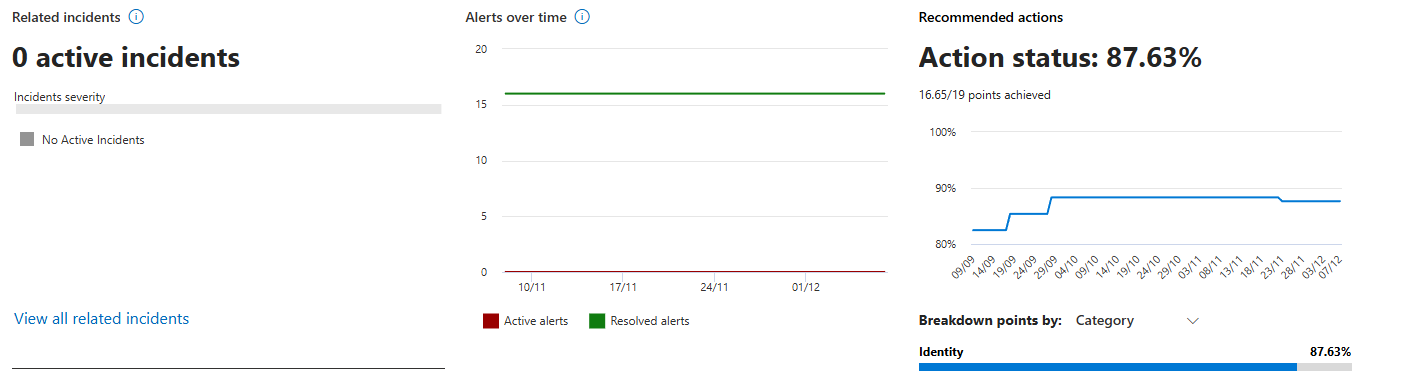
Recommended Actions
Checkboxes for each mitigation with completion percentage. "Ensure multifactor authentication is enabled for all users in administrative roles", showing 7/10, that's probably something to take a look at. On the very left, you can also see the "Rank", which is based on the Microsoft recommendations on what they think would have the most impact (positive) in your environment.

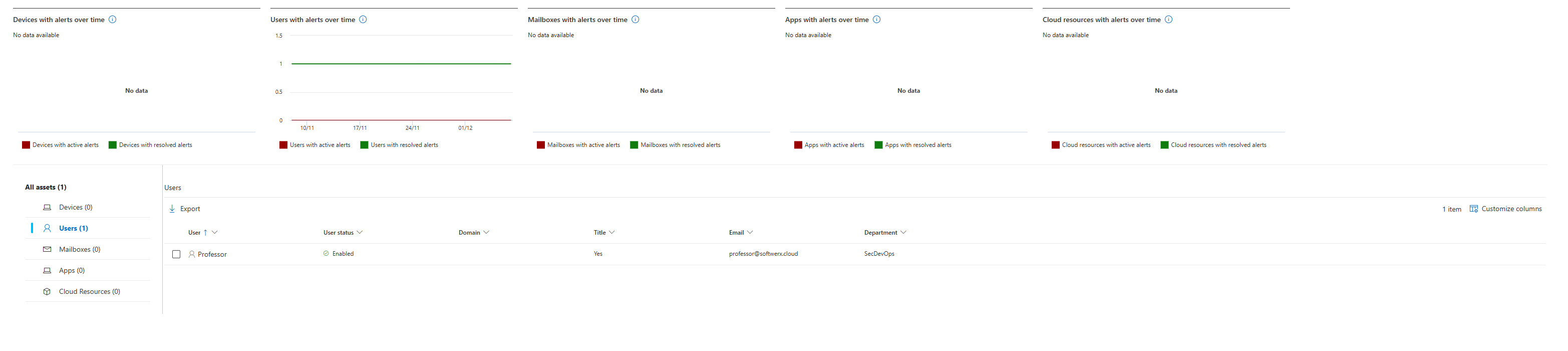
Impacted Assets Tab
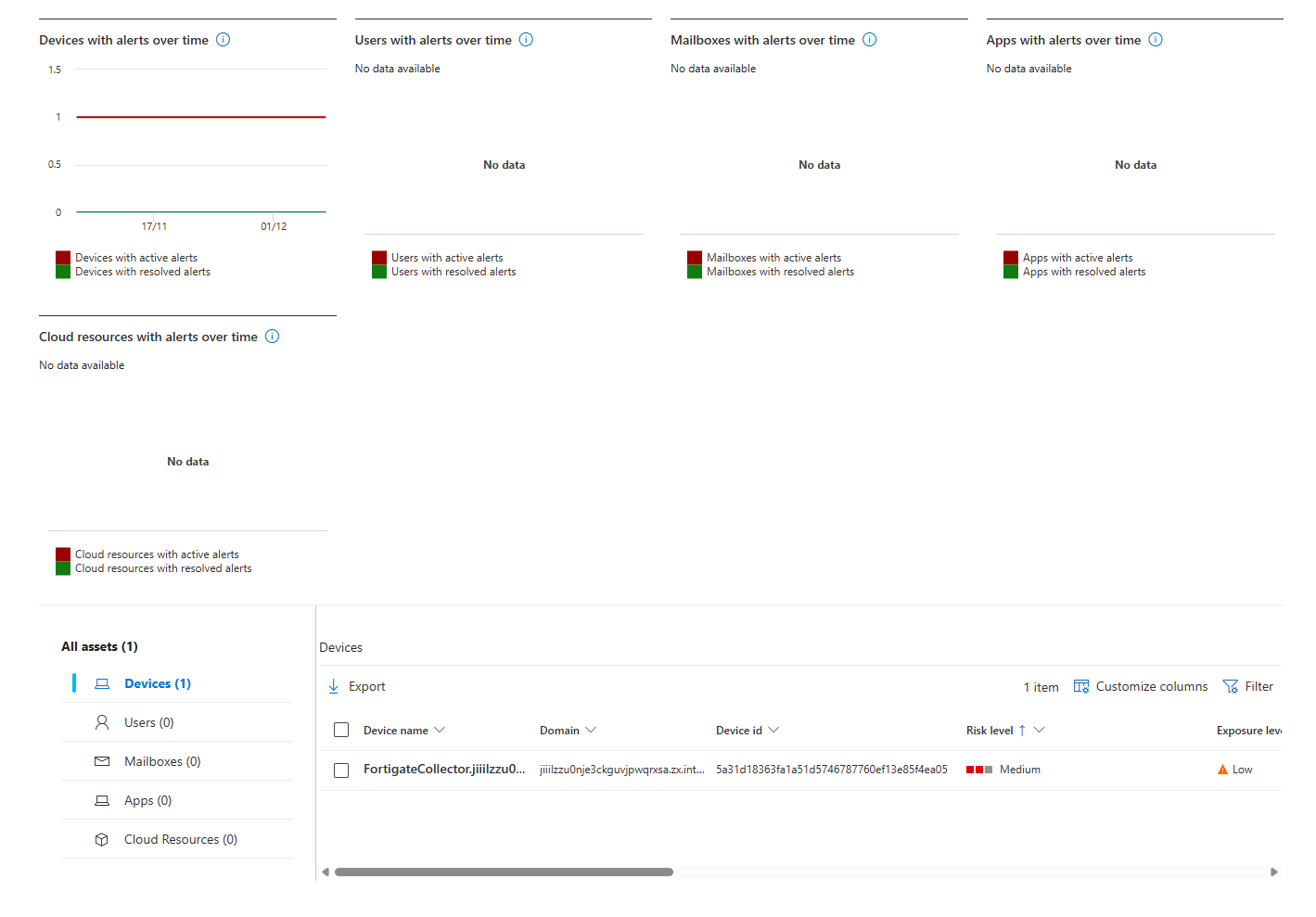
Shows which of your devices/accounts could actually be compromised. Click it, and you see the list. Cool thing to know exactly who the problem is in your environment (oops)
Email Notifications: Cutting Through The Noise
That's the fun part I've seen a few times, teams enable ALL Threat Analytics notifications and get buried in email.
Go to Settings > Microsoft Defender XDR > Email notifications > Threat analytics tab.
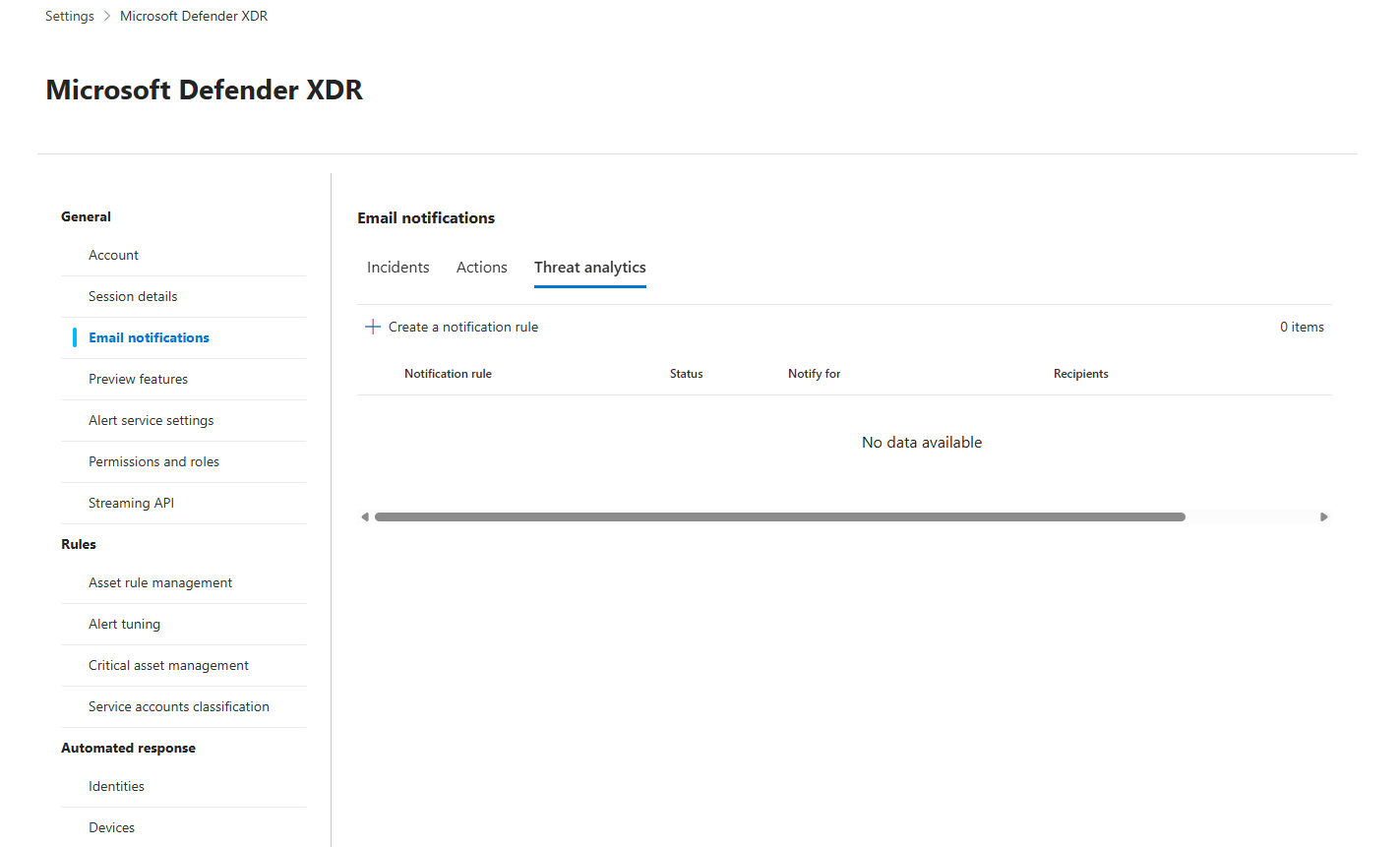
You see "Notify for" options:
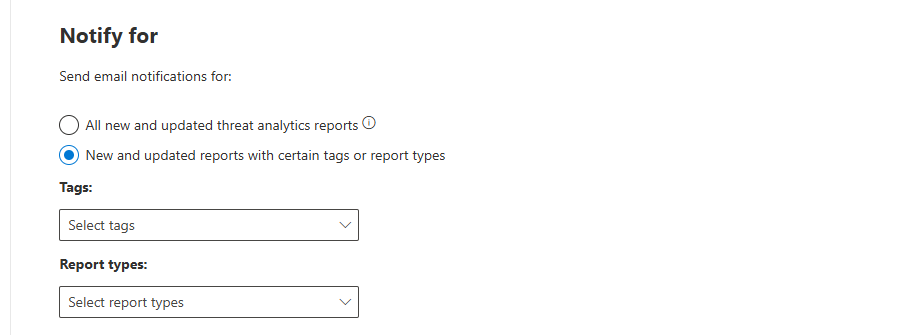
All new and updated threat analytics reports
This is the default. You get an email for every report Microsoft publishes. That's 50-100 reports per week. Your inbox dies. Turn this off.
New and updated reports with certain tags or report types (SELECT THIS)
This is the smart option. You choose what matters to YOU. Options:
- Report types: Activity groups, Attack campaigns, Attack surfaces, Tools & techniques, Vulnerabilities
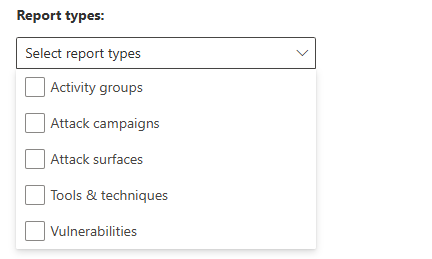
- Tags: Activity group, Phishing, Ransomware, Vulnerability
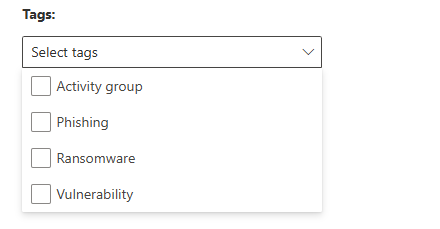
Example: You work in healthcare. Select "Phishing" and "Ransomware" tags only. Now you get emails only for phishing campaigns and ransomware threats. Noise eliminated. Signal kept.
What You Shouldn't Ignore
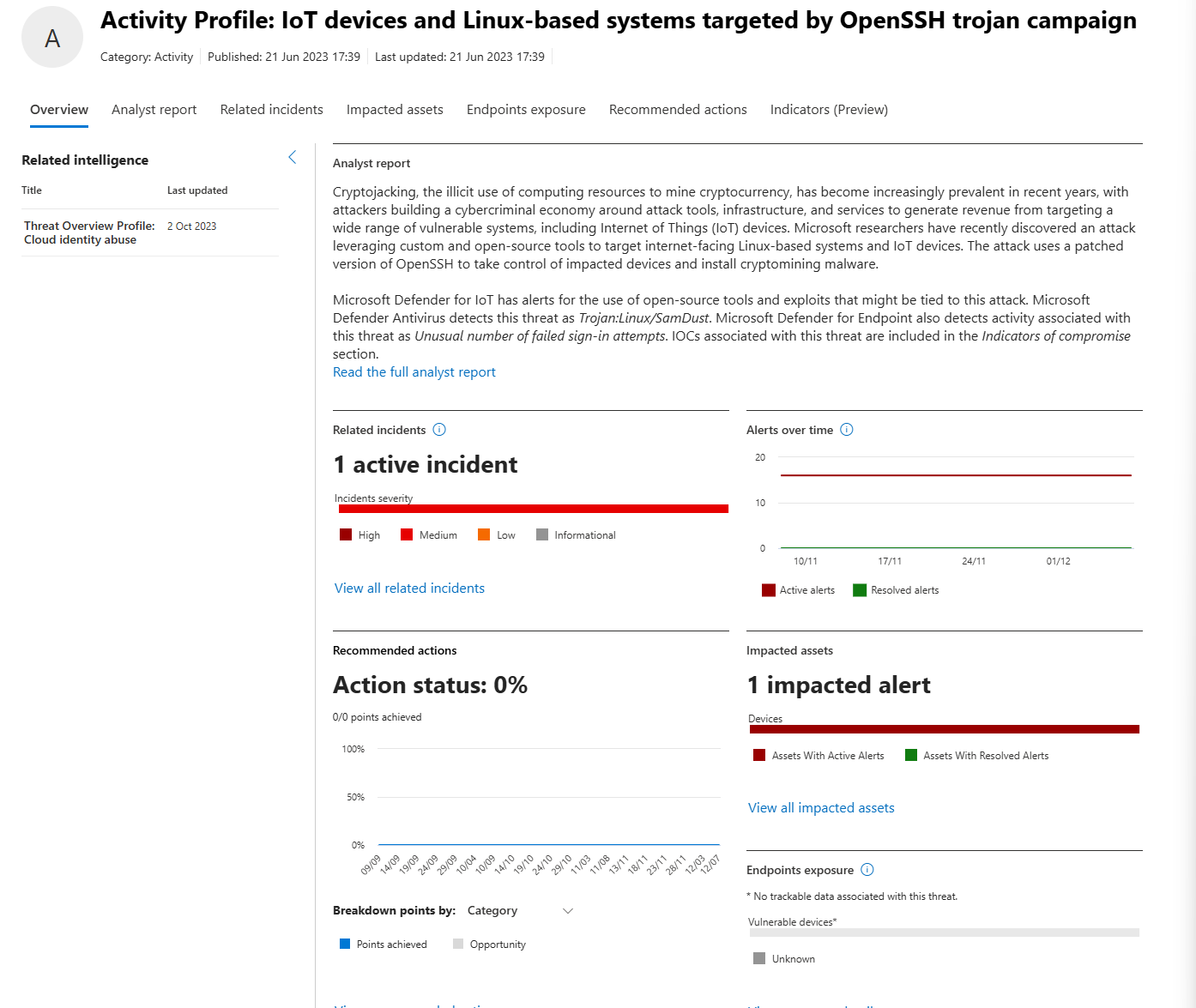
I mentioned previously about high-impact threats that are visible on your main dashboard; it's time to click on one.
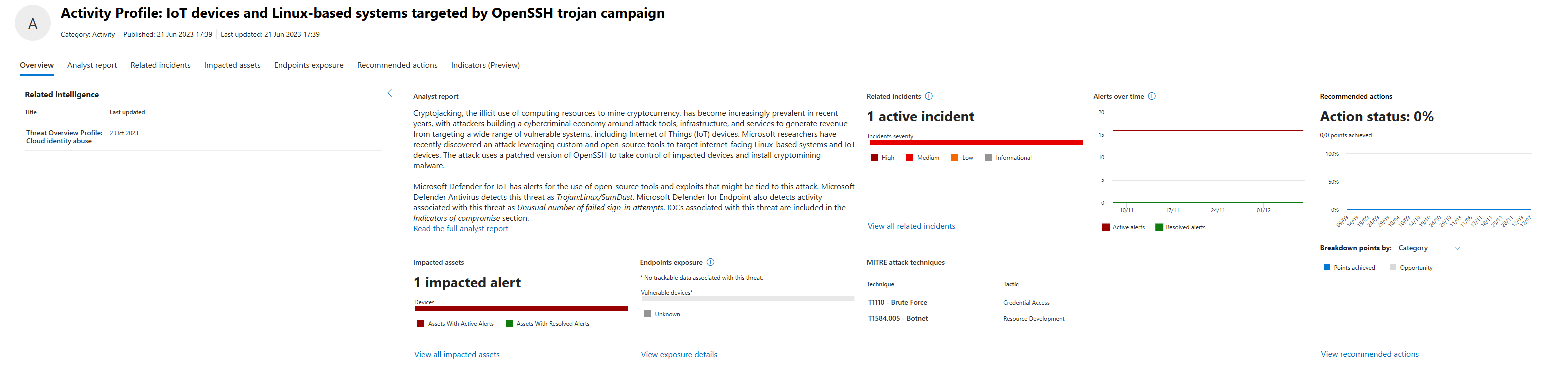
Example: "Activity Profile: IoT devices and Linux-based systems targeted by OpenSSH trojan campaign."
You see:
Overview Tab: Technical description of the vulnerability. What it affects (React Server Components). Severity. CVSS score.
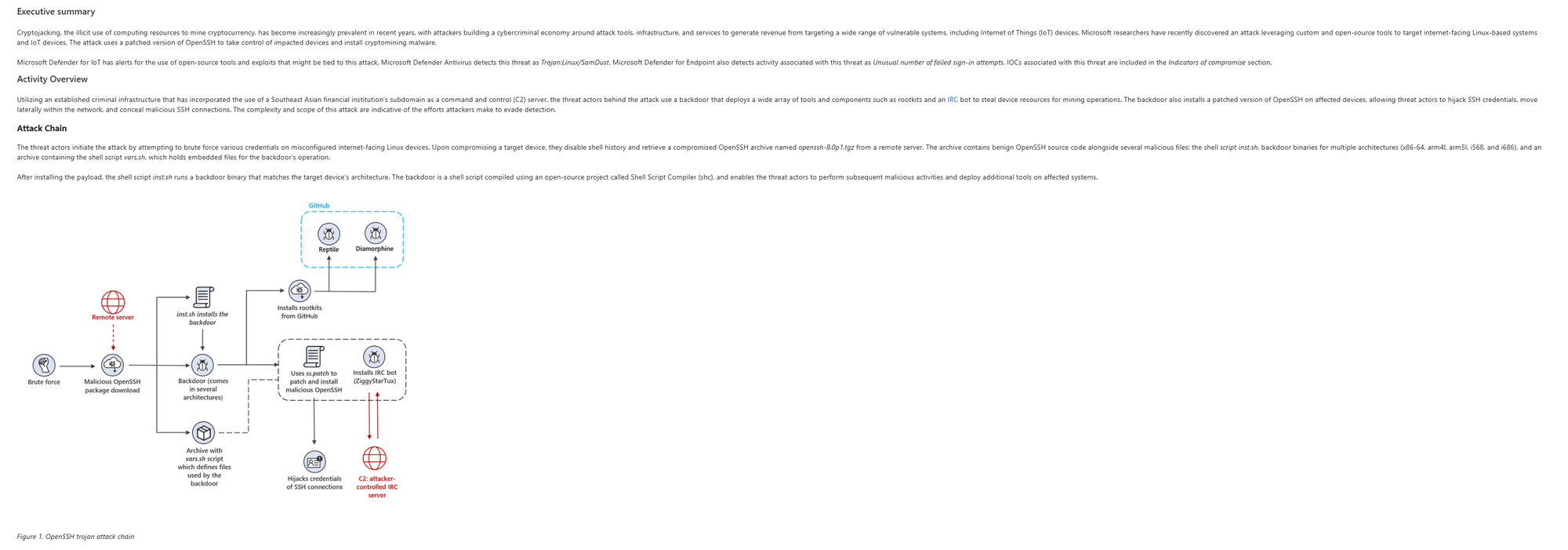
Analyst Report Tab: Deep technical details. How it's exploited. Proof-of-concept code sometimes. This is a fantastic piece of work, you should be able to understand how the attack works and with it - how to avoid it.
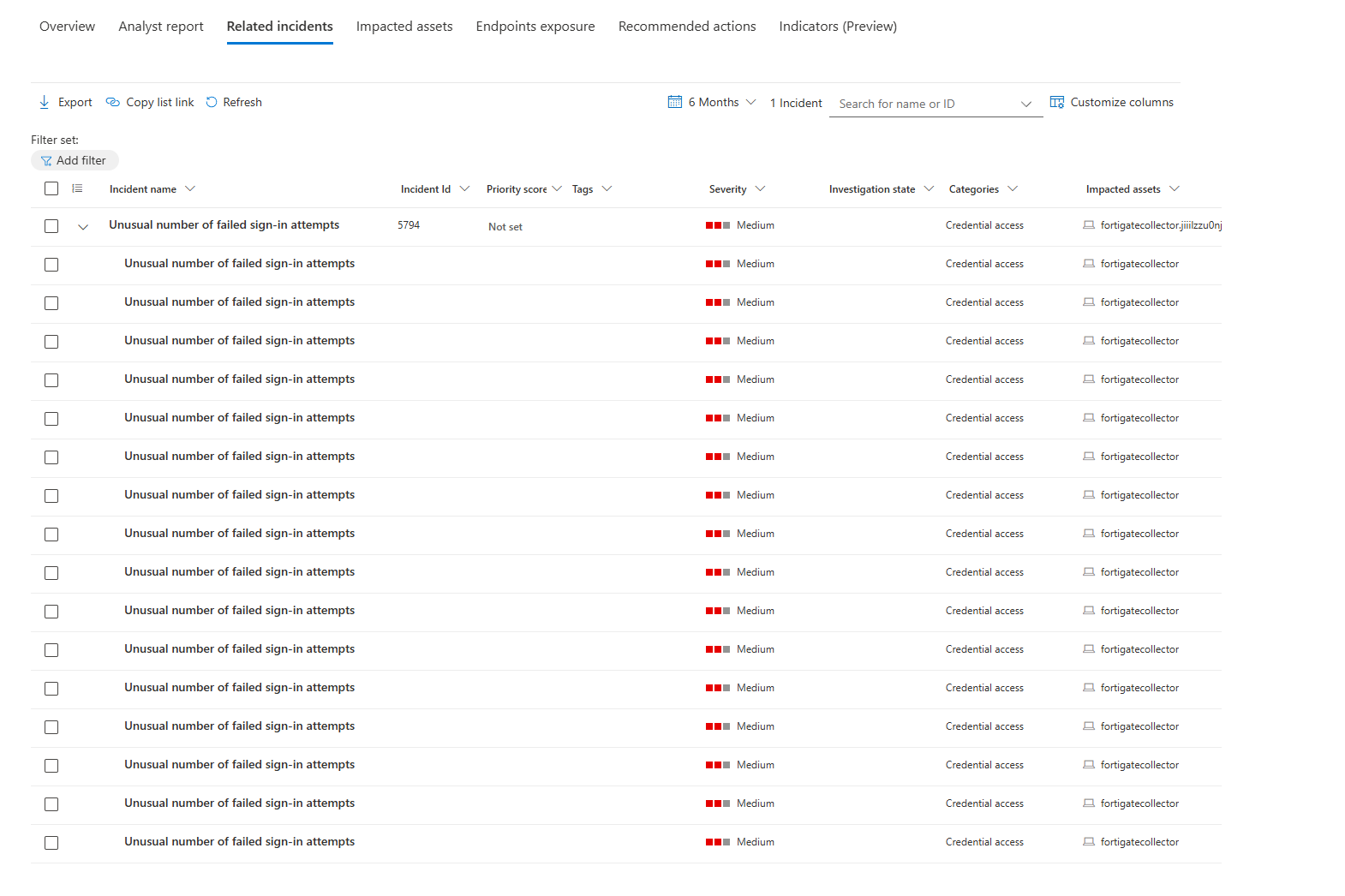
Related Incidents: Incidents that could be closely related to this specific Activity Profile, vulnerability/threat being flagged in your environment is one, but active incidents against a specific resource? That's something to look at sooner rather than later.
Impacted Assets Tab: Again, all of the devices. users, mailboxes, apps or cloud resources listed neatly for you to take a look at and nuke them down (well, at least that's what I wish we could do with them)
The Threat Intelligence Briefing Agent
This is where it gets interesting. Microsoft launched the Threat Intelligence Briefing Agent, an AI that generates customised threat briefings for your organisation in minutes.
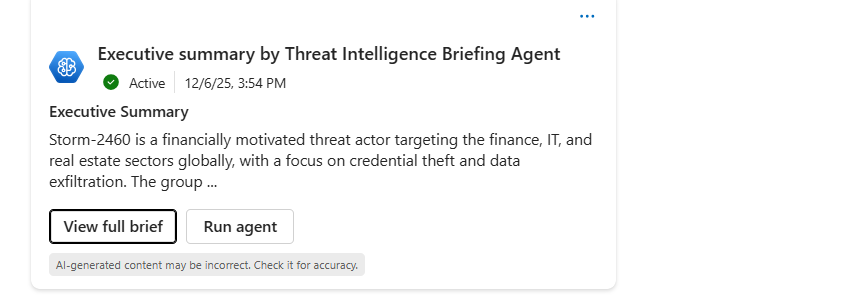
Here's what it does:
- Consumes global threat data: Microsoft's research on threat actors, campaigns, and vulnerabilities
- Consumes YOUR data: Your Defender telemetry, your detected vulnerabilities, your exposed devices
Generates a briefing: An AI-written executive summary that prioritises threats relevant to YOUR organisation specifically
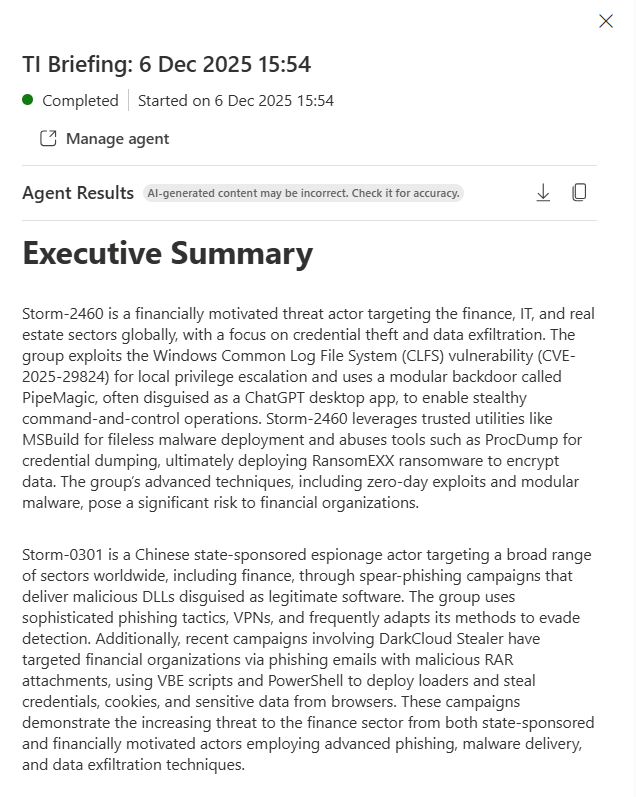
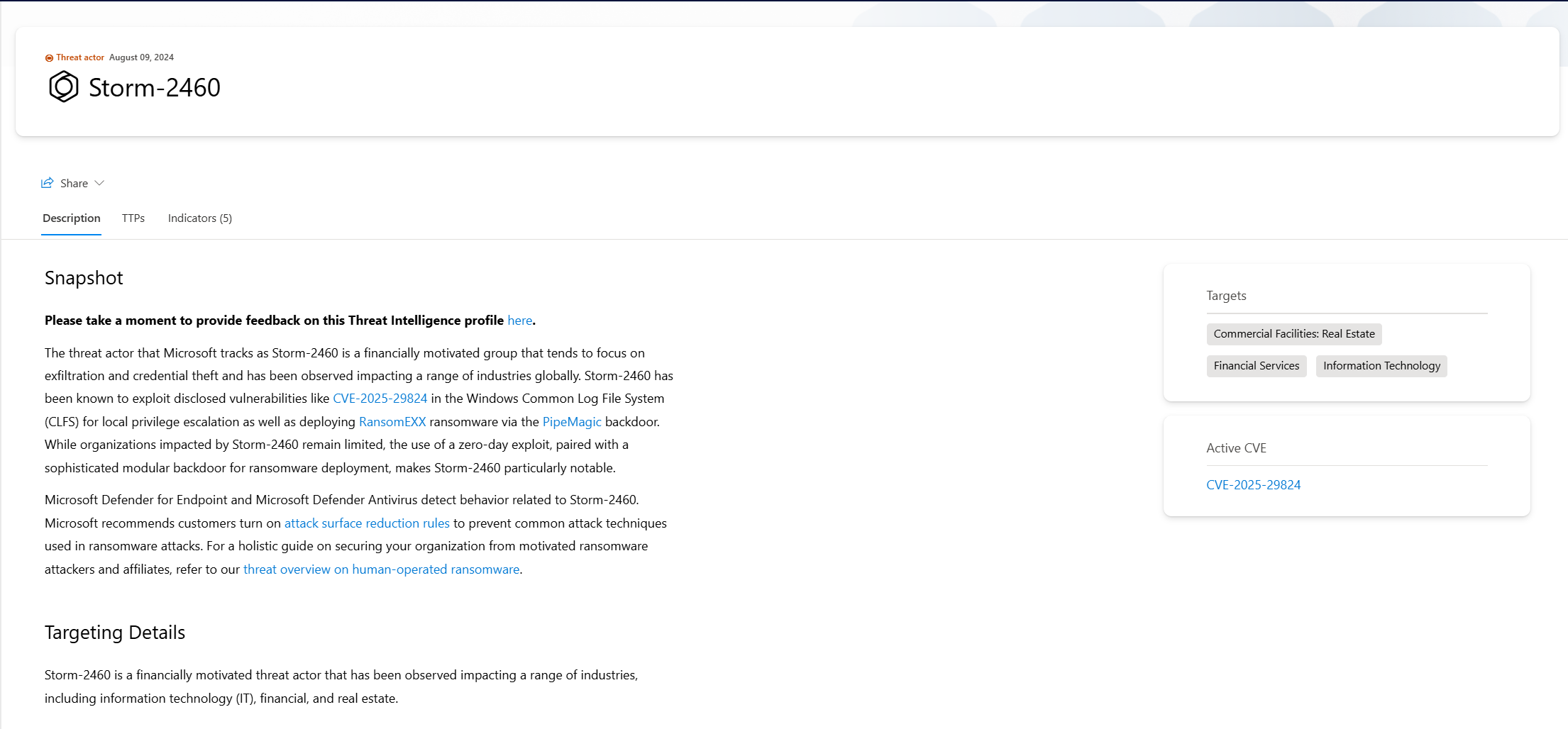
Example: Instead of "Here are 50 threats this week," it's "Based on your infrastructure, Storm-2460 ransomware is the highest risk because you have 12 exposed Windows servers. Here's how they typically attack. Here's your mitigation path."
It's in Public Preview now (as of November 2025), integrated directly in the Defender portal. Most importantly: it actually works, and you can get some useful information out of it.
How This Actually Works (Not The Marketing Version)
When Microsoft's threat intelligence team publishes a new report on Storm-2460 ransomware, here's what happens:
- They write the technical analysis of the campaign
- They extract IOCs (domains, IPs, file hashes)
- They map it to MITRE techniques
- They create hunting queries in KQL
- They identify CVEs that this threat exploits
- Threat Analytics pulls from Microsoft's log sources (84 trillion daily signals) and matches YOUR organisation against:
- Do you have devices with the vulnerabilities this threat exploits?
- Have your logs shown indicators of this threat's tools or behaviours?
- Do you have these IOCs in your network?
- Have you blocked or detected these tactics?
That last step is critical. Threat Analytics ISN'T just saying "this threat exists." It's checking your environment and telling you, "We found this specific evidence in your logs."
Common Mistakes With Threat Analytics
Mistake 1: Treating all threats the same
You see 50 threats on the dashboard and feel overwhelmed. Don't. Filter by "Highest Exposure" or "High-Impact." Start with those. The rest are interesting but not urgent for you.
Mistake 2: Ignoring "0 active incidents" reports
You see a threat with 0 active incidents and assume you're safe. Wrong. It means you haven't been hit YET. It means the techniques ARE in your environment (based on exposure/vulnerability data), but your active detections haven't fired. Hunt for it. Validate it doesn't exist. Then either it's a real gap, or it's low-risk.
Mistake 3: Not using the hunting queries
Each threat report may include ready-made KQL queries, configuration changes, or a detailed analyst report. Your team asks, "Where do I even start?" Start there. Copy the query. Run it in Sentinel. Follow the recommendations. Read the report.
Mistake 4: Not connecting to Sentinel
Threat Analytics is in the Defender portal, but if you run Sentinel, you can copy those hunting queries directly into your workspace. Link Defender incidents to Sentinel incidents. Connect the intelligence to the platform that does your actual investigating (soon, that's something you would need to do anyway, so why not start now?)
Mistake 5: Missing the MITRE mapping
Every threat report maps to MITRE techniques. That's how you track coverage. If Storm-2460 uses T1068 (Exploitation for Privilege Escalation) and you have a rule for it, you're covered. If not, hunt for it and create a rule. This is how you systematically close coverage gaps.
Mistake 6: Not configuring email notifications properly
You enable all notifications, and your inbox explodes with noise. Or you disable them and miss critical threats. Use the tag/report type filtering. Configure rules for what actually matters to your organisation (your industry, your region, your tech stack).
Practical Next Steps
This week:
- Go to Settings > Email notifications > Threat analytics
- Create a notification rule filtered by: tags relevant to your industry (Ransomware if you're in healthcare, Phishing if you're in financial services, etc.)
- Save it
This month:
- Open Threat Analytics dashboard
- Look at "High-Impact Threats" (not latest, not exposure, high impact to YOUR environment)
- Pick one threat with active or resolved alerts (you've seen this before)
- Click into the Recommended Actions tab
- Pick one action. Do it. Document it.
This quarter:
- For the top 3 threats in "Highest Exposure," run the hunting queries in Sentinel
- Track which threats match your incident data
- For threats matching your incidents, close the loop: create permanent detection rules
- Use the Threat Intelligence Briefing Agent (when you move it from Preview to production)
Notes
Threat Analytics isn't revolutionary. It's not magic. It's Microsoft taking threat intelligence they already have and piping it directly into your security operations with correlation against your actual data.
That's it. That's the insight.
But that simple thing, connecting real intelligence to real data about your environment, is the difference between your SOC running blind and actually knowing what matters. It's the difference between reacting to breaches and preventing them.