Data Connectors: The Order That Actually Matters
All right class
I've seen people enable data connectors wrong. They grab whatever sounds useful, flip the switch, and hope detection happens. You need a sequence. A priority order based on what actually detects threats, not what's fancy.
Here's how this works: Some connectors are prerequisites for others. Some fail silently if auth is misconfigured. Some create redundant data if you enable them in the wrong order. Enable them wrong, you'll spend weeks debugging why logs aren't showing up.
Priority 1: The Foundations (Day One)
These are non-negotiable (if you budget allows)
Azure Activity Logs
Enable this first. Not because it's the most important threat detection - it's because it's one of the easiest and it validates your permissions when setting up new policies which makes it easier to troubleshoot down the line.
What it does: Every action in your subscriptions. Resource creation, deletion, policy assignment, RBAC changes, encryption toggles. If someone disables a security group or deletes Defender, it's here.
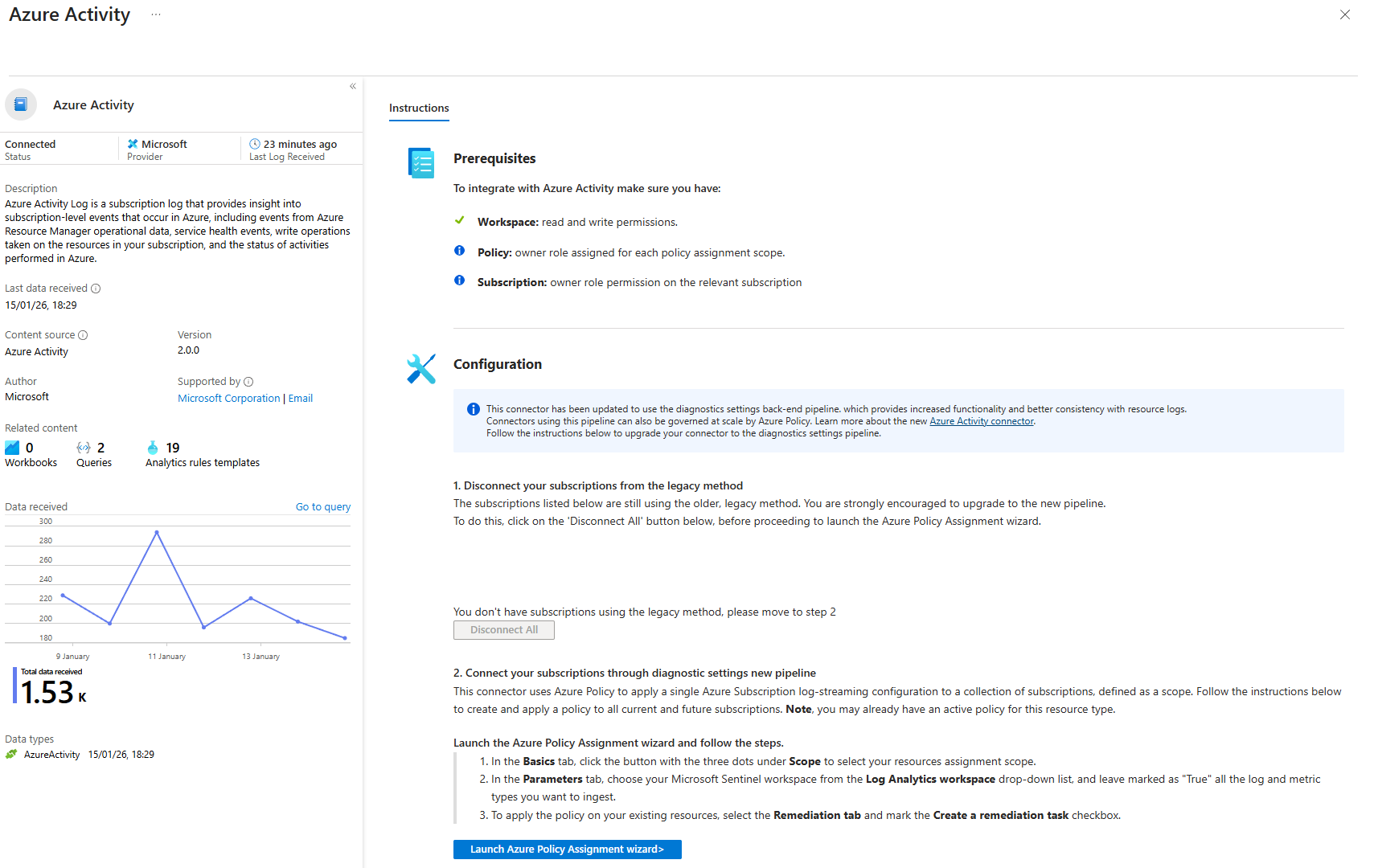
How to enable (after installing from the Content Hub)
- Data Connectors > Azure Activity
- Open connector page
- Click "Launch Azure Policy Assignment"
- Select your subscription scope
- The policy auto-deploys diagnostics settings across all your subscriptions (you need to rerun the policy deployment per subscription)
What can go wrong:
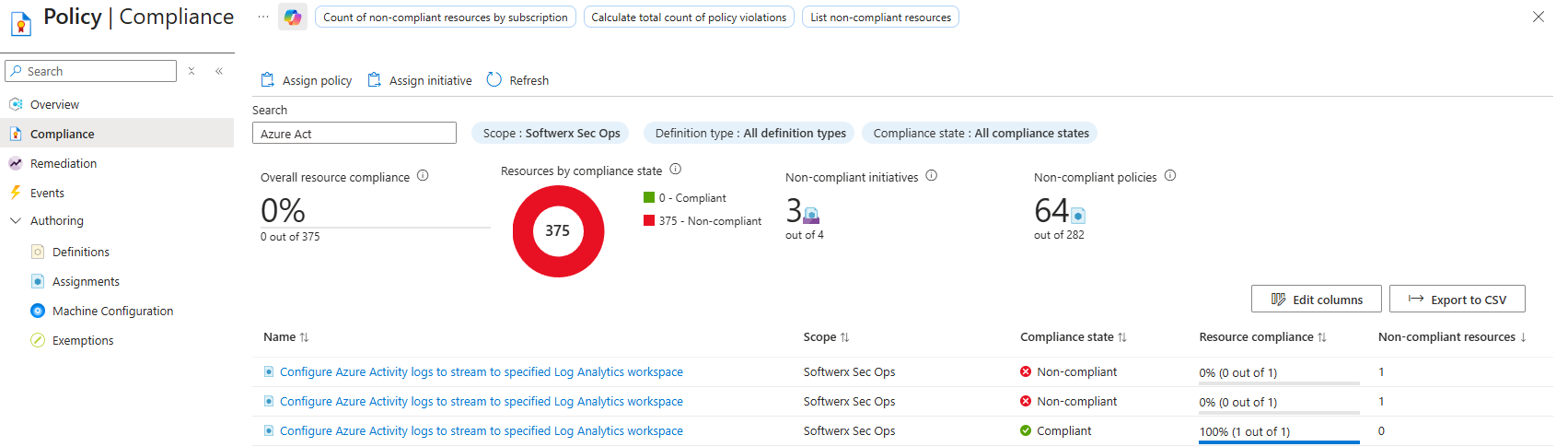
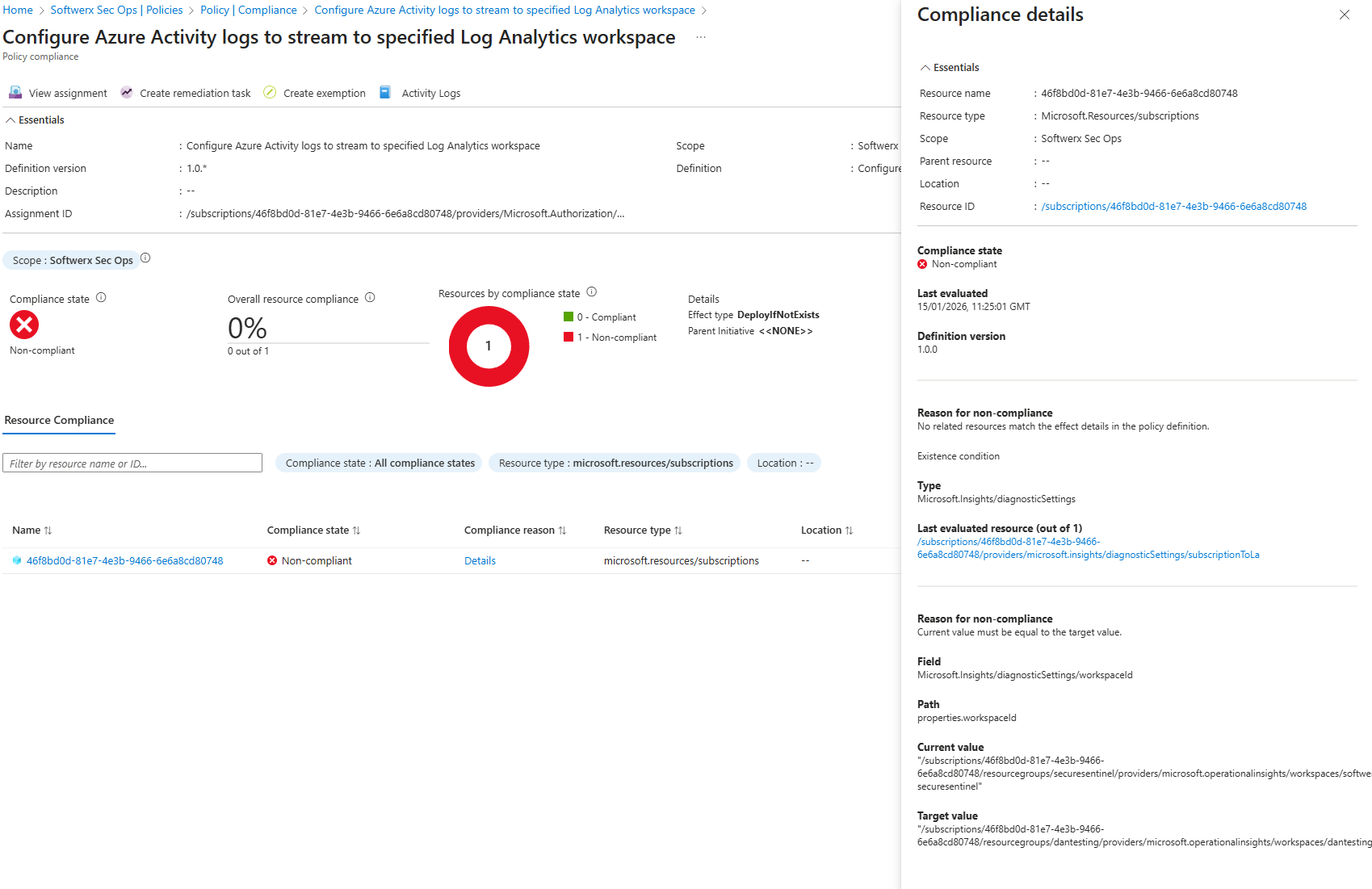
- Policy deployment fails silently. Go to Azure > Subscriptions > your sub > Policies > Compliance. Look for "Azure Activity logs." If it's not "Compliant," the policy didn't apply.
- Data doesn't appear in a few hours. Wait. This is normal.
Troubleshooting:
In Compliance > Click on the "..." > View Assignment > View Compliance On that page, you will be able to see a little more detailed information about the issue. Make sure it's sending to your Log Analytics workspace.
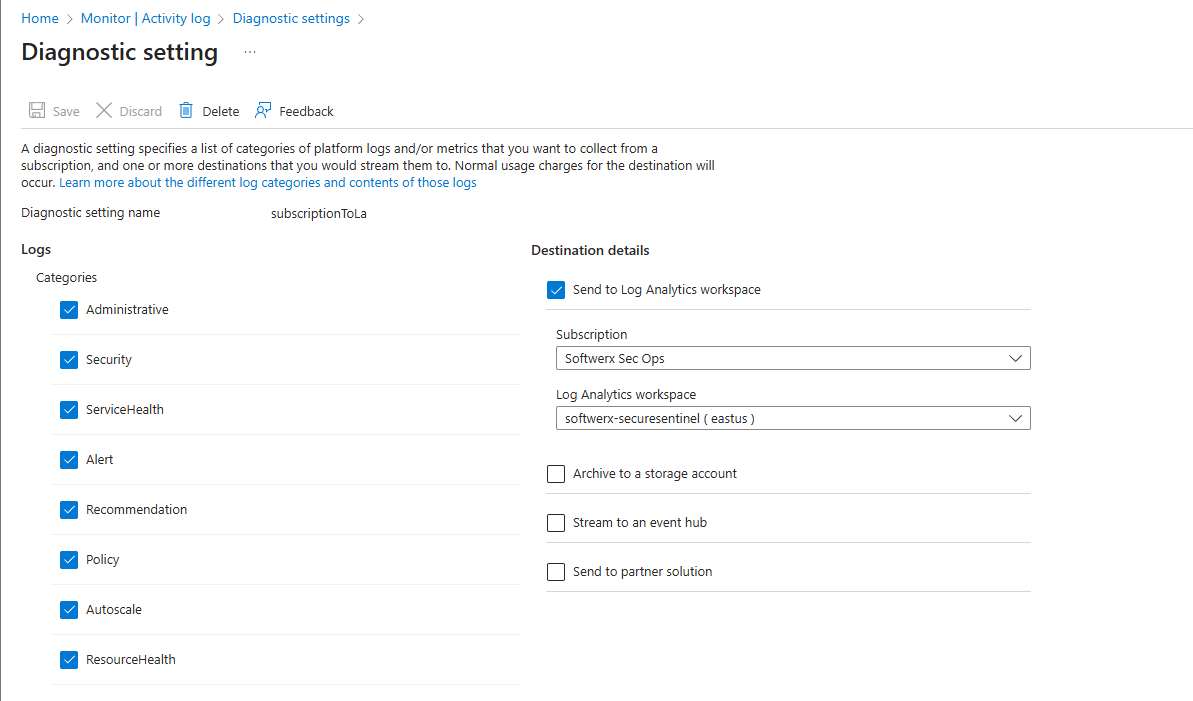
If missing or the policy didn't apply. You can always manually create diagnostic setting by going to Activity log > Export Activity Logs > + Add diagnostic setting
- Keep Administrative and Security as a base minimum
- Send to Log Analytics Workspace
Once AzureActivity table has data, move on.
Microsoft Entra ID (Sign-In + Audit)
This is your identity layer. Compromised credentials, lateral movement, insider threats, policy changes. All here.
What it does:
- SigninLogs: Every user login attempt (successful and failed)
- AuditLogs: User creation, group membership changes, policy assignments, MFA registration changes
- Risky sign-ins flagged by Entra's Identity Protection anomaly detection (logs from it not the actual events, that's another connector we are going to touch on shortly)
- Service Principal/Managed Identity SigninLogs: Similar to user signin logs but for you automation/apps.
How to enable (after installing from the Content Hub)
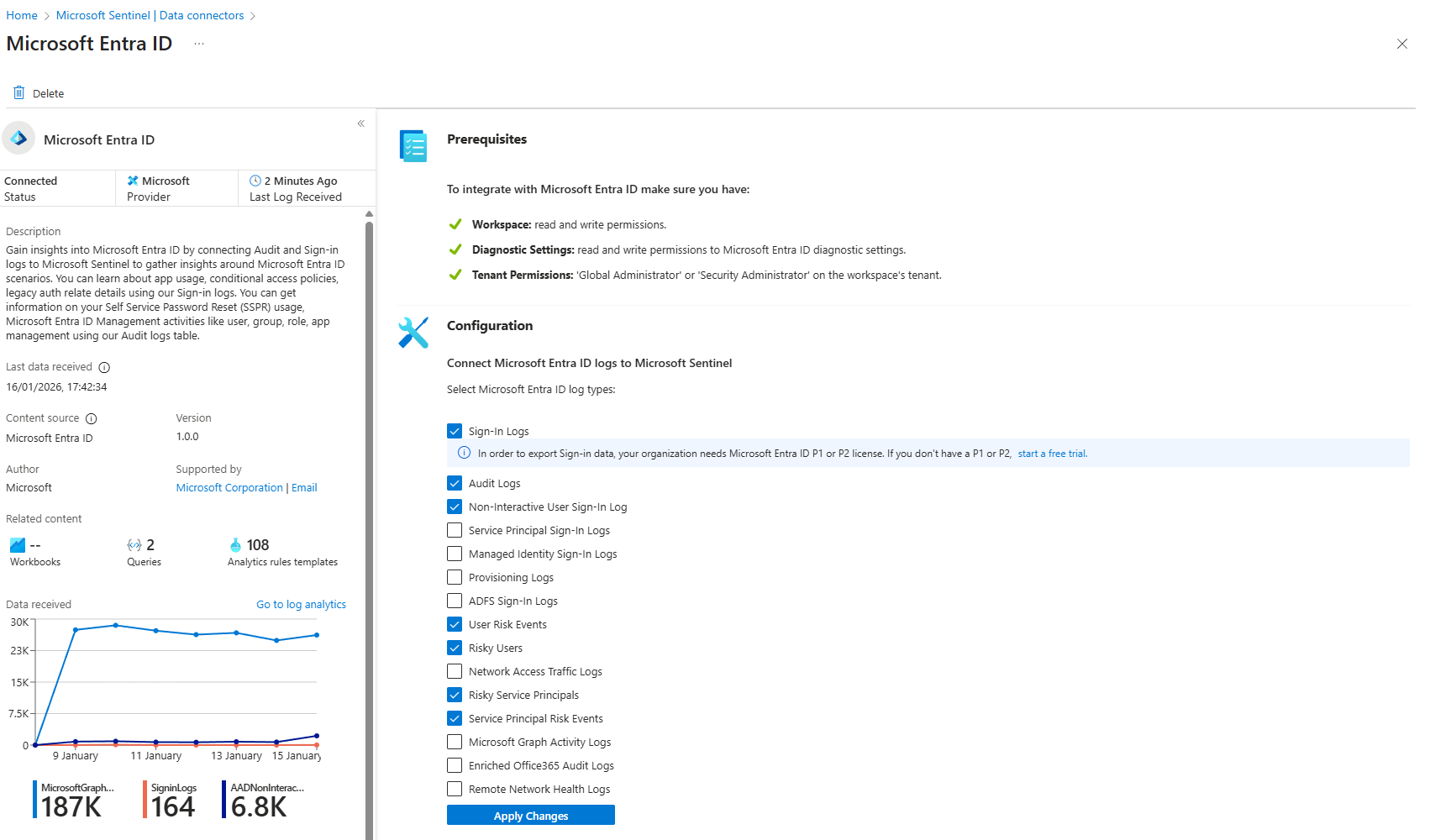
- Data Connectors > Microsoft Entra ID
- Open connector page
- Check: SigninLogs, AuditLogs, NonInteractiveUserSignInLogs, as your base.
- Optionally you can select User Risk Events, Risky Users, Risky Service Principals, and Service Principal Risk Events. Everything else is down to your environment (and whether you are using those additions or not)
- Apply
What can go wrong:
- Incorrect license for some logs (for example SigninLogs requires P1/P2 in Entra ID)
- Connector shows "Connected" but no data appears. Check: Did you check all the boxes? Check SigninLogs again. Sometimes the UI doesn't save.
Troubleshooting:
- Verify license: P1/P2 for SigninLogs required
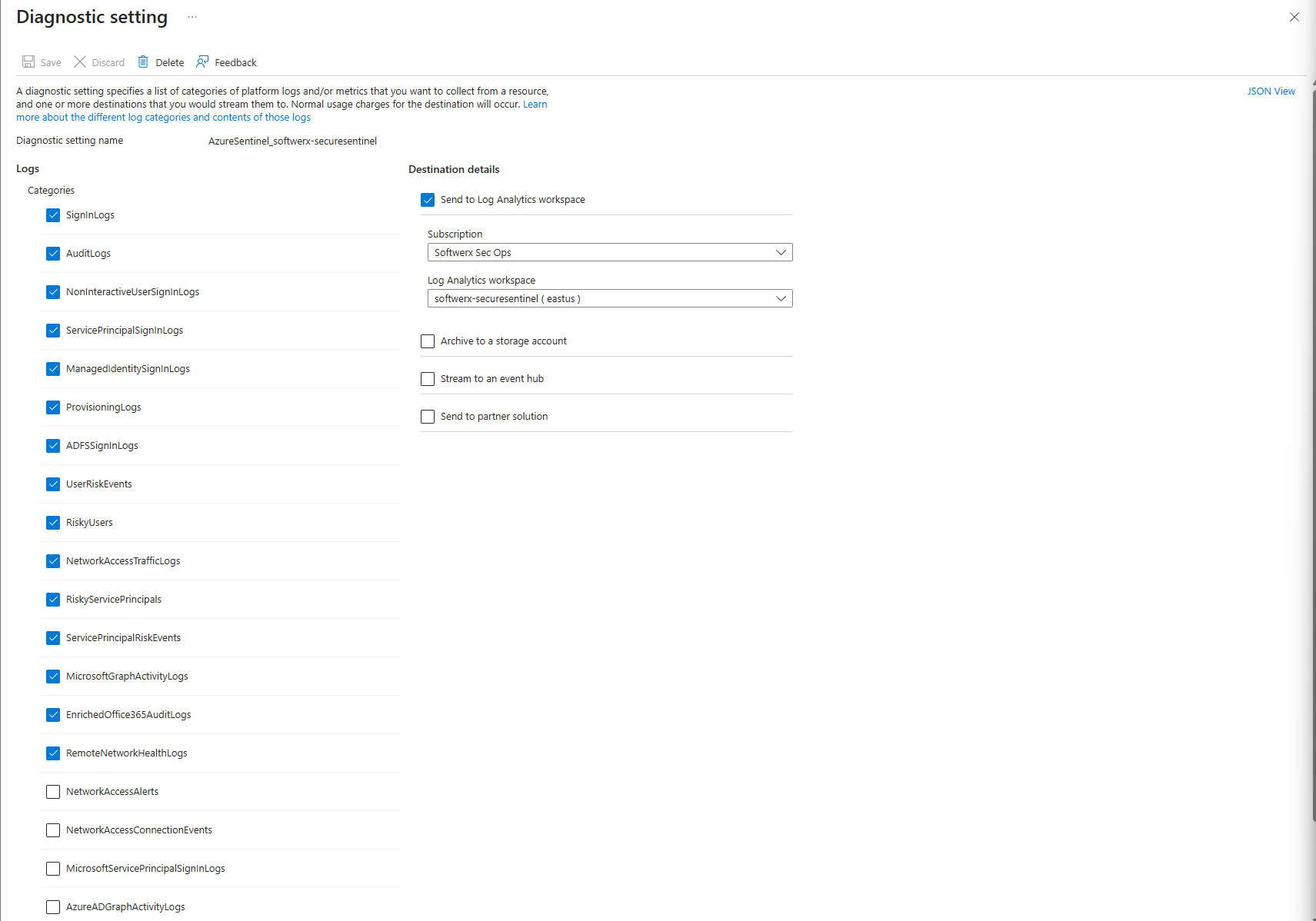
- Check diagnostic settings separately: Go to Entra ID portal > Monitoring > Diagnostic Settings, verify the connector's diagnostic setting exists and is enabled
- Verify user permissions: Confirm you have Security Administrator role on the tenant
- Wait 30-60 minutes: Logs take time to propagate
- Run a test KQL query:
SigninLogs | take 1to confirm data exists
Once you have Entra data, you have identity-layer breach detection.
Microsoft Defender XDR (Incidents + Alerts Only)
This is the unified alert stream from Defender products. Malware detected, phishing hit someone, compromised account flagged, ransomware behavior triggered an alert.
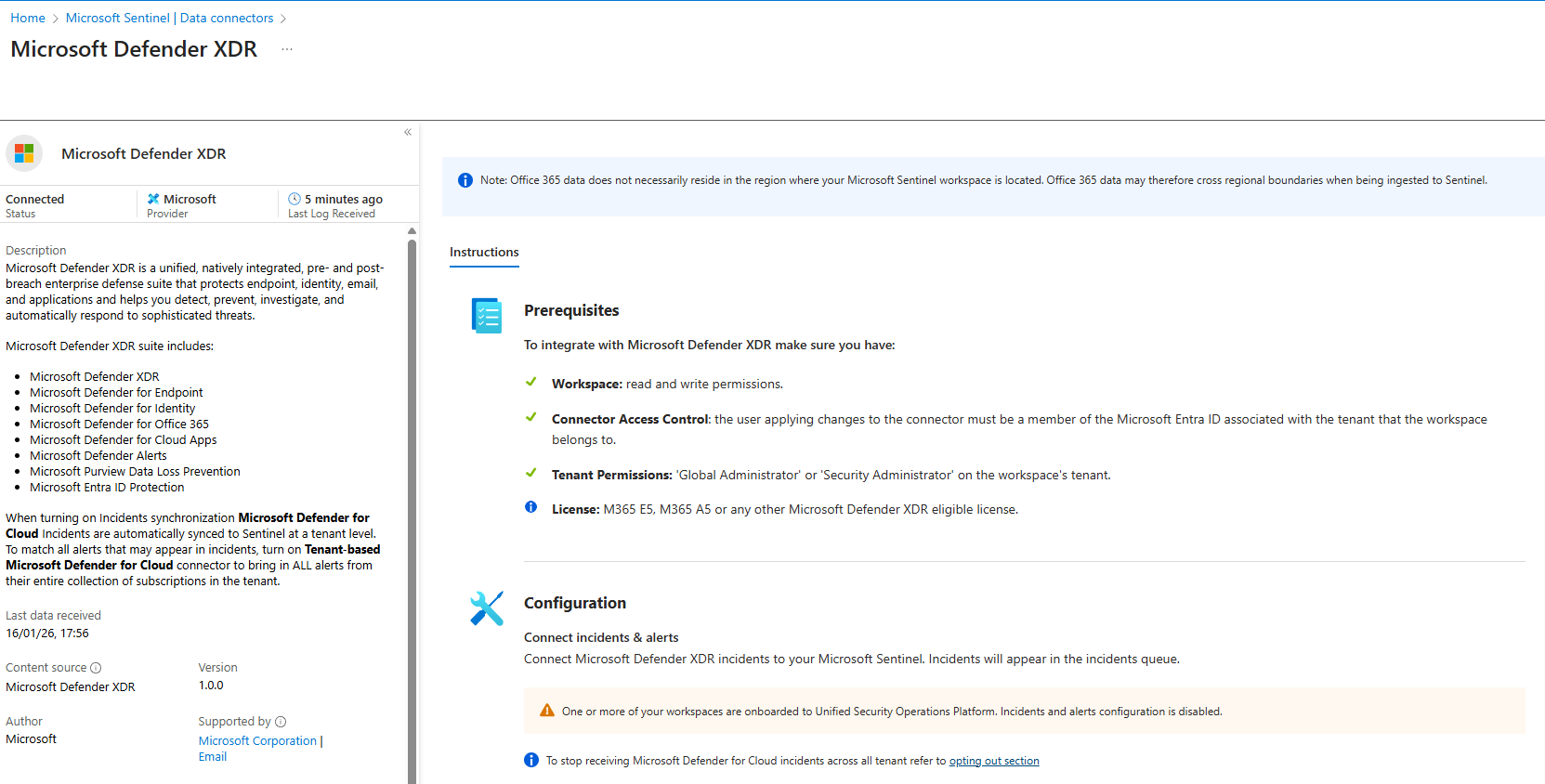
With new Sentinel instances they are already connected to the Microsoft Defender portal and your alerts/incidents will flow to Microsoft Sentinel, you can check it from the Microsoft Defender XDR data connector (we are going to talk about it shortly)
Microsoft 365
Exchange admin actions, SharePoint access, Teams activity. Data exfiltration, ransomware file deletion, insider threats, policy tampering.
How to enable (after installing from the Content Hub)
- Data Connectors > Office 365
- Open connector page
- Check: Exchange, SharePoint, Teams
- Apply
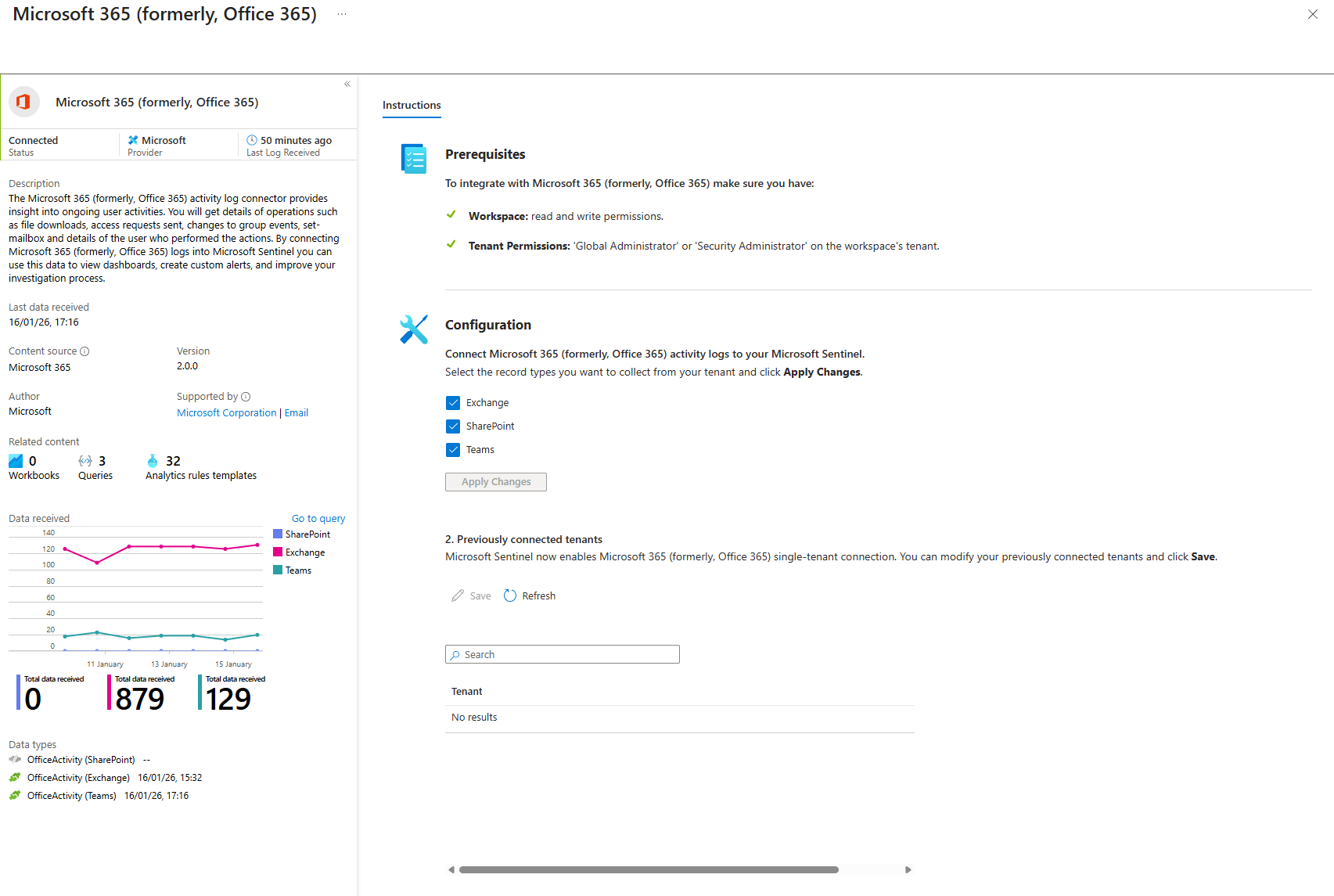
Troubleshooting:
- Verify user permissions: Confirm you have Security Administrator role on the tenant
- Wait 30-60 minutes: Logs take time to propagate
Run the KQLs below:
OfficeActivity | where OfficeWorkload == "Exchange" | take 1OfficeActivity | where OfficeWorkload == "SharePoint" | take 1OfficeActivity | where OfficeWorkload == "MicrosoftTeams" | take 1
Priority 2: Advanced Threat Hunting (Week Two)
Microsoft Defender XDR Events
This is hunting gold. DeviceProcessEvents (process execution), EmailEvents (email metadata), IdentityLogonEvents (Kerberos events).
How to enable (after installing from the Content Hub)
- Go to Microsoft Defender XDR
- Connect everything from each section
- Apply
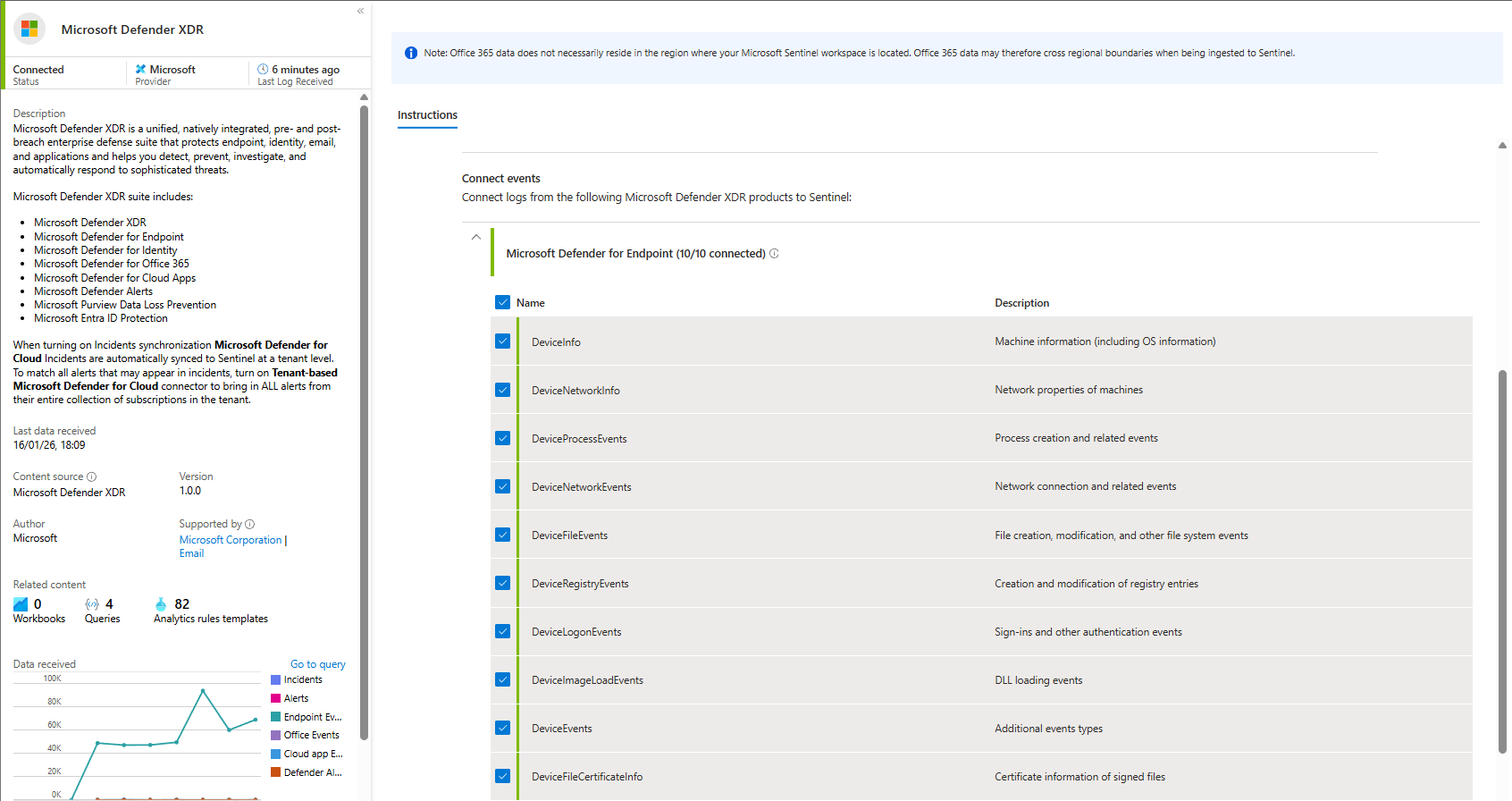
Troubleshooting:
- Same as above (permissions, and wait)
- Correct licensing (All Email data will require Plan 2 on Defender for Office 365 or E5 license as example)
- XDR Connector may fail straight away in general when trying to open it, this is due to Classic Policies still being in place, you would need to either remove or disable them (In Entra ID > Security > CA > Classic Policies)
Windows Security Events (If You Have Defender for Servers Plan 2)
This requires a Data Collection Rule (DCR), that can be created by a connector Windows Security Events via AMA
How to enable:
- Sentinel > Data Connectors > "Windows Security Events via AMA"
- Open connector page
- Configuration > +Create data collection rule
- Name:
Windows-SecurityEvents-Prod(or anything you like!) - Select resources (subscriptions/resource groups/individual machines)
- Collect tab: Choose "All security events," "Common," "Minimal," or "Custom"
- Custom XPath example:
Security!*[System[(EventID=4624 or EventID=4688 or EventID=4720)]] - Review & Create
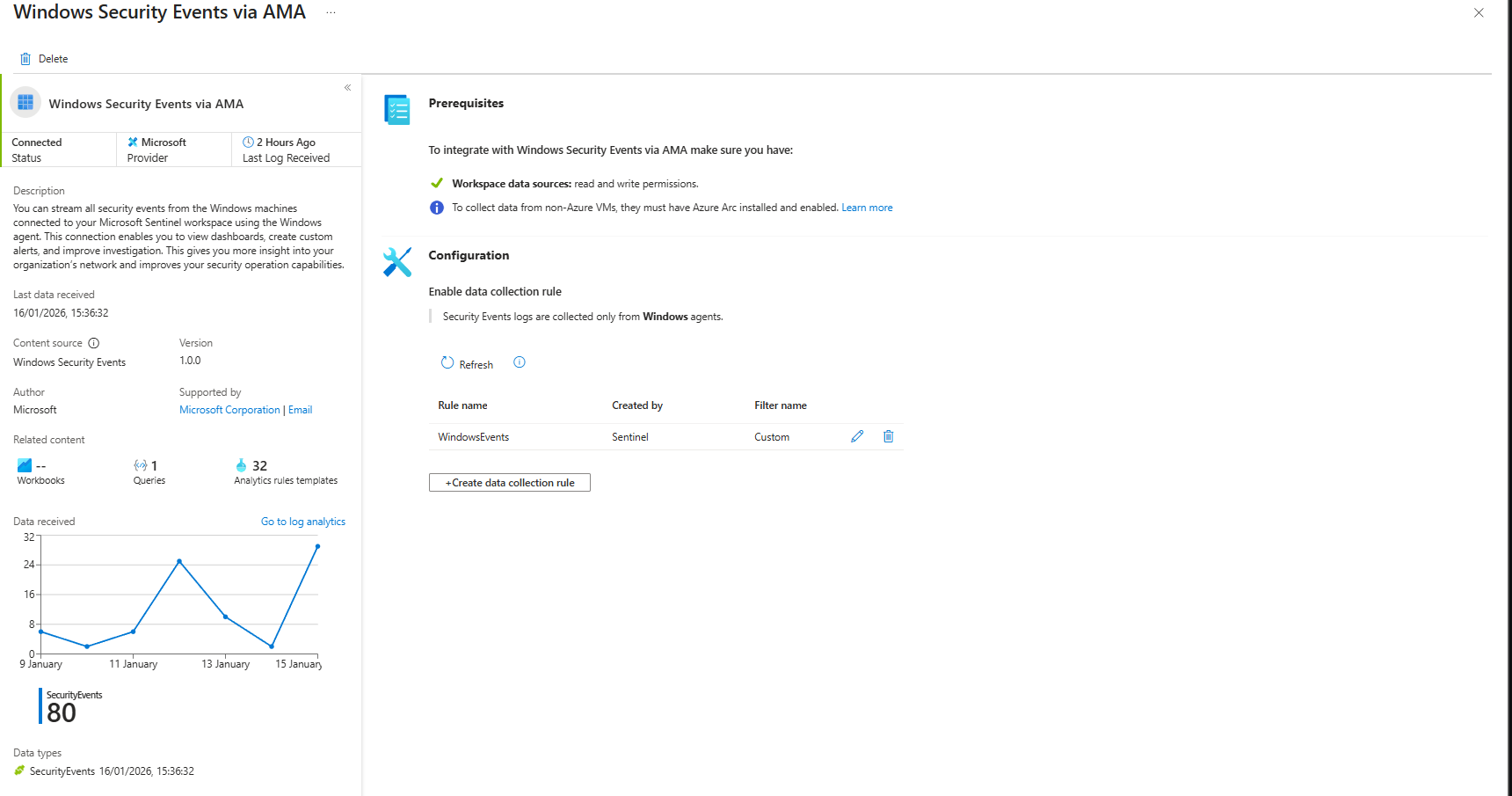
What can go wrong:
DCR created but not assigned
Configuration > Data collection rules. Servers listed under Resources? If not, click Add Resources. AMA will auto-deploy. Check VM > Extensions: "AzureMonitorWindowsAgent" status "Provisioning succeeded". Takes about 60 min.
Wrong events selected
Defaults available: All, Common, Minimal, Custom.
Custom XPath syntax: *[System[(EventID=4624 or EventID=4688)]].
Example: System!*[System[(Level=1 or Level=2 or Level=3) and (EventID != 6)]]
No data after 60 min
- AMA installed? VM > Extensions
- DCR assigned? Check Configuration
- XPath valid?
- Machines have Defender for Servers Plan 2?
- SecurityEvent table selected (not Event table)
What Actually Happens vs What You Think Happens
You enable a connector. Nothing breaks. No fireworks. The UI says "Connected." You wait 10 minutes and check for data. Nothing. You panic.
Entra logs take some time. Azure Activity takes f* ages. XDR takes however long it takes for Defender to get information from the device, if you have only a few users and they are offline nothing will happen.
This is normal. This is correct. The connector is working fine.
90% of connector "problems" are actually just waiting. The other 10% are people not checking if connector is actually enabled (they forgot to click "Apply changes")
Why This Matters For Your SOC
You can't detect threats from data you're not ingesting. But you also can't afford to ingest everything unfiltered. The balance is: enable the connectors that actually catch real attacks, in the right order, with the right scoping.
Priority 1 (Entra + Azure Activity + XDR + Office 365) covers 95% of real breaches. You get: compromised credentials, infrastructure tampering, malware, phishing, insider threats, data exfiltration.
Priority 2 (XDR events + Windows events) adds the hunting layer. You get process execution, lateral movement detail, Kerberos attacks, email forensics.
That's enough. Most orgs don't need anything beyond that. NSG Flow Logs, Storage diagnostics, KeyVault audit - these are great but optional as Microsoft did not came with too many detections around those (and if you are using Defender for Cloud they are already protected)
Your job is detecting threats, not collecting every log Azure can generate.
Class dismissed.