Microsoft's Defaults: Five Settings You Need to Fix Right Now

Welcome back, class.
Microsoft ships five settings that are either enabled when they shouldn't be, or disabled when they absolutely should be. Let's make a really good impact on your environment today.
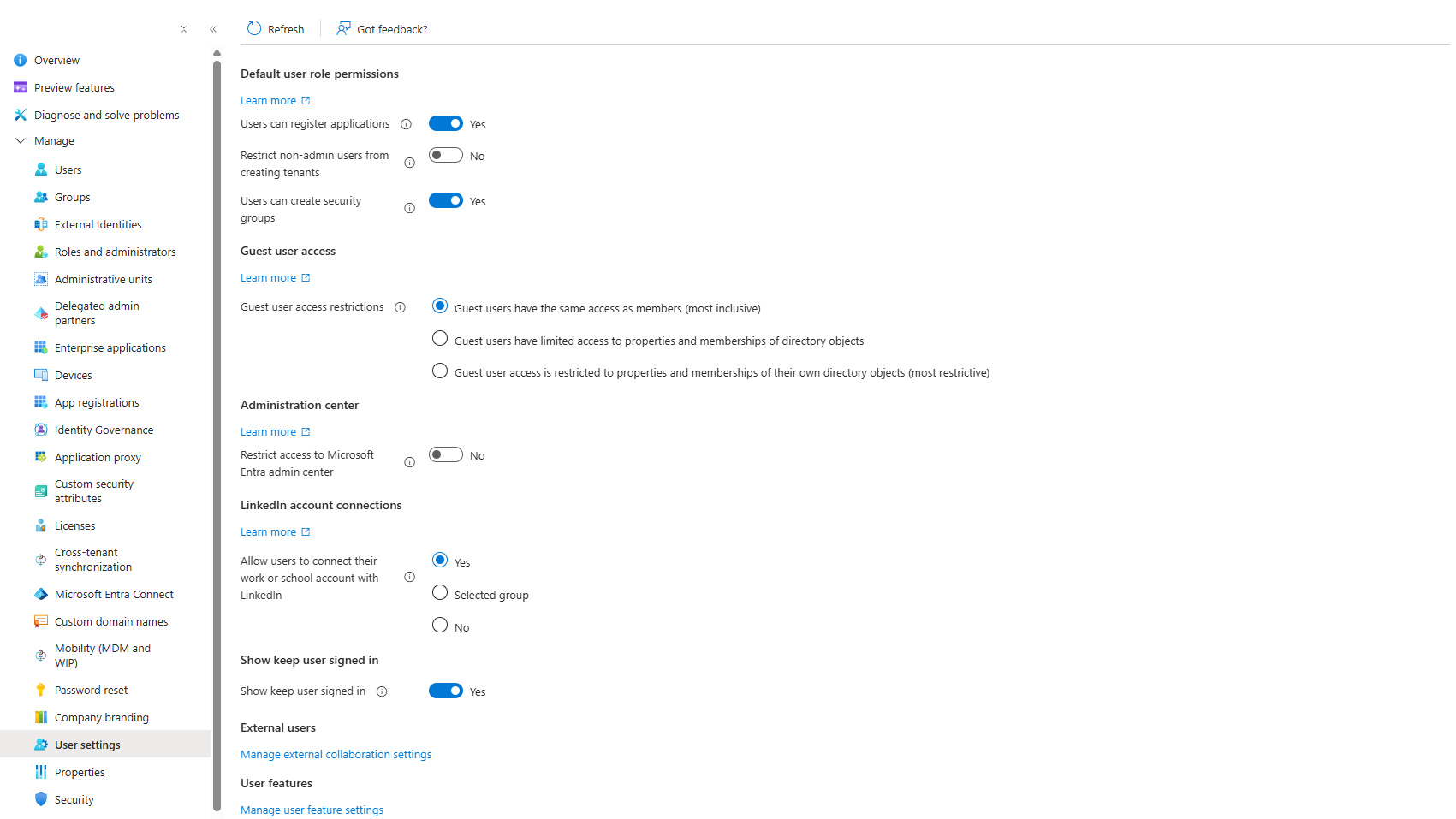
Users Can Register Applications (Entra ID)
Location: Entra Admin Center > User Settings
Default: ENABLED
Locations:
- Entra ID > User Settings (Users can register applications)
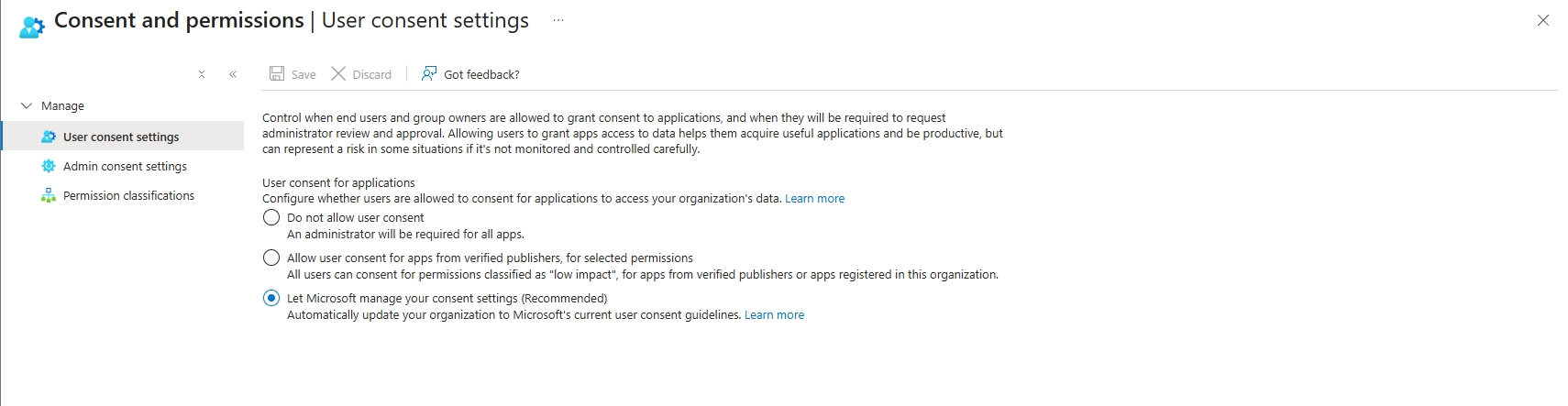
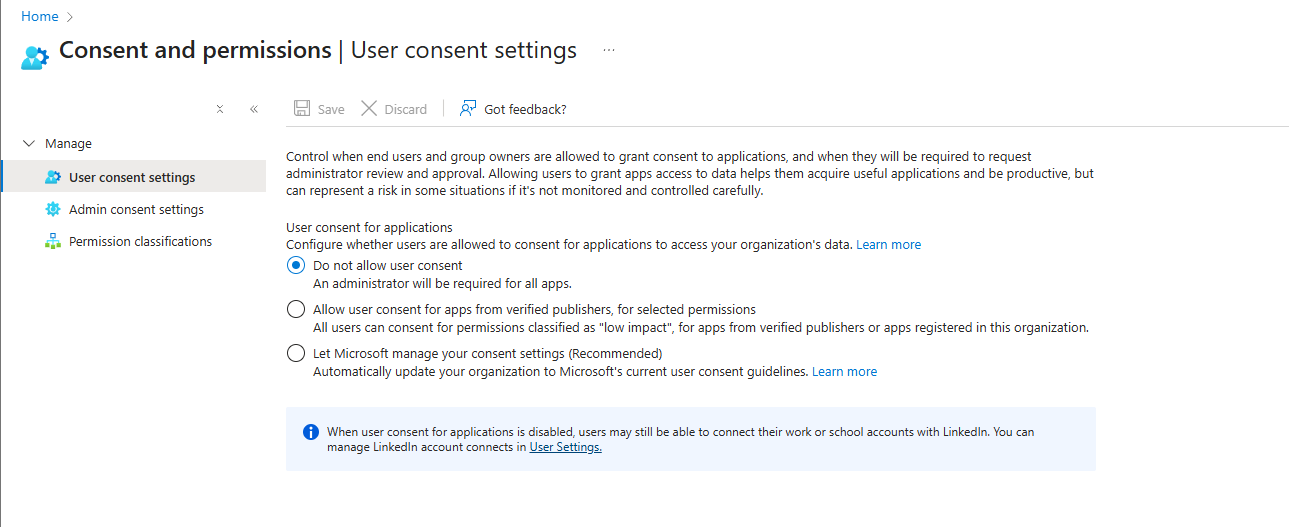
- Entra ID > Enterprise apps > Consent and permissions > User consent settings
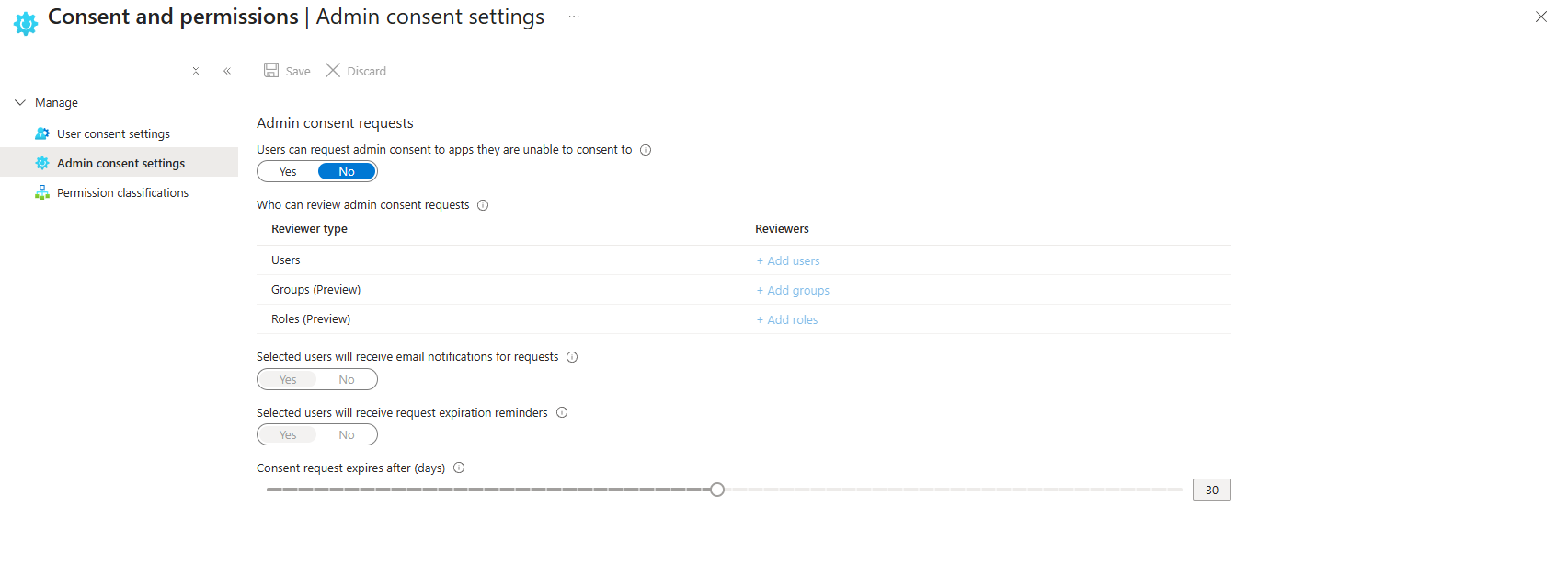
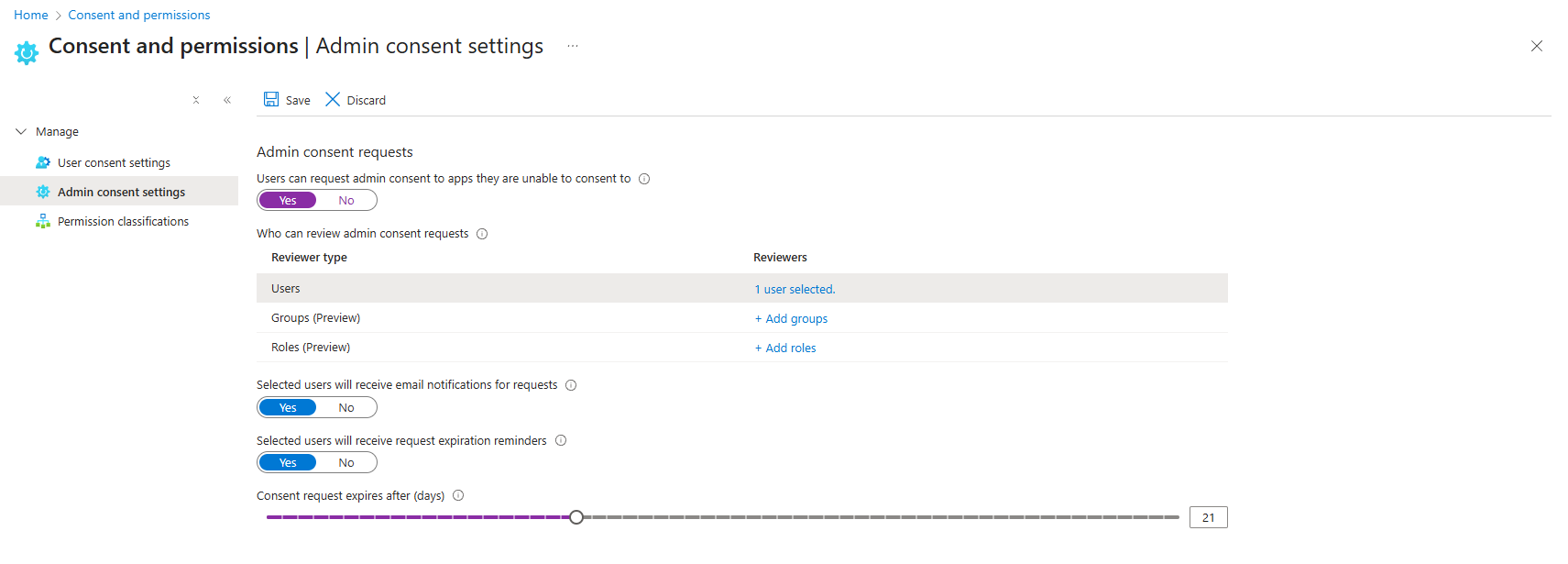
- Entra ID > Enterprise apps > Consent and permissions > Admin consent settings
Defaults:
- Users can register applications: ENABLED
- User consent for applications: Let Microsoft manage (Recommended) is enabled
- Admin consent requests: Users can request admin consent for high-privilege apps (No is selected)
What actually happens: There are two separate controls. You need to fix both.
Control #1: App Registration (The Portal)
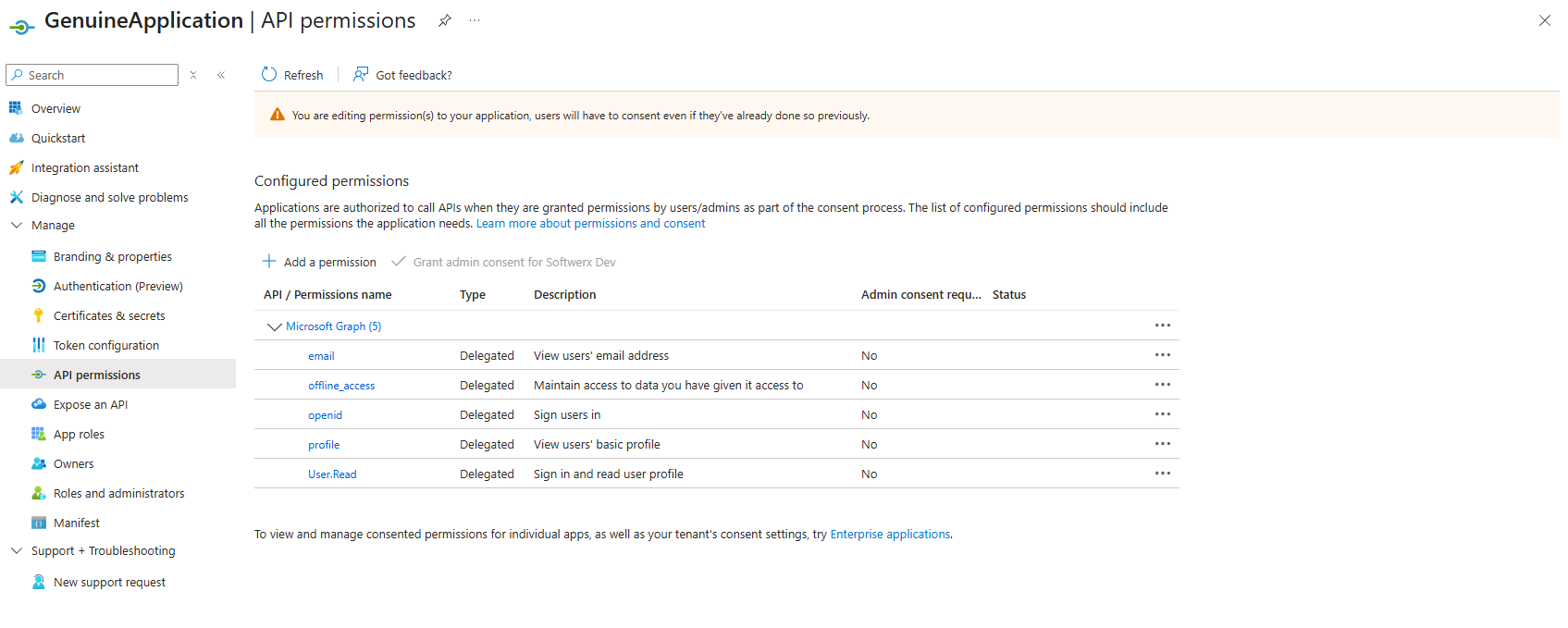
Users can go to Entra ID > App Registrations > New Registration and create an app. They become the owner. They can request any permission (luckily, the users cannot approve the most privileged permissions). Most orgs never audit who owns what. Developers register "test" apps that stick around for years. Three years later, an attacker finds the app ID in old GitHub commits. Request those permissions. A user clicks consent. The attacker has a persistent backdoor. And you have no idea who registered it.
Example of an app that a user without any RBAC roles can create.
Control #2: OAuth Consent (The Login Screen)
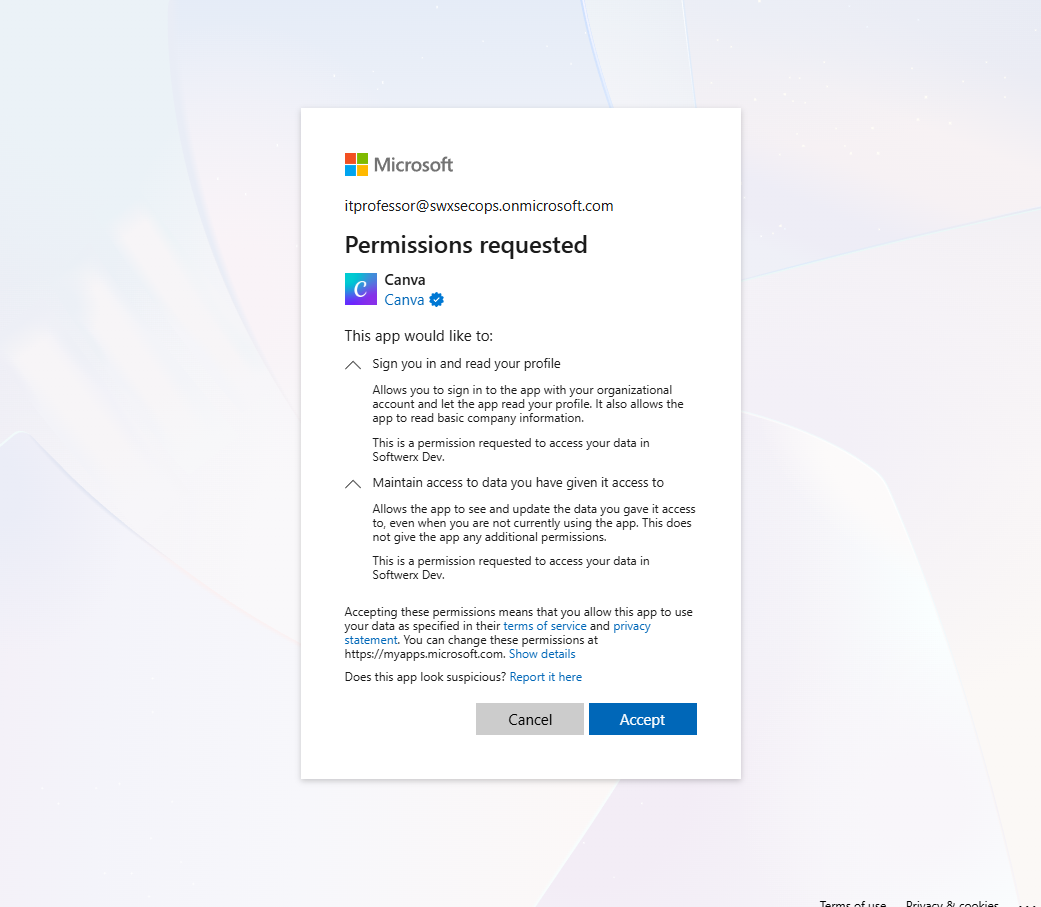
User tries to use an app. Gets a "Sign in with Microsoft" button. Clicks it. Gets consent screen asking for permissions. Grants them. App now has those permissions. This happens regardless of whether Control #1 is enabled or disabled.
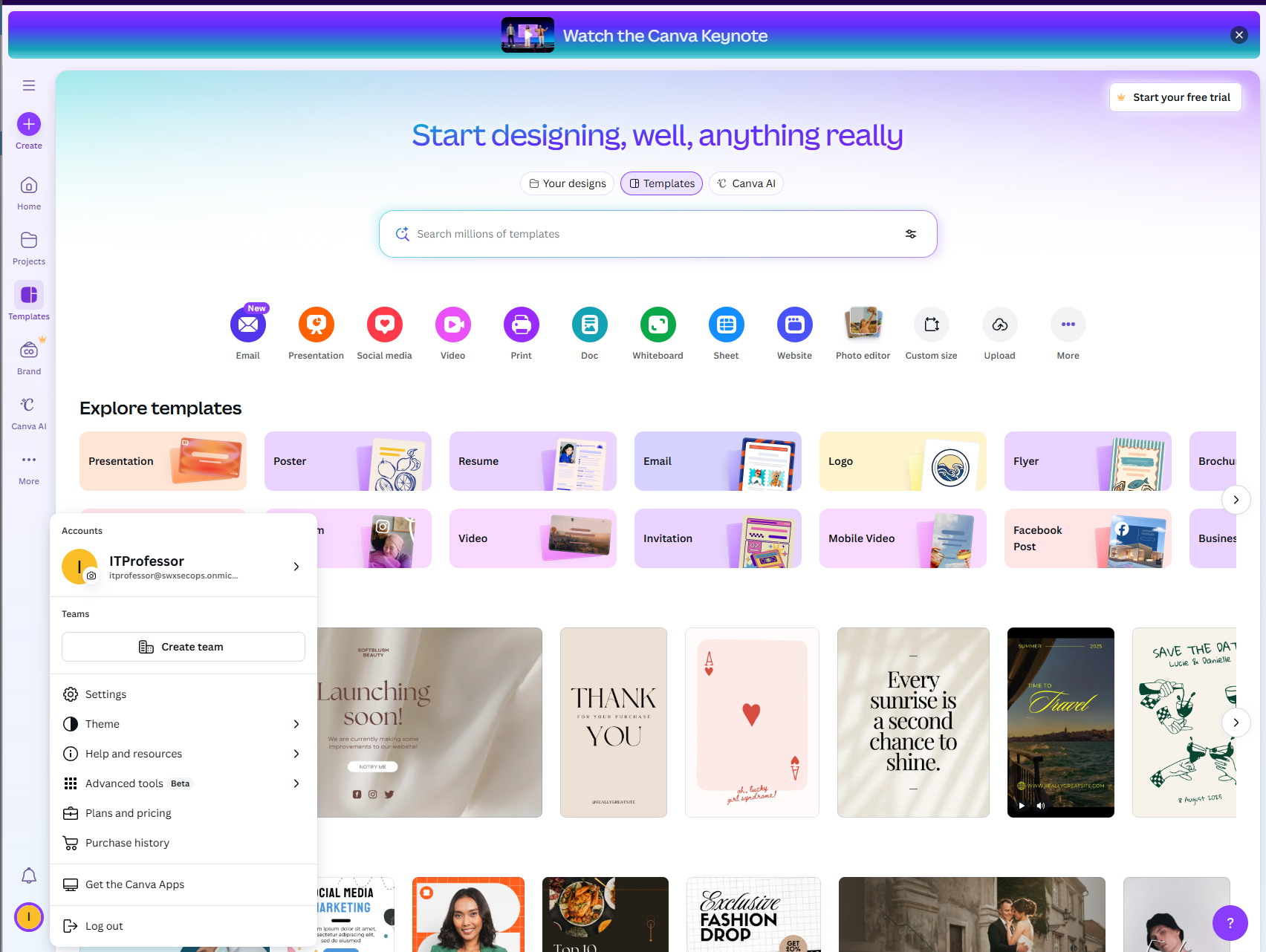
Example of a user accessing the Canva app that will read your company information. That's the Shadow IT for you.
Control #3: Admin Consent Requests (The Right Way)
User tries to use an app requesting high-privilege permissions (Mail.ReadWrite.All, Directory.ReadWrite.All). User can't grant it themselves. Instead of auto-approving or letting users blindly request it, here's what actually works:
Disable user OAuth consent entirely. Users can't grant anything. Every app needs admin approval.
Enable admin consent requests, but route them to your SOC/Security team (or an administrator with good security practices), not to random admins. When a user requests approval for an app, it goes to a security reviewer who:
- Checks what the app actually does
- Validates the business need
- Reviews what permissions it's requesting
- Approves or denies with documented reasoning
A common mistake in orgs: They enable admin consent requests but don't create an approval process. Admin gets an email. Clicks "Approve" without reading what the app does. Attacker gets org-wide Directory.ReadWrite.All. Now you're compromised.
2. App Governance (Defender for Cloud Apps) - Disabled by Default
Location: Microsoft Defender XDR > Settings > Cloud Apps > App Governance
Default: DISABLED (even though E5 includes it)
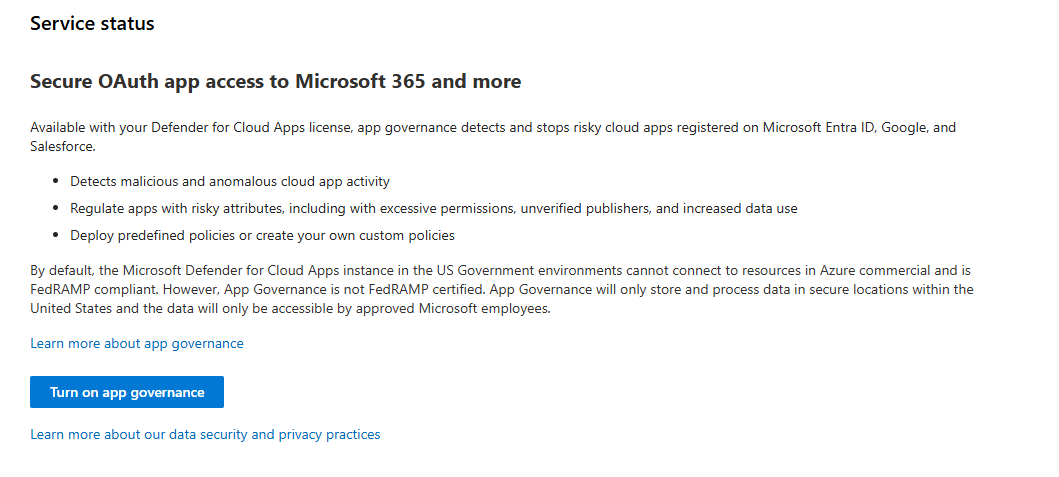
What happens: You pay £49.00/user/month for E5. App Governance is in the license. It detects OAuth apps behaving anomalously. It can block them automatically. And it's turned off by default.
OAuth is the "trust but don't verify" problem. User grants an app Mail.Read in 2020. That app still has mail access in 2025 because the user forgot they ever granted it. And they won't revoke it because they don't even know it exists.
Real-world scenario: Attacker buys a cheap OAuth app from some startup. They find a way to make it look legitimate. User grants consent. Now that app has background access to your entire email system and calendar for as long as the user doesn't revoke it (which they never will).
Why Microsoft left it disabled: Probably didn't want alert fatigue on day one. Wrong call.
The fix:
Start using App Governance - I got a full guide on this!
 Bartosz Wysocki
3. MDO Auto-Remediation - Message Clusters Disabled
Location: Microsoft Defender XDR > Settings > Email & Collaboration > MDO Automation Settings
Default: DISABLED
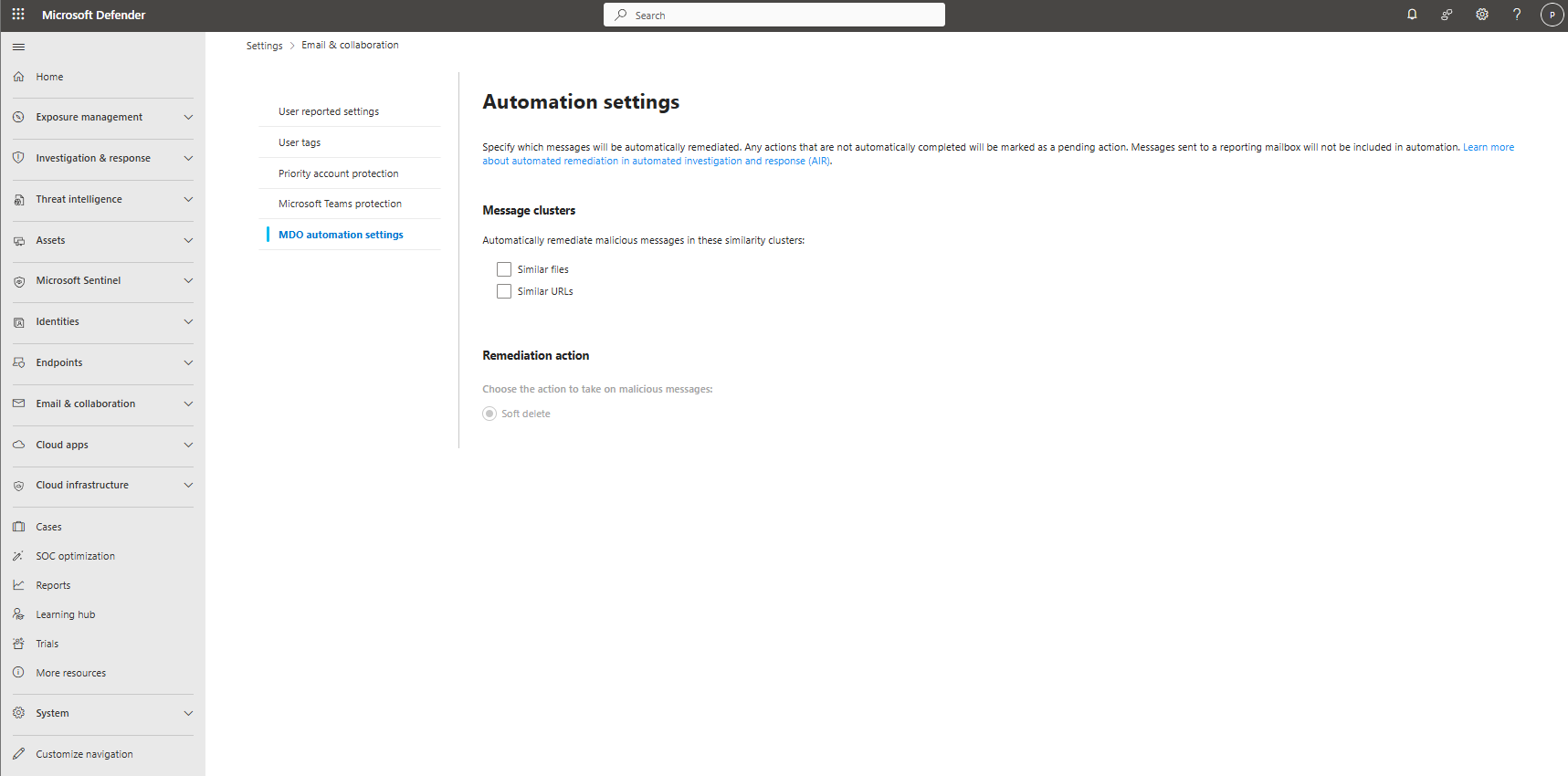
What happens: 100 phishing emails arrive as a cluster. AIR detects it and marks "Pending Action." Someone has to click "Approve" to soft-delete them. Meanwhile, other users are clicking the phishing email.
Better option: Same cluster arrives. AIR detects it. Auto soft-deletes in minutes. Admins see the action in History (no manual intervention needed).
Microsoft disabled this by default because they were being conservative: "Require SecOps review before we take action." Understandable philosophy. Wrong for email threats that move in minutes.
The fix:
Enable those settings; there is no reason not to. It helps both your company and SOC.
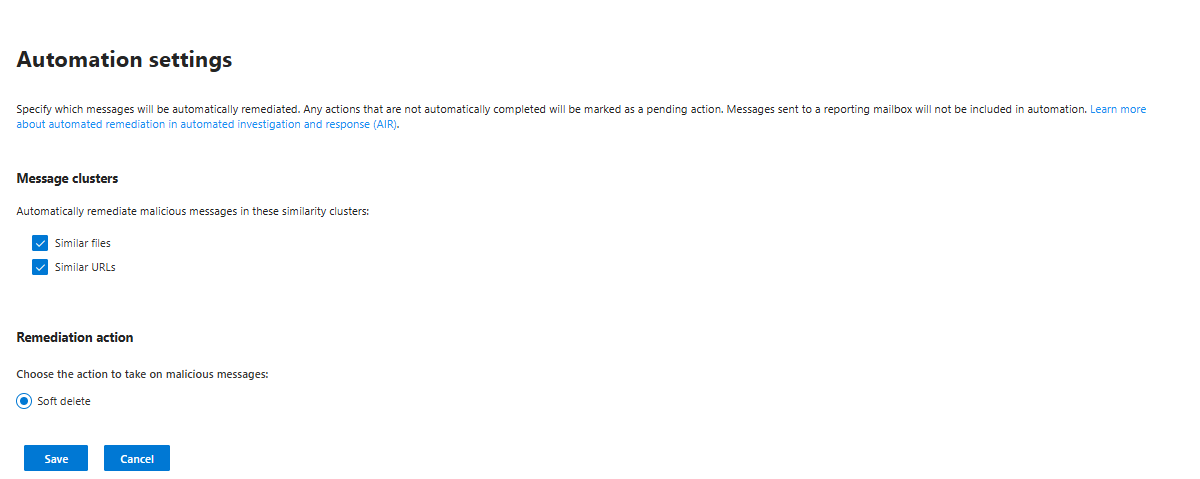
Auto-remediation still logs everything. Audit trail still exists. You still see who did what. You just don't have the manual approval friction.
4. SMTP Basic Authentication - Often Forgotten
Location: Microsoft 365 Admin Center (per user)
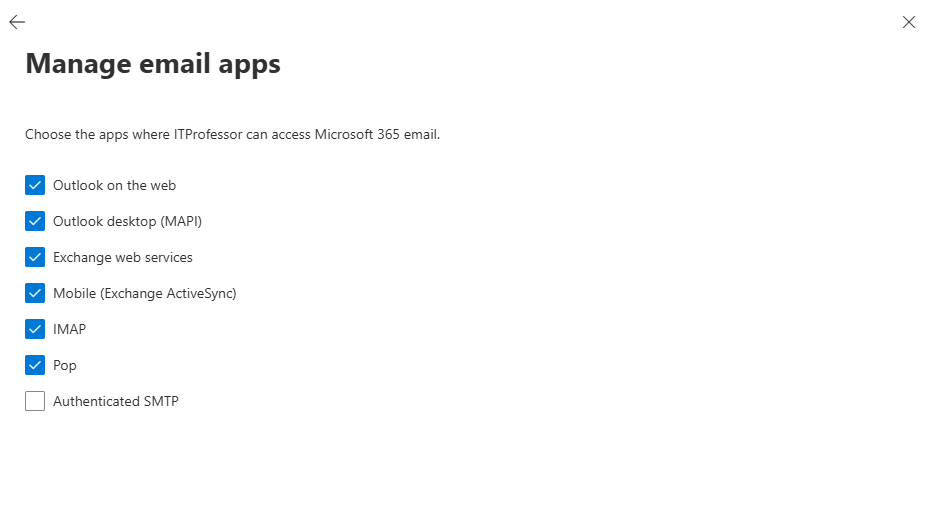
Default: Depends on your tenant (usually enabled unless you've explicitly blocked it)
What happens: SMTP Basic Auth doesn't support MFA. Attacker gets user credentials. They send an email on behalf of that user even if MFA is enabled (SMTP bypasses MFA entirely). This can be of course mitigated with good security practices like setting up Conditional Access Policies. Microsoft is planning to fully disable that function in 2026. Why not fix it now in that case?
Fix:
Run the following PowerShell command, which will disable SMTP Auth globally
Set-TransportConfig -SmtpClientAuthenticationDisabled $trueRun the following command to check the status
Get-TransportConfig | Format-List SmtpClientAuthenticationDisabled
In case you are using Azure CLI type this command first to install Module
Install-Module ExchangeOnlineManagementand follow up with this one which will connect you to Exchange Online
Connect-ExchangeOnlineOR create Conditional Access:
Conditional Access > New Policy
  - Name: Block Legacy Auth
  - Cloud Apps: All resources
  - Client Apps: Exchange ActiveSync, Other legacy clients
  - Grant: Block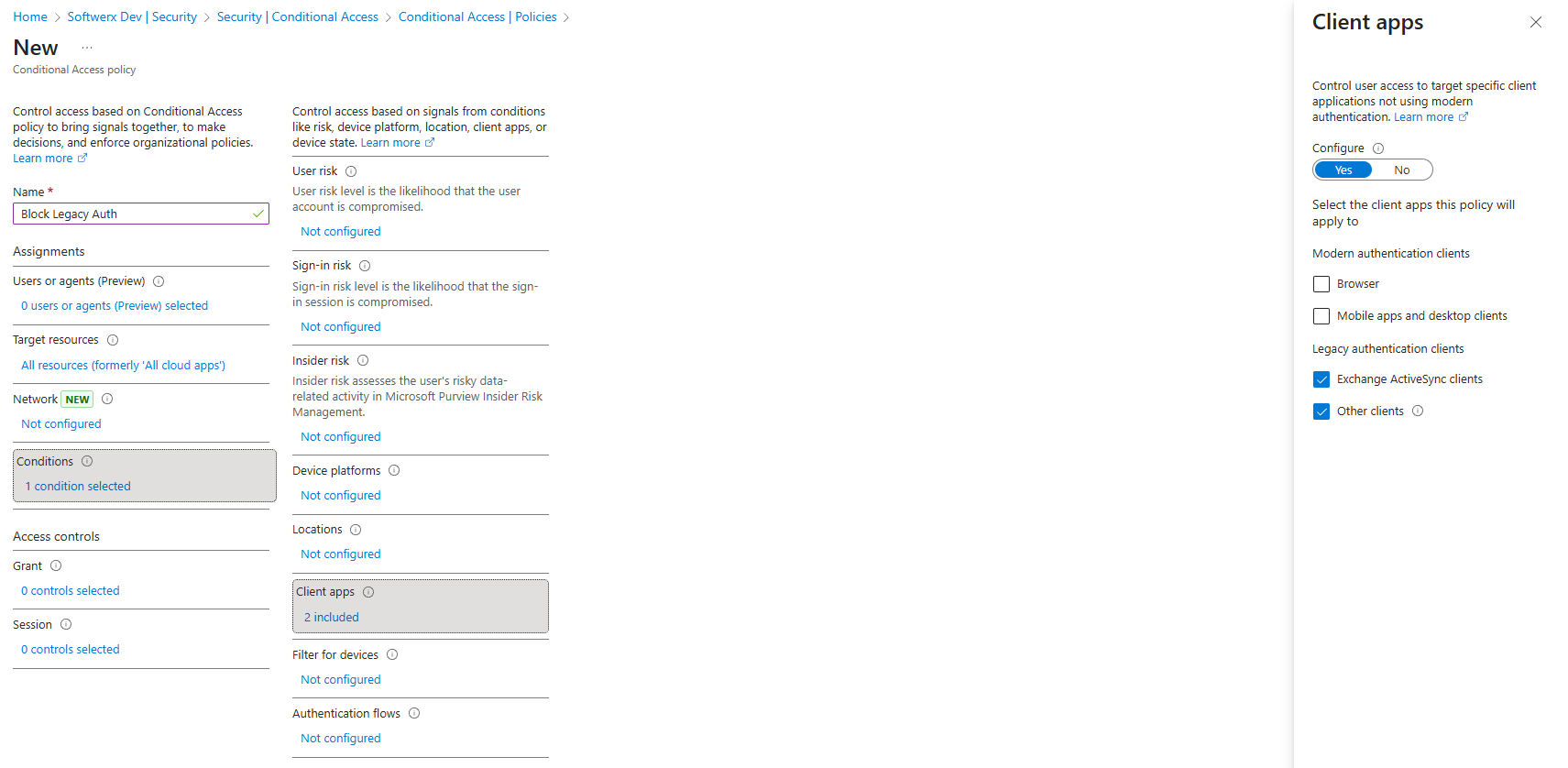
Most of you will ask the same question, but I do have a user/account that needs to be on the Legacy Auth. You can still enable it for a specific user via the O365 Admin Centre. It's still a great difference between this being enabled for the entire company vs a few accounts, right?
Another question I can see quite often: "We need SMTP for our 2005 line-of-business app."
Counter-argument: That app is a liability either way. Use app passwords (MFA-compatible) instead of user credentials. Or isolate the app and proxy through modern auth. Or migrate the app. Leaving SMTP open is not a solution.
5. Guest Invite Restrictions - Escalation Chain Risk
Location: Entra > External Identities > External Collaboration Settings
Default: ENABLED for B2B (guests can invite other guests)
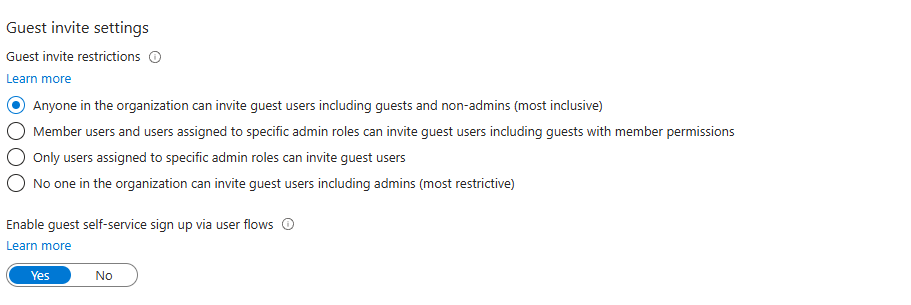
What happens: Any user can invite external guests. Those guests can invite more guests. You lose visibility into who's actually in your tenant.
Real scenario: User invites a partner from Org A. Partner invites someone from competitor Org B. Now you have undocumented access to sensitive data that you didn't authorise.
The fix:
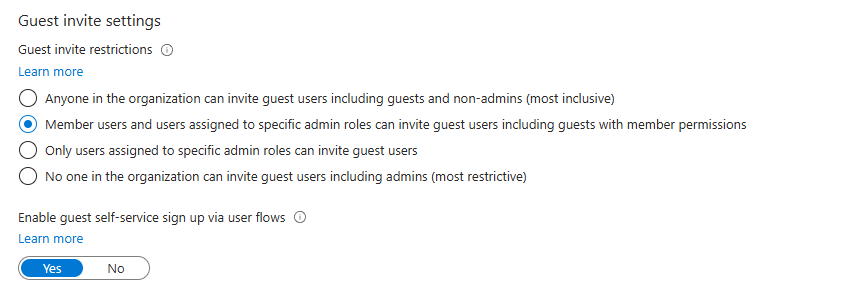
Switch it so only admins can invite guests. You may of course have a company that requires that ability for the guests, but I imagine that 99% of you reading this blog post don't need it.
OR in case you don't want any guests in the company, switch to the option at the very bottom, "No one in the org can invite guest users including admins"
These five changes eliminate a lot of issues in the Shadow IT, OAuth compromise, and account takeover vectors that exist in default Entra/Defender tenants.
Class dismissed.