Is Defender for Office 365 worth it?

All right class.
Your email is already protected by Exchange Online Protection. So why would you pay for Defender for Office 365 on top of that?
That's the question quite a few orgs ask. And most of them get the answer wrong.
They buy Defender, deploy it with default policies, get flooded with false positives, and disable it within three months. Or they don't buy it, get compromised through email, and then wonder why their incident response was so slow.
Defender for Office 365 isn't only about blocking email better. EOP already blocks most email. Defender is about visibility. Logging. Being able to hunt when something slips through.
What EOP Actually Does
Exchange Online Protection comes free with your Microsoft 365 subscription. It does signature matching. Spam looks like previous spam; it gets blocked. Malware matches known hashes; it gets quarantined. IP is on a blocklist, and connection drops.
The problem: it's reactive. The malware has to exist first. Someone reports it. Microsoft adds it to the database. Meanwhile, your users have been phished. By the time EOP gets the signature, the attack is already over.
It also doesn't do URL detonation. It won't click a link and see where it goes. It just checks URLs against known phishing lists. New phishing kit spun up an hour ago? URL's not on any list yet. Email gets through.
Same with attachments. EOP does signature matching. If the file hash matches something malicious, it blocks it. If it's a new document with a Trojan that nobody's ever seen before, it passes through.
In production, this is where it breaks: You get a phishing email claiming to be from your CEO. The link goes to a cloned Office 365 login page. EOP checks the URL. It's not on any blocklist. New infrastructure. Email gets delivered. User clicks. User enters credentials. The attacker has access 5 minutes later.
This happens constantly. Your helpdesk sees it. Your users see it. Everyone knows EOP can't catch sophisticated phishing. But orgs still act shocked when it succeeds.
What Defender for Office Actually Changes
Defender for Office 365 does time-of-click threat analysis.
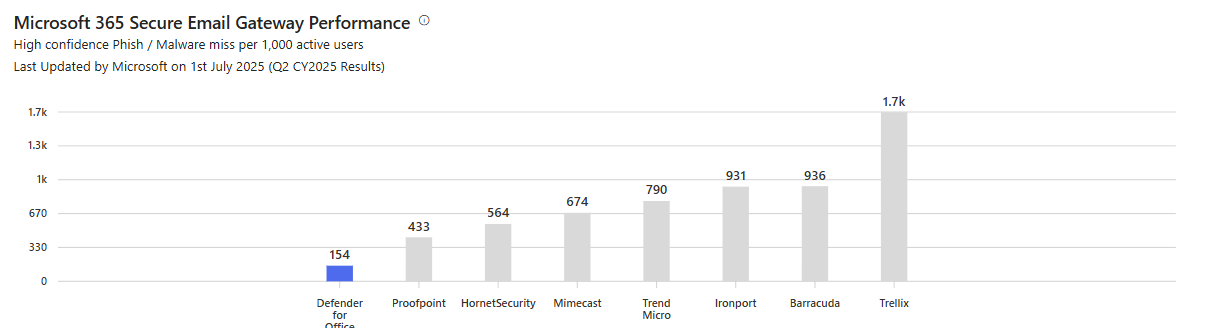
Safe Links intercepts URLs at the moment the user clicks them. An email arrives with a malicious link. User reads it. User clicks. That click gets intercepted. Defender spins up a sandbox, loads the URL, and watches what happens. If the page harvests credentials, it's phishing. If it deploys malware, it's malware. Block it before the page renders. User sees a warning instead of the login form.
This catches zero-day phishing infrastructure. New phishing kit from this morning? Safe Links doesn't care. It analyses behaviour, not databases.
Safe Attachments extracts files before they're opened. Runs them in an isolated sandbox. Watches for suspicious activity: registry writes, process execution, network connections. Macro-enabled Excel file that tries to spawn PowerShell? Blocked. DLL injection? Blocked. C2 callback? Blocked.
In production: You get a trojanized Word doc labelled "DocuSign". Safe Attachments extracts it, detonates it, and sees the macro trying to execute a malicious script. Quarantine. No incident. Your helpdesk never knows it happened.
Anti-phishing gets machine learning models. Not just pattern matching. Mailbox intelligence learns individual user behaviour. Who does your CFO usually email? What domains do they trust? What time of day do they send messages? Someone spoofs your CFO's account and sends a wire transfer request at 2 AM to an unknown vendor? The system flags it because it's statistically impossible based on what the user normally does.
Impersonation protection lets you explicitly say "these users and these domains are critical." Any external email impersonating them gets flagged harder. Someone sending from "ceo@compnay.com" (typosquatted) gets more scrutiny than a random external email.
Priority account protection puts your exec team under additional scrutiny. Stricter thresholds, more aggressive detection, and visual warnings on emails from unknown senders. Because if your CEO gets compromised, everything downstream is compromised.
User-reported message workflows close the feedback loop. User clicks "Report as Phishing" in Outlook. That report goes to Microsoft (trains their machine learning), and goes to your custom mailbox. Your SecOps team can triage it, see what other users got the same email, and take action. This is your early warning system before a campaign scales.
Why This Actually Matters for Sentinel
If you're running Sentinel, Defender for Office 365 isn't optional. Not because of the blocking. Because of the logging.
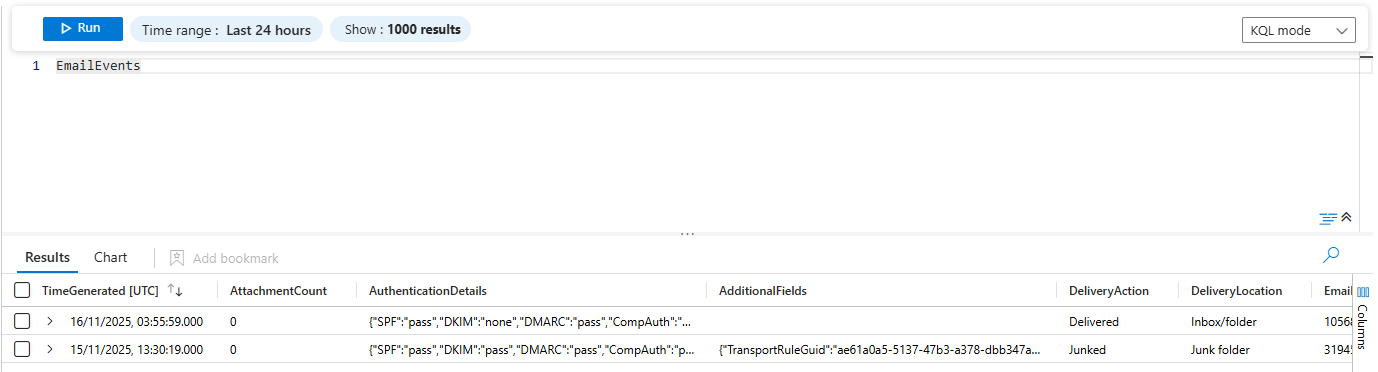
EmailEvents table: Every email that hits your tenant. Sender, recipient, subject, message ID, whether it's internal or external, what policy acted on it, and final verdict. Not just flagged emails. All of them. All queryable.
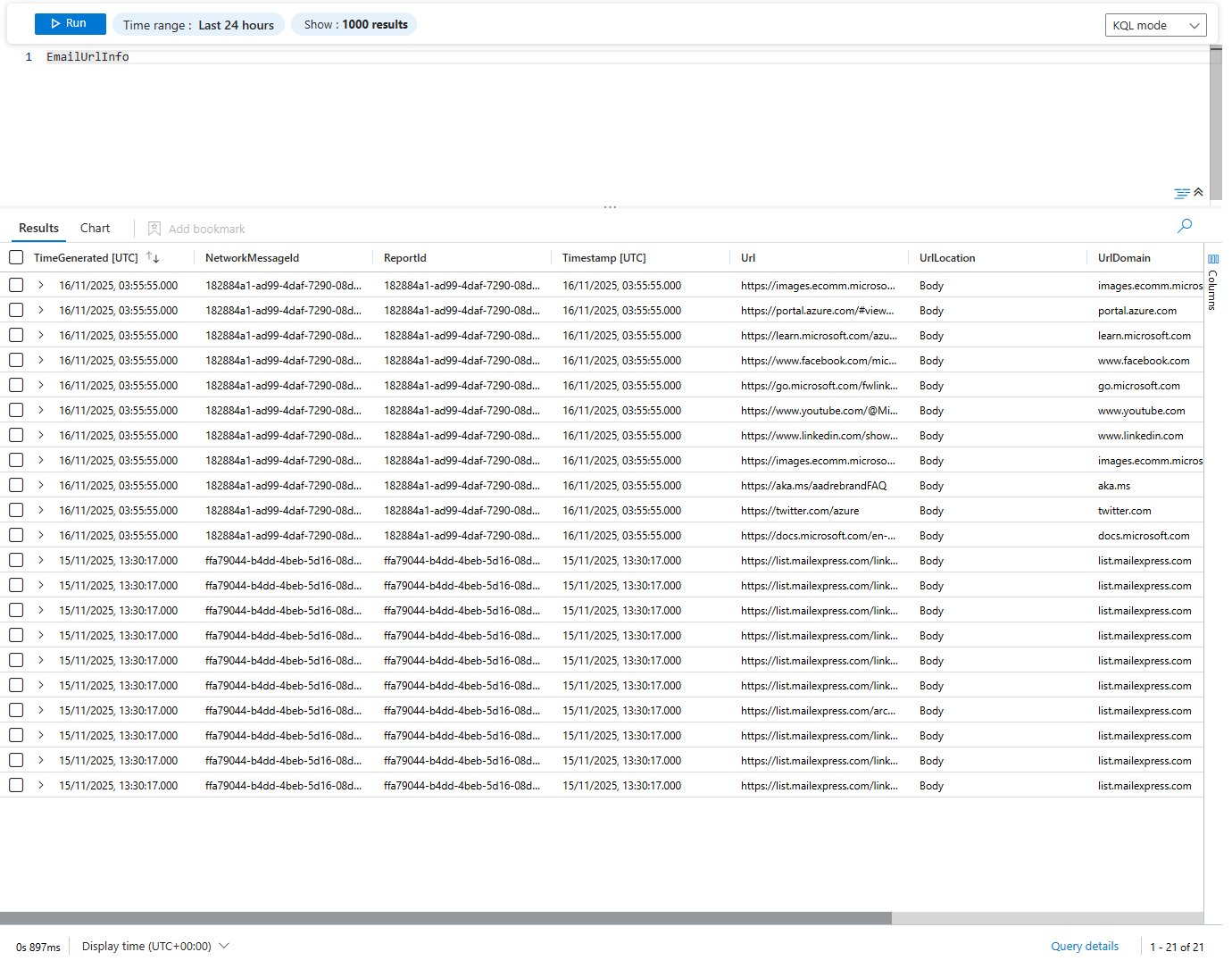
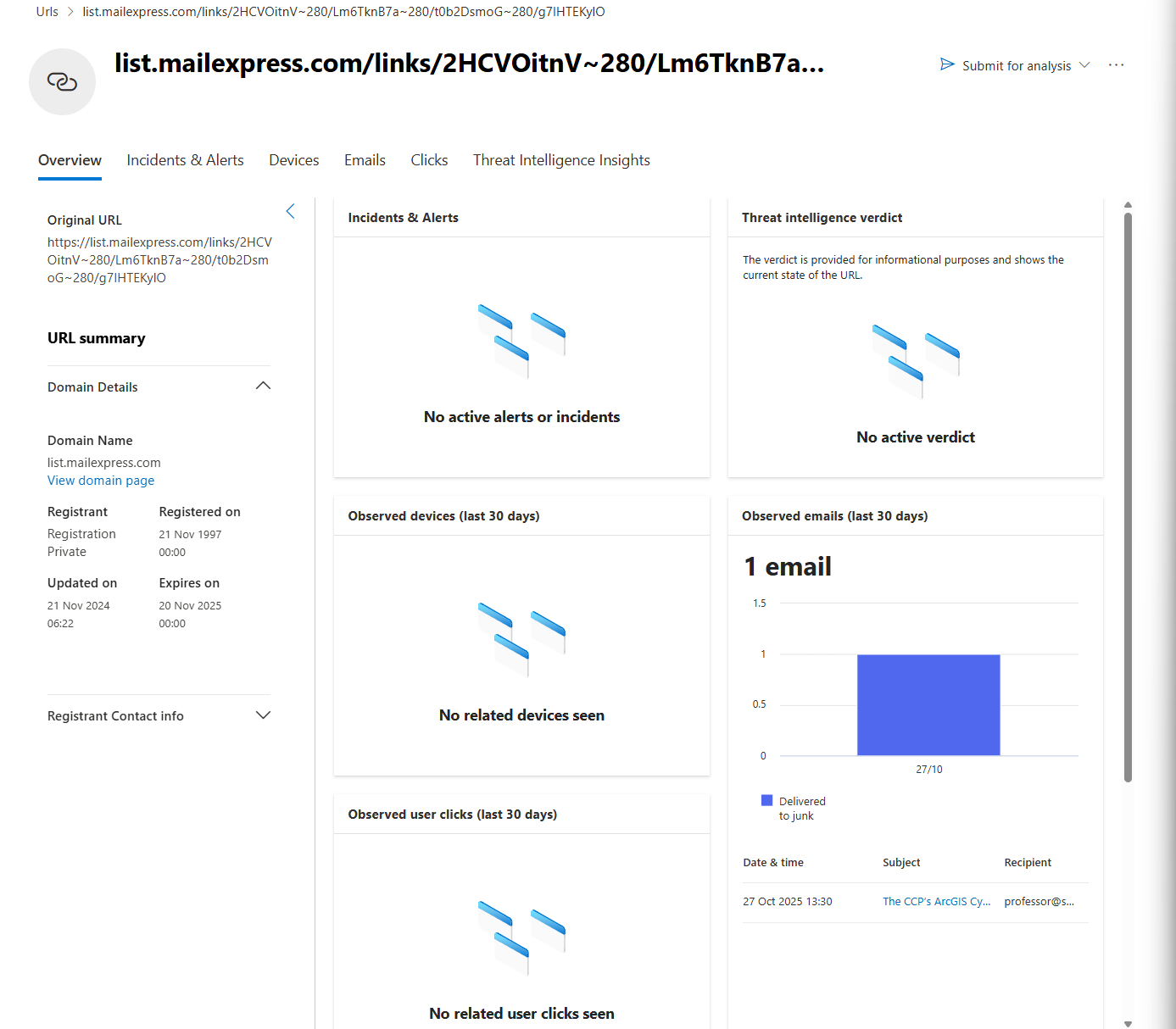
EmailUrlInfo: Every URL extracted from every email. URL value, recipient, sender, whether it was clicked, and whether detonation detected something malicious. You can see which users clicked the malicious link, not just which emails contained it.
EmailAttachmentInfo: Attachment metadata from every email. Filename, file type, size, and SHA256. Again, all attachments. Not just suspicious ones.
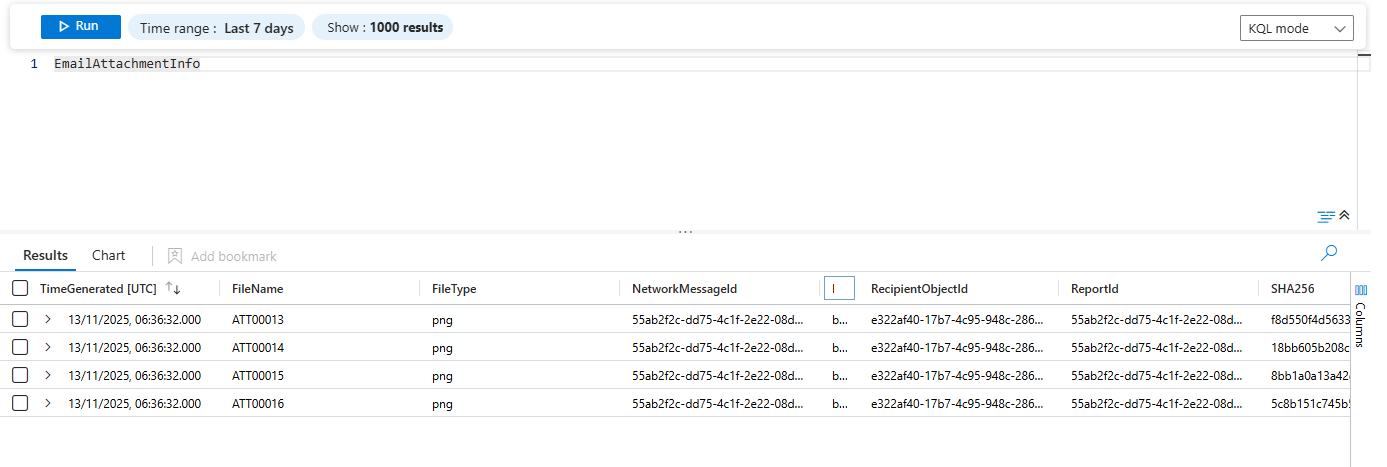
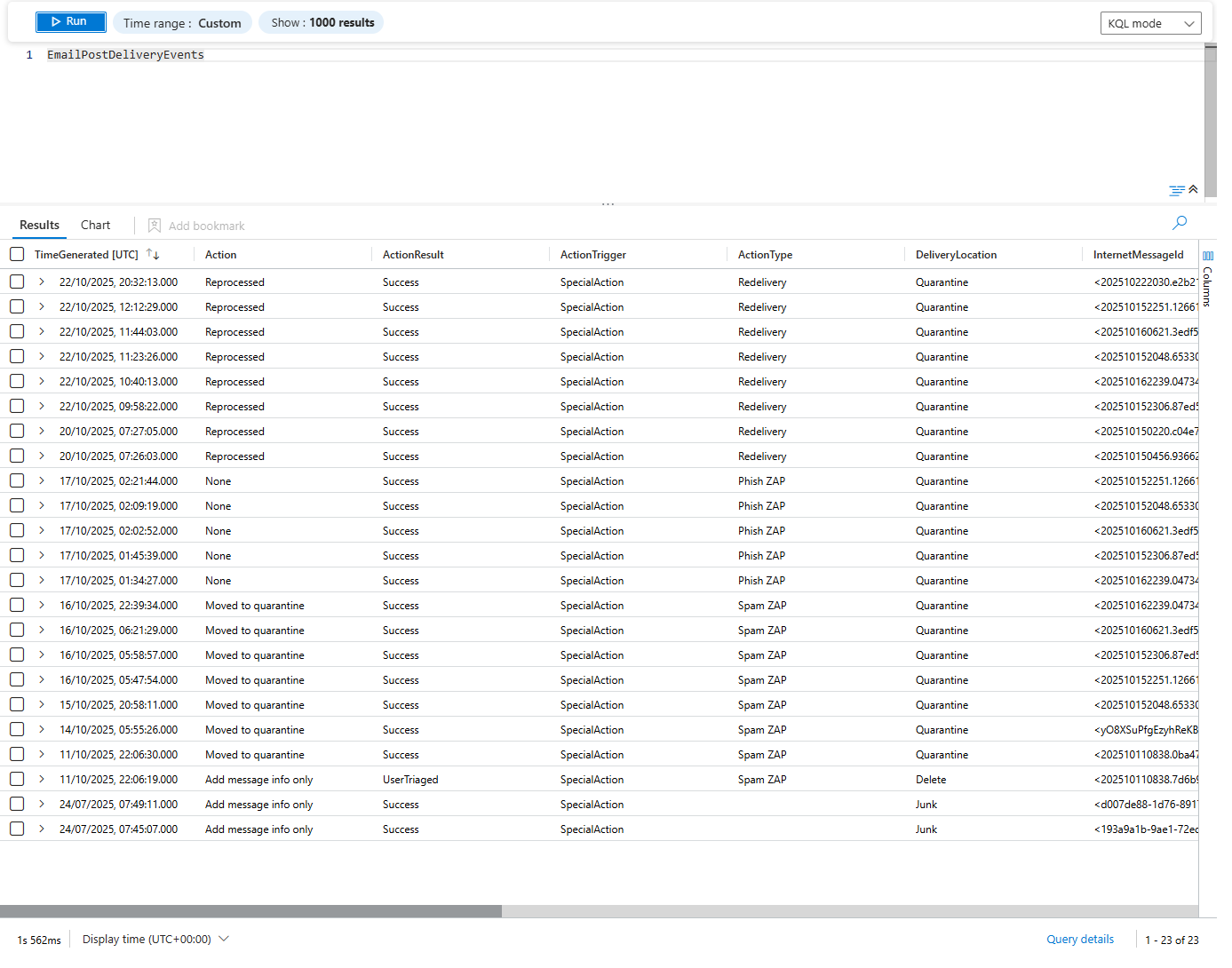
EmailPostDeliveryEvents: The forensic table. When ZAP (Zero-hour Auto Purge) retroactively removed an email after delivery. When remediation actions are fired. If a malicious email got through, got delivered, and then you caught and removed it, the entire timeline is in this table.
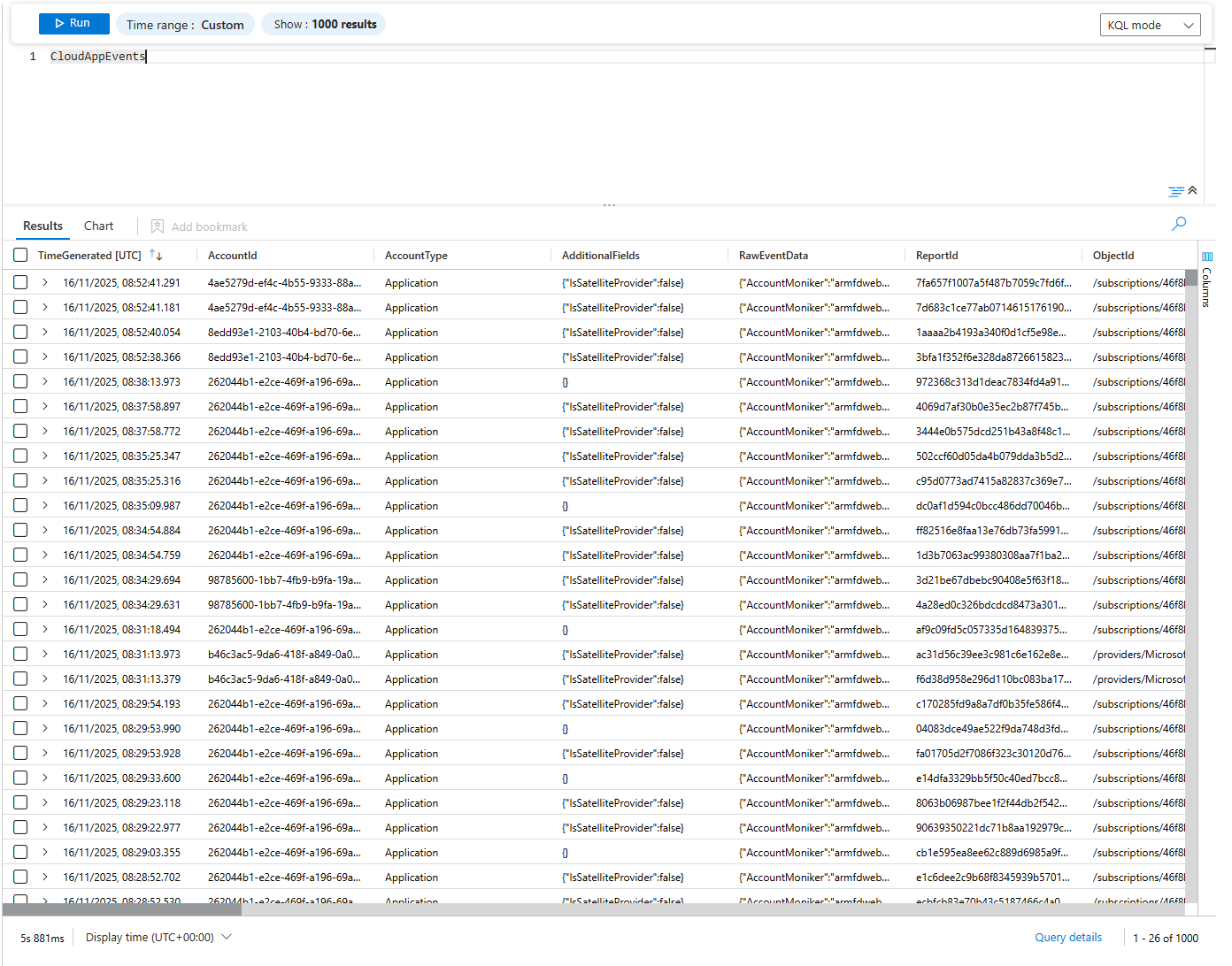
CloudAppEvents: Every admin action in Defender settings. Who changed policies? When someone released a quarantined email. What user settings changed? Suppose you're investigating whether an insider leaked security config. In that case, this is where you look (as you may know, CloudAppsEvents is native to Cloud Apps, and goes beyond that, showing your Defender for Office data as well as enriched logs from SaaS apps connected to Defender for Cloud Apps, fantastic table!)
This is where Defender for Office becomes valuable. Not the initial blocking. The forensic visibility after the attack.
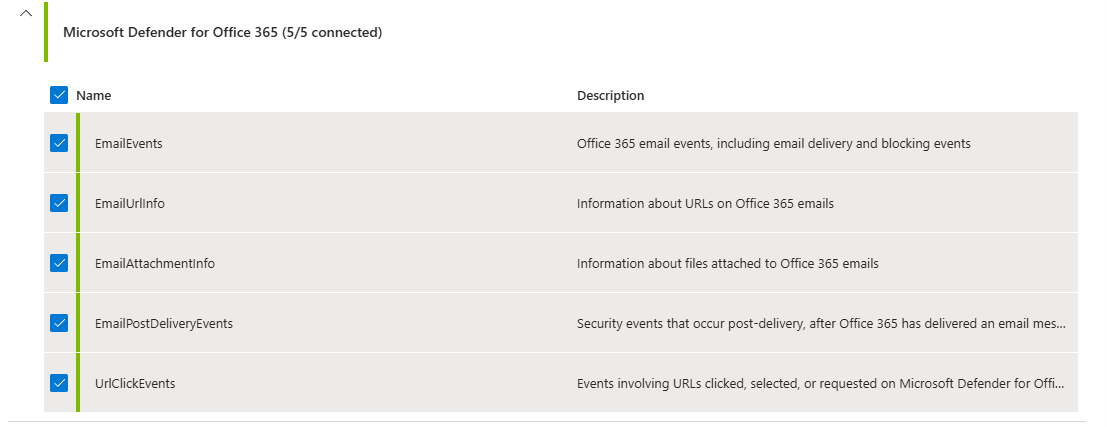
Those tables will auto-populate if you have Unified Experience turned on (which you should at this point) you should also enable it in your Microsoft Defender XDR data connector.
Real Incident: How This Actually Works
Phishing email arrives. Looks like an internal payroll system update. User clicks the link.
Here's what happens in Sentinel immediately: An alert fires. Defender for Office 365 has default alert policies enabled, and one of them is "A potentially malicious URL click was detected." If the URL is flagged as phishing or malware, that alert populates in Sentinel as soon as the user clicks.
What's amazing with this alert is that some of the organisations will just say "If it was remediated, then we don't have to worry about that" - it's by far one of the biggest mistakes I can see, instead of using that to educate user and strengthen security posture (to see how the email landed in the user inbox in the first place) this is dismissed.
How to Hunt this scenario:
The user got taken to a convincing clone of your HR portal login. They entered credentials. Attacker now has HR database access.
Query UrlClickEvents table first. Find the click. You get Timestamp, AccountUpn (who clicked), Url (what they clicked), ActionType (was it blocked?), ThreatTypes (phishing, malware, etc.), and IsClickedThrough (did they bypass the warning?).
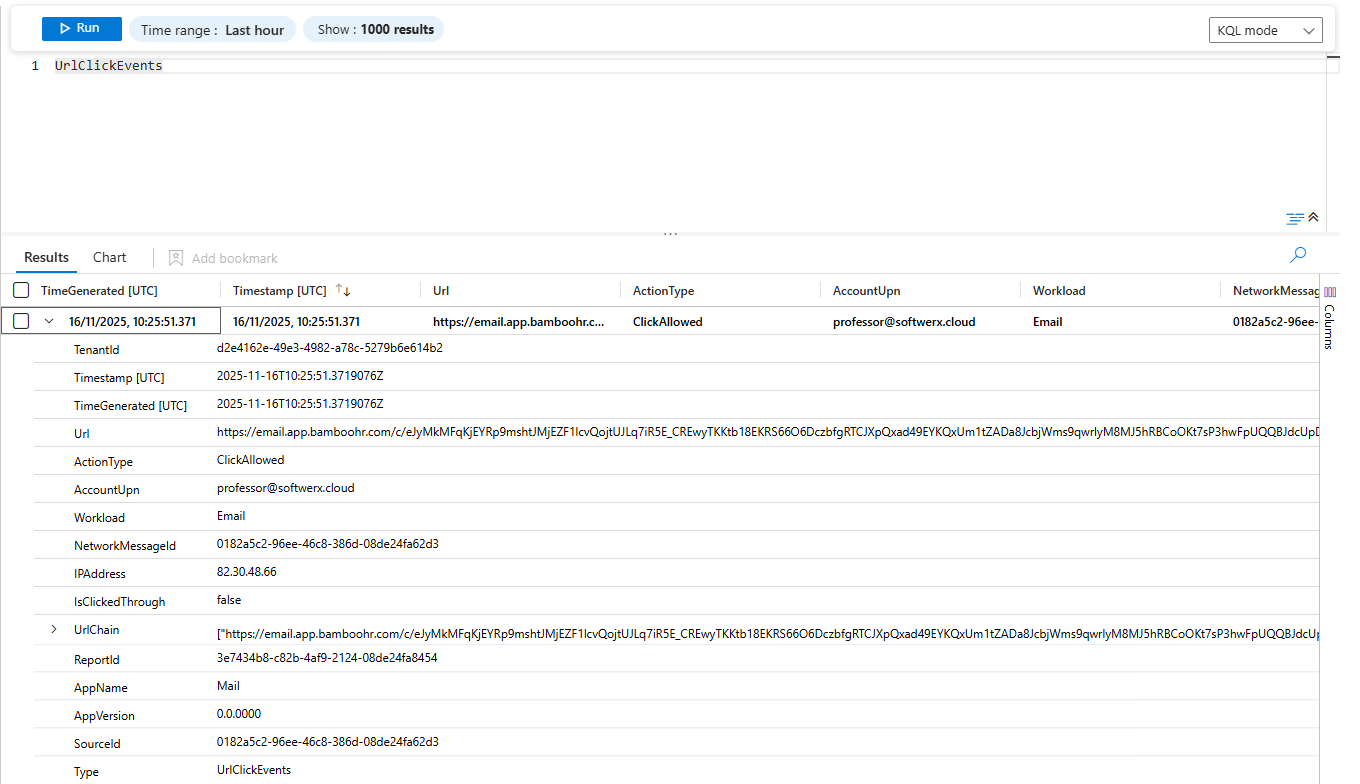
If IsClickedThrough is true, that user bypassed a warning. That's intentional or the attacker social engineered them hard. Either way, compromised.
Now join UrlClickEvents with EmailEvents using NetworkMessageId. You get the full email context: sender, recipient, subject, delivery time, all URLs in the email.
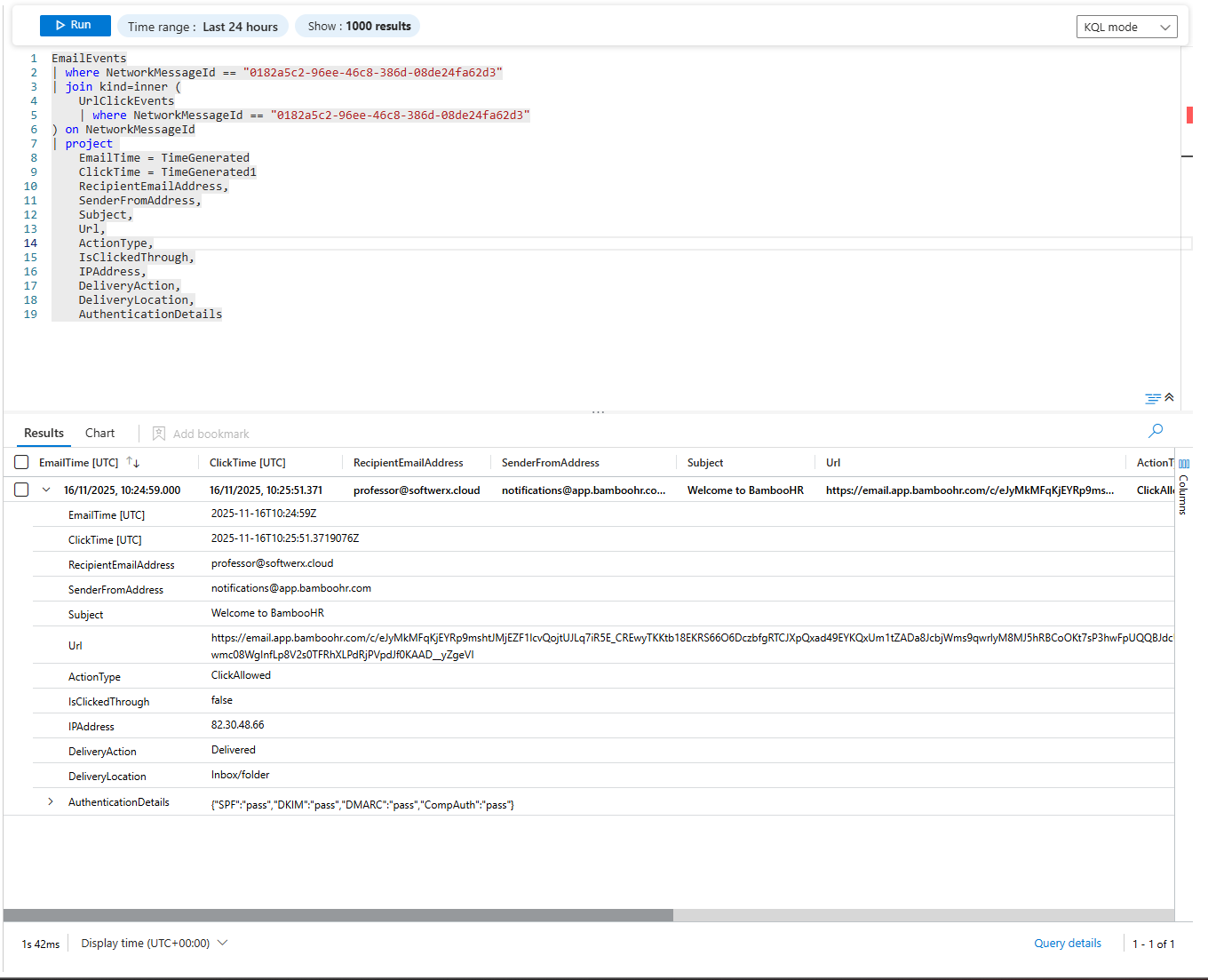
The query result may show that one phishing email was sent to 47 users. You thought this was one user's mistake. It wasn't.
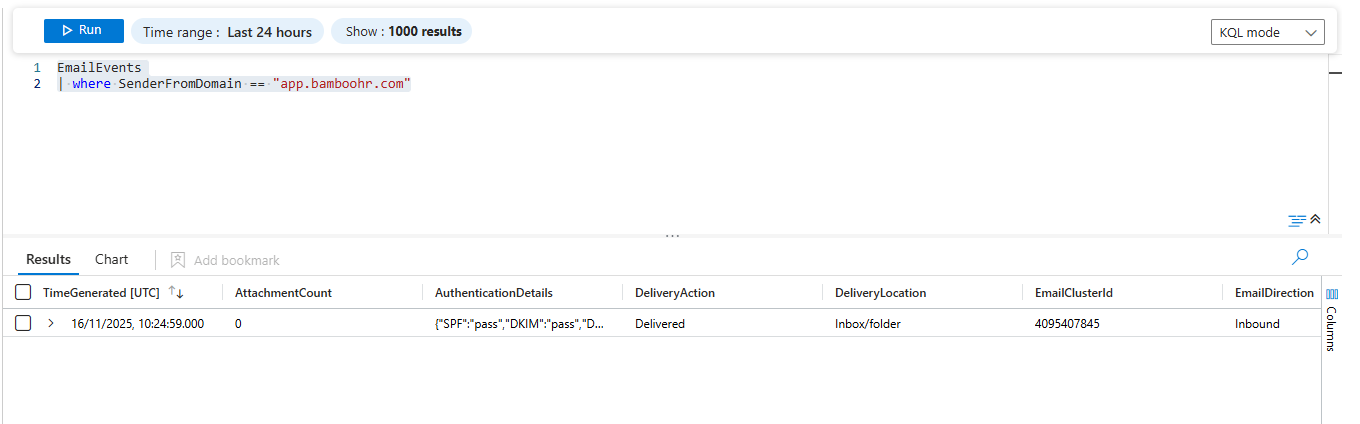
Query EmailEvents over 60 days for that same domain (extract from the URL field). Find earlier test emails from the same attacker. Maybe they've been probing your org for weeks.
Cross-reference with SigninLogs. Search for authentication attempts from those users within 30 minutes of the click timestamp. Find users who clicked AND tried to authenticate.
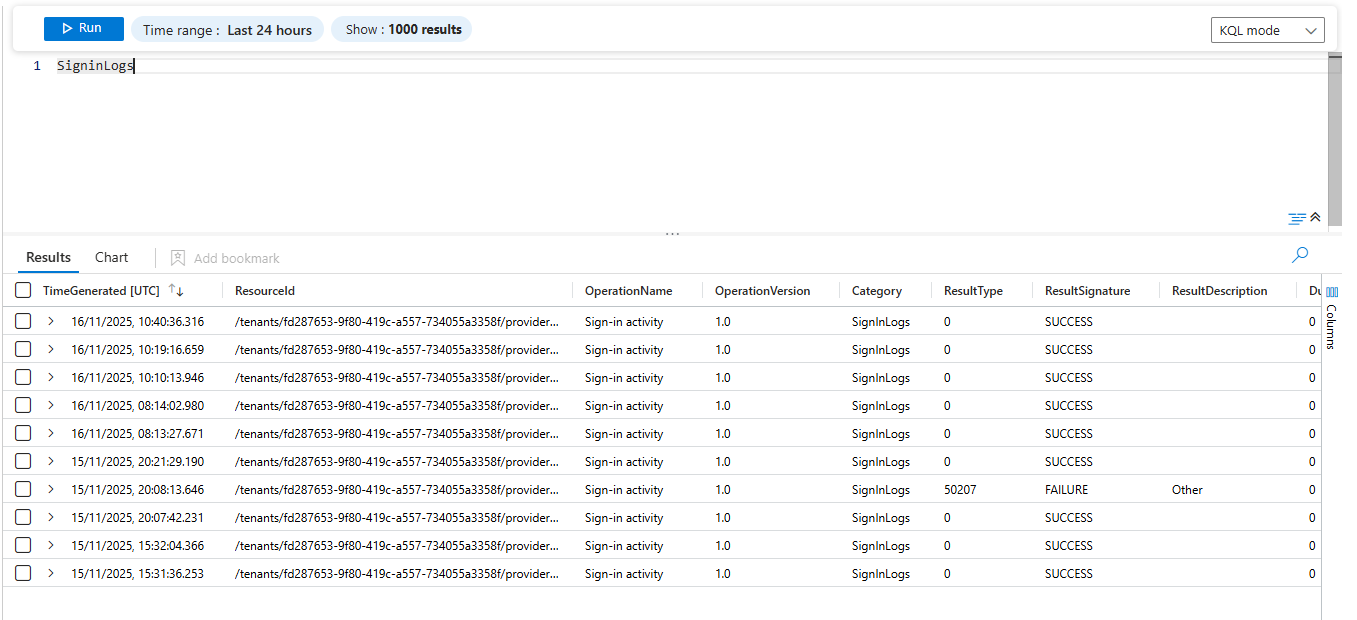
Now query BehaviorAnalytics for those users. Did they trigger anomalies after credential entry? Impossible travel? Rapid file access? Lateral movement?
You've gone from "one phishing report, probably nothing" to "five compromised users, two with data exfiltration patterns, three with privilege escalation attempts."
Alert Policies: They're Already Running, You Just Don't Know About Them
Microsoft ships 47 default alert policies. They're on by default. Most people have no idea they exist.
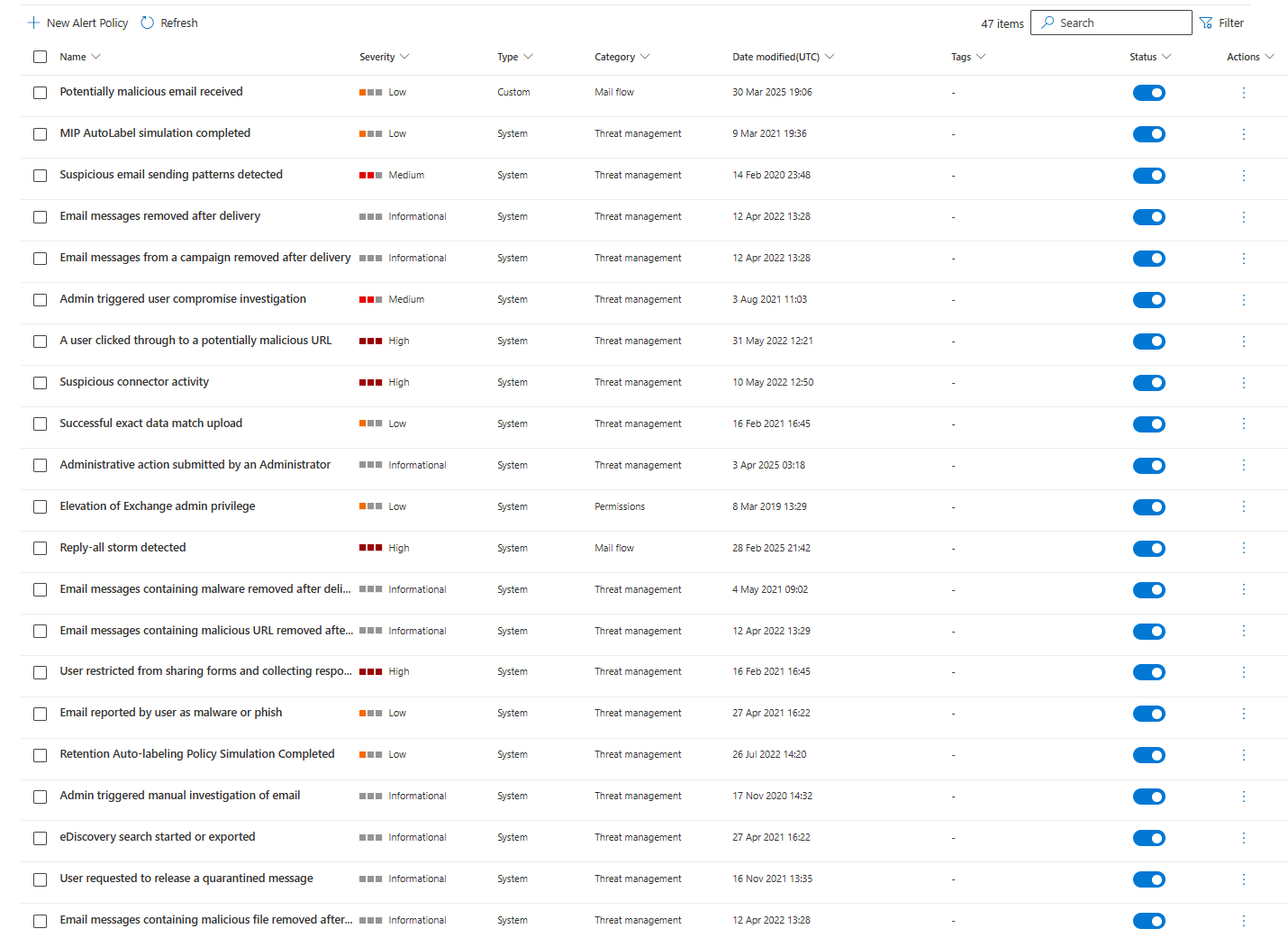
Go to the Microsoft Defender portal > Email & collaboration, then Alert policies. You'll see them all listed. "A user clicked through to a potentially malicious URL." "Email messages removed after delivery." "Suspicious email sending patterns detected." All firing right now. In case you were wondering where you're getting those alerts from, now you know.
Defender correlates these alerts automatically. It aggregates related alerts across all sources and creates incidents from them. If a URL click alert fires and an email removal alert fires from the same user, Defender merges them into a single incident with both data points. That's automatic. No configuration needed.
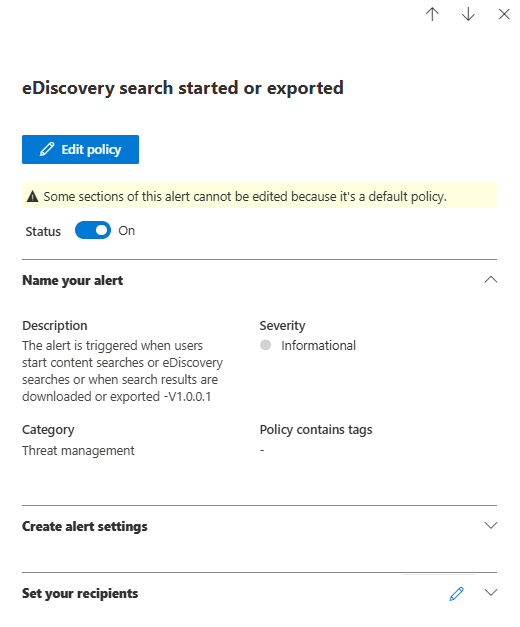
A lot of those alerts can (and should) be automated to auto-close or to notify only; a good example is an eDiscovery search started/exported.
When This Doesn't Make Sense
Defender for Office 365 Plan 1 comes included with Microsoft 365 Business Premium. If you're already on Business Premium, you already have Defender. The cost-benefit question is already answered for you.
If you already have a third-party email gateway (Proofpoint, Mimecast), adding Defender doesn't make it redundant; it makes it layered. Some orgs run both. Some pick one. The decision depends on your team's expertise, not on one being objectively better. Proofpoint has better BEC detection. Mimecast has better DMARC management. Defender has better Teams and SharePoint integration. Pick based on what you actually need, not on sticker price.
Default settings are actually solid now (Microsoft fixed this in 2024). But you can't set it and ignore it. Phishing thresholds drift. New vendors impersonate your finance team. Spoof intelligence needs a monthly review. If you don't have 2-3 hours per month to review impersonation rules and Configuration analyser recommendations, don't buy it. You'll deploy it, realise it requires attention, disable policies to reduce noise, and waste money on something you're not using.
Class Dismissed.